
Here’s what you can do if Call of Duty Vanguard won’t launch on Windows 11/10. Call of Duty: Vanguard is a popular first-person shooter available on PC. And ever since its release, the game has captured the attention of gamers across all genres. However, some users have already reported that the game isn’t launching on their Windows PC. So, if you are one of those gamers who is having a hard time launching the game, this guide will help you. Here we are going to mention all the effective solutions that will help you get rid of the launch issue with Call of Duty: Vanguard. Let’s begin.
Call of Duty Vanguard is crashing and won’t launch on PC
Here are workarounds to try to fix the launch or crash issue in Call of Duty: Vanguard.
- Disable all the Background Running Applications
- Download the Latest Driver Update
- Repair the Game Files
- Check the Server Issue
- Turn off DirectX 12
- Allow Call of Duty Vanguard through Firewall
- Download the Latest Windows Update
- Reinstall Call of Duty Vanguard
Let’s check out all these solutions in detail.
1] Disable all the Background Running Applications
A lot of applications running in the background are the very first reason you are facing difficulty in launching the game. Call of Duty: Vanguard is a graphics-intensive game and consumes a lot of system resources. But if you have many applications running in the background, you are more likely to encounter launch issues. Thus, disable all unnecessary applications running in the background to fix the problem.
To begin with, press the Ctrl + Shift + Esc hotkey simultaneously to open the task manager. Right-click on all the unnecessary applications and choose the End Task option. Now launch the game and check whether the problem is fixed.
2] Download the Latest Driver Update
As mentioned, Call of Duty: Vanguard is a graphics-intensive game; thus, you need to make sure the graphics drivers are up to date. An outdated or faulty GPU driver will prevent such high-graphics games from running on your system.
You can download the latest graphics driver update using Settings > Windows Update > Advanced options > Optional updates feature. Alternatively, you can visit the official device manufacturer’s website to download and install the drivers.
Once you have updated the graphics driver, launch the game and check if the problem is fixed or not.
Read: How to install Call of Duty Mobile on Windows PC
3] Repair the Game Files
If the game files have been corrupted, damaged, or are missing, you will face the launching issue in the game. In such a situation, the best thing you can do is to repair the game files via the Battle.net client. To do so, follow the steps below.
- To begin with, right-click on the Battle.net file and choose the properties option.
- Now, go to the Compatibility tab and under the Settings section, check the Run this program as an administrator checkbox.
- Tap on Apply > Ok.
Launch the game, and check if the problem is fixed or not.
4] Check the Server Issue
The ongoing server issue may also be why you are unable to launch the game on your system. You can check the server status of Call of Duty Vanguard by visiting the Activision official server status page. If there’s an ongoing service issue, you can’t do anything but wait until the developer fixes it.
5] Turn off DirectX 12
Call of Duty Vanguard requires DirectX 11 to run on your Windows PC. But in case you are using DirectX 12 instead of DirectX 11, you will face the launch issue with the game. You can go back to DirectX 11 by following the steps below.
- Press the Windows + E hotkeys to open the File Explorer on your system.
- Click on the Documents options from the left panel of the screen.
- Open the Call of Duty Vanguard folder.
- Locate and open the Settings folder.
- Inside the folder, right-click on PROFSAVE_profile, and open it in Notepad.
- Change the GstRender.Dx12Enabled value to 0.
- Save the file, close the Notepad view.
Now, launch the game and check if the problem persists.
6] Allow Call of Duty Vanguard through Firewall
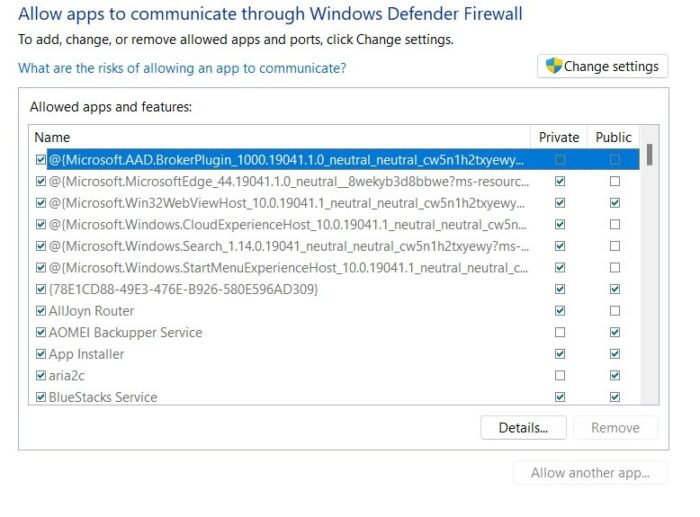
Windows Firewall can sometimes block applications from functioning and cause various issues. Similarly, if the Call of Duty Vanguard launch client is blocked in the Windows Firewall settings, you will face difficulty running the game on your system. You will need to allow the Vanguard launch client through Windows Firewall to fix the problem. To do so, follow the below steps.
- Click ‘Start’ and type ‘Firewall’ in the search field and then click “Allow an app or feature through Windows Firewall’ from the search results.
- On the next screen, click Change Settings
- On the list of programs that appears, tick/check both ‘Private’ and ‘Public’ options for the Vanguard launch client.
Save the settings and exit the screen. Open the game and check if the problem is fixed or not.
6] Download the Latest Windows Update
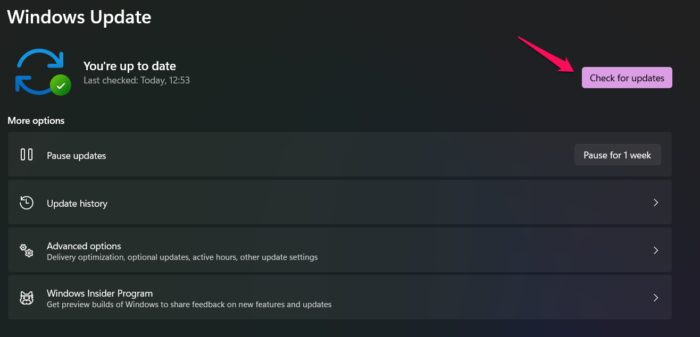
Downloading the latest Windows updates is another effective workaround you can try to fix the launch issue with Call of Duty Vanguard. So, update your system to fix the problem. Here are the steps you need to follow.
- Press the Windows + I shortcut key to open the Settings menu.
- Click on the Windows Update option present at the left panel of the screen.
- In the following window, tap on the Check for Updates option.
Now, Windows will check for any available updates, and once found, it will automatically start downloading them. Restart the system after installing the updates. Launch the game and check if you are still facing the problem.
7] Reinstall Call of Duty Vanguard
If none of the above-mentioned workarounds helped you in solving the problem, the last thing you can try is to reinstall Call of Duty Vanguard on your system. There may be an installation error preventing the game from launching on your system. And in such a case, the best thing you can try is to reinstall the game.
Why does Vanguard keep crashing on launch?
There are several reasons Call of Duty: Vanguard keeps crashing at launch. From unnecessary applications running in the background, outdated graphics cards, corrupted game files, to a lack of administrative privileges, anything can trigger the crashing issue. In addition to all these, an outdated system is another major reason for the problem.
How do I run COD Vanguard as an administrator?
It’s very easy to run Call of Duty Vanguard as an administrator. Navigate to the Call of Duty Vanguard folder and locate the Vanguard launcher.exe. Right-click on the file and choose the ” Run as Administrator ” option. That’s it, now the game will run in administrator mode.
