
If screen recording is not working in Clipchamp in Windows 11, here is what you can do to fix the problem. There are a number of things that need to be in line so that Clipchamp can start recording your screen or any specific program window, and here we are going to discuss all those possible causes along with the solutions in this article.
Primary reasons why Clipchamp screen recording is not working:
- Permission issues: It is the main reason why Clipchamp fails to record your screen.
- Browser problem.
- Apps may have restrictions.
- Clipchamp app is outdated or has some bugs/glitches.
There are other reasons, but these are some of the most common things that may block you from recording your screen.
Clipchamp screen recording not working in Windows 11
If Clipchamp screen recording is not working in Windows 11, follow these instructions:
- Check Camera and Microphone permission
- Repair and reset Clipchamp
- Update Clipchamp
- Check browser permissions
- Browser must support JavaScript
- Ensure the selected program has no restrictions
To learn more about these solutions, continue reading.
1] Check Camera and Microphone permission
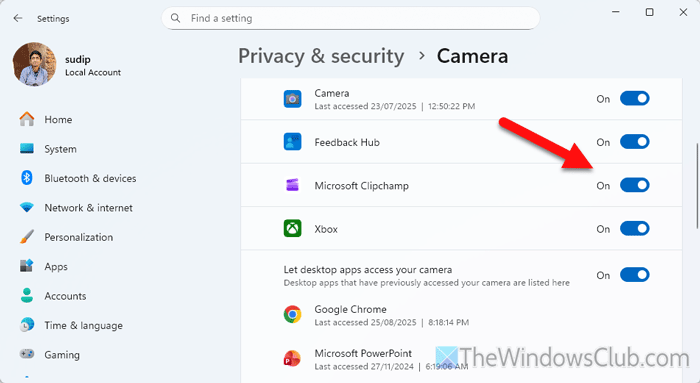
Clipchamp needs camera and microphone permission before it starts recording your screen, and it is the same for the desktop version as well as the Web version. To check those permissions and allow Clipchamp to access the camera and microphone of your computer, follow these steps:
First, press Win+I to open Windows Settings and go to Privacy & security > Camera. Find Microsoft Clipchamp and toggle the corresponding button to turn it ON.
Next, go to the Microphone section, and do the same with Microsoft Clipchamp.
Once done, re-open Clipchamp and start screen recording.
Read: Fix Microphone or Camera access is denied in Clipchamp
2] Repair and reset Clipchamp
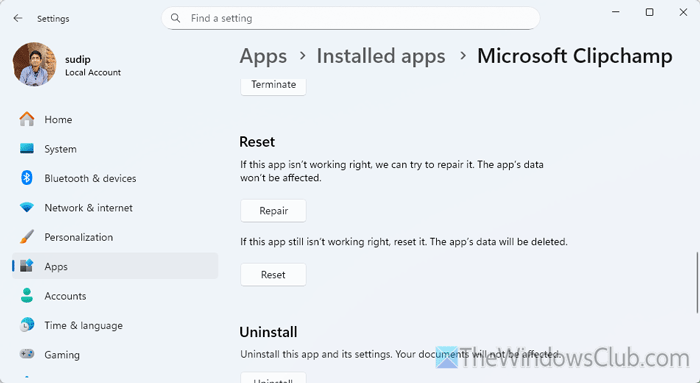
To repair and reset Clipchamp, follow these steps:
- Open the Windows Settings panel on your computer.
- Go to Apps > Installed apps.
- Find Microsoft Clipchamp, click on the three-dotted icon, and select Advanced options.
- Click the Terminate button first.
- Click the Repair button to start he repairing process.
- Open Clipchamp and check if it fixes the issue or not.
- If not, click on the Reset button twice to confirm.
Read: Reset or Repair Microsoft Store apps via Windows Settings
3] Update Clipchamp
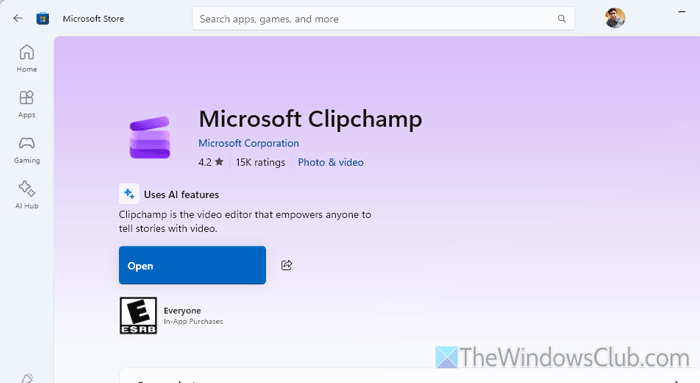
If your app has not been updated for a very long time, this problem may arise. Therefore, it is suggested to check if an update is available on the Microsoft Store and install it accordingly.
Read: How to update Microsoft Store Apps manually in Windows 11
4] Check browser permissions
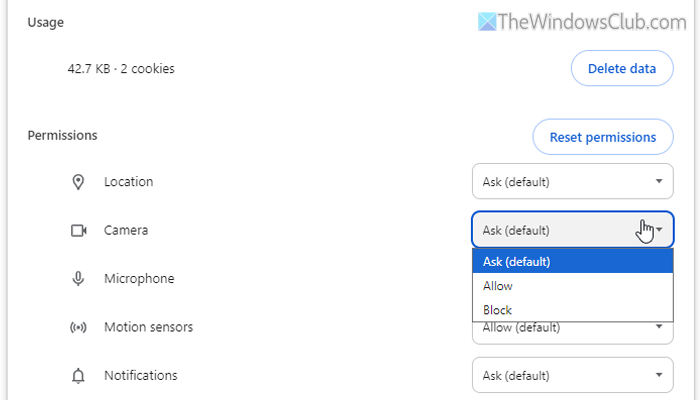
If you use the Web version, it is essential to check for permission. In other words, your browser must have permission to access your camera and microphone. Even though you do not want to allow your browser to access both of them, you must allow the Clipchamp website to access them through your browser.
To check the browser permissions, follow these steps:
- Open the Clipchamp website and click on the settings icon visible in the address bar.
- Select Site settings.
- Find the Camera and Microphone and choose the Allow option.
However, if you use the Microsoft Edge browser, open the Settings panel and go to Privacy, search, and services > Site permissions > All permissions > Microphone, and head to the Not allowed to use your microphone. If Clipchamp is visible in that list, you need to remove it from there.
Read: How to manage Website Permissions in Chrome
5] Browser must support JavaScript
If you use a text-based browser, you may not be able to record your screen through Clipchamp. Your browser must support JavaScript and have microphone (at least) permission. That is why we would suggest you use the latest version of Google Chrome or Microsoft Edge for a better user experience.
Read: How to automatically switch Profiles for specific sites in Edge
6] Ensure the selected program has no restrictions
There are many programs that do not allow you to take a screenshot of the opened window. If such a program window is opened on your desktop, there is a chance of getting this problem. You can close it and check if you can record the screen or not.
Read: How to use Clipchamp video maker and editor in Windows 11
Why can’t I record my screen on Clipchamp?
The main reason you cannot record your screen on Clipchamp is that Clipchamp doesn’t have the Camera and Microphone permissions. Without these permissions, Clipchamp won’t open the recording prompt. Secondly, if you use the web version, ensure that your browser can access your camera and microphone.
Read: Clipchamp Autocaptions not working
How to screen record on Windows Clipchamp?
To record your screen on Clipchamp, go to the Record & create button and choose the Screen option. Then, click the record button and give Clipchamp permission to access your microphone and camera.
Read: Clipchamp stuck on Preparing screen [Fix]
