
Users may encounter different issues while using ChatGPT. Some of the most common issues are ChatGPT getting stuck on loading, sending, or thinking. In all of these situations, ChatGPT freezes and fails to respond properly, leaving users frustrated. These issues occur for multiple reasons, such as server outages, unstable internet connections, and browser issues. If ChaGPT gets stuck on loading, sending, thinking, analysing, etc., problems, this article will help. Here, we will discuss each of these issues separately.
ChatGPT is stuck on loading, sending, thinking, analyzing, etc., problem
Here, we will talk about each of these problems separately, where ChatGPT gets stuck on loading, sending, thinking, analyzing, etc., problems. Before proceeding, try hard reloading the web page. This action will bypass the cache and cookies. For this, press Ctrl + F5 keys.
ChatGPT gets stuck on Loading
If ChatGPT gets stuck on loading and you cannot get any output, use the following fixes:
- Switch to another internet connection
- Clear cache and cookies
- Disable Hardware Acceleration in Chrome (if applicable)
- Disable extensions
- Switch to another browser
- Disable QUIC protocol in Chrome (if applicable)
- Workaround
All these fixes are explained in detail below.
1] Switch to another internet connection
An unstable internet connection might be causing this problem. Switch to another available network. If this works, you can power-cycle your Wi-Fi router. Follow these steps:
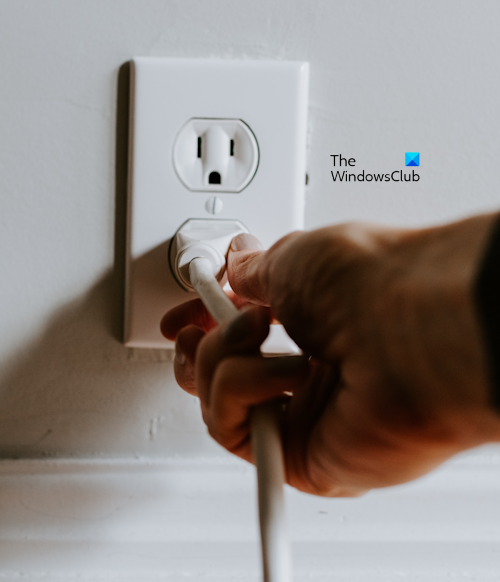
- Turn off your router.
- Unplug the adapter from the wall socket.
- Wait for a few minutes.
- Plug in the adapter and turn on your router.
2] Clear cache and cookies
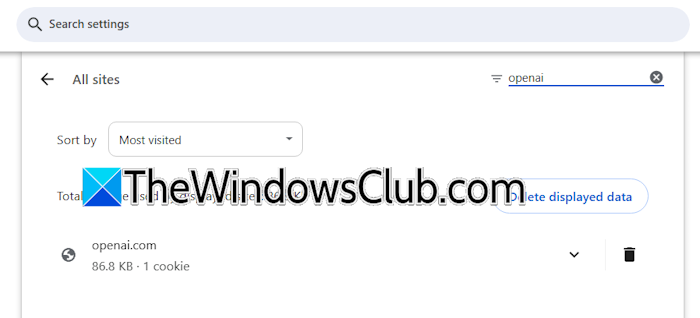
The corrupt cache and cookies are another cause of this issue. Press Ctrl + Shift + Delete keys to clear the cache and cookies. If you do not want to clear all cache and cookie data, clear it only for ChatGPT and OpenAI.
3] Disable Hardware Acceleration in Chrome
If the issue persists, disable hardware acceleration in Chrome. The following steps will guide you on this:
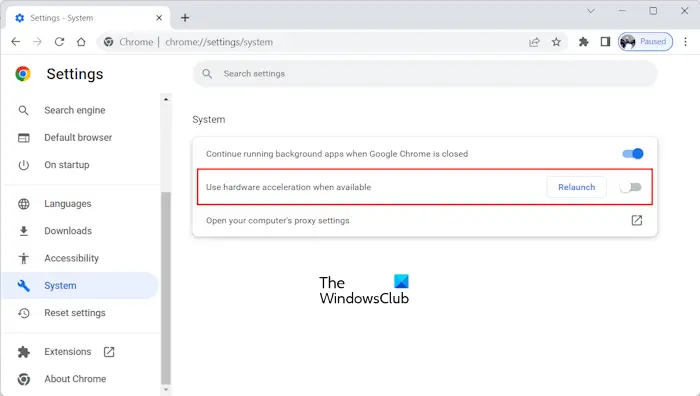
- Open Google Chrome settings.
- Select System from the left pane.
- Turn off Use graphics acceleration when available.
- Relaunch Chrome to apply changes.
4] Disable extensions
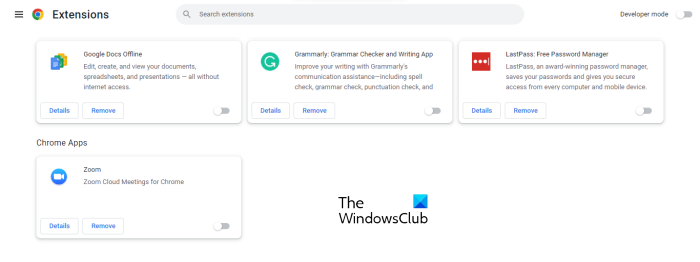
Some extensions might be conflicting with your web browser and causing this issue. To verify this, disable all the installed extensions and reload the web page. If this resolves the issue, you need to find the problematic extension. For this, enable one extension at a time and reload the web page. Repeat this until the issue reappears. When the problem reappears, the extension you have just enabled is the culprit. Now, uninstall it and look for its alternative.
5] Switch to another browser
Switch to another web browser. If this works, the problem is associated with the browser you were using previously. Uninstalling and reinstalling that browser can help.
6] Disable QUIC protocol in Chrome (if applicable)
If you use Chrome and this issue occurs, you can try disabling the QUIC protocol. QUIC is a transport-layer network protocol designed to make web communication faster and more reliable. If this protocol is enabled in Chrome, try disabling it and see if it helps.
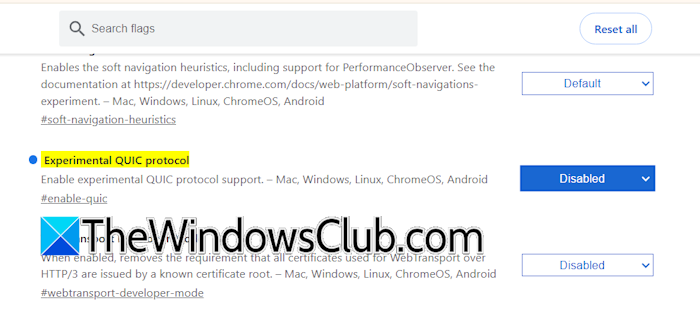
Open a new tab in Chrome and visit the following address:
chrome://flags/#enable-quic
Select Disabled in the drop-down and relaunch Chrome.
ChatGPT is stuck on Thinking
If ChatGPT gets stuck while thinking, first check your internet connection. If another network is available, connect your system or mobile phone to it. If this works, you can power-cycle your Wi-Fi router. Other fixes that you can try include switching to another web browser, disabling extensions, or clearing cache and cookies.
If these fixes do not work, use the following fixes:
- Flush DNS cache or switch to Google DNS
- Workarounds
1] Flush DNS cache or switch to Google DNS
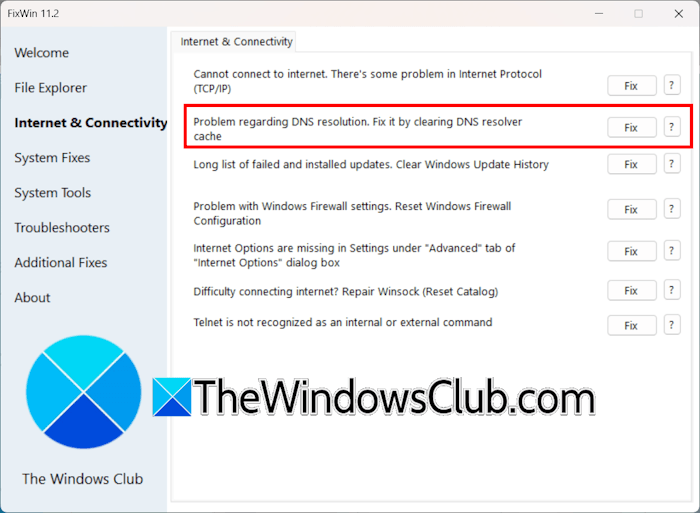
Flushing the DNS cache can help fix network issues on a Windows computer. Try this. You can also use our FixWin 11 for PC for one-click solutions to PC problems.
If this does not work, set up Google Public DNS on your system and see if it helps.
2] Workarounds
You can try some workarounds.
- Switch to another AI model in ChatGPT, then send a message. Now, switch back to the previous model and see if the issue appears.
- Install the ChatGPT app on your phone and log in with the same email address. Now, open the same chat and send a message from your phone. After that, reload the web page in the browser on your PC and see if you can continue the chat. If the issue occurs on your phone, you can try this workaround vice versa.
ChatGPT is stuck on Analyzing image
Sometimes, ChatGPT may get stuck on analyzing images. In such a case, hard refreshing the web page can help. If this works, your browser might have corrupt cache and cookie data. Clear cache and cookies to fix this issue. Additionally, you can try disabling your browser extensions and disconnecting from the VPN or Proxy (if applicable).
ChatGPT is stuck on Starting download
If ChatGPT gets stuck on starting the download and you cannot download your files, try the usual fixes as described above in this article. If these fixes do not work, use the following solutions:
- Add your chat to a new project
- Ask ChatGPT to create a Zip file
- Use your mobile or PC
1] Add your chat to a new project
This is a workaround that you can try. Add your chat to a new project and then download your files.
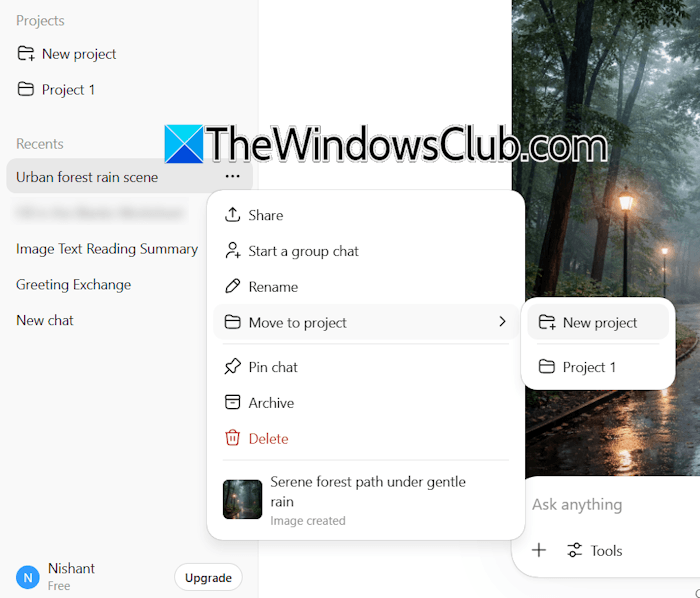
The following steps will guide you on this:
- On the left pane, click Projects and create a new project.
- Now, click on the three dots next to the chat you want to move to the newly created project.
- Select Move to Project > your project name.
After moving your chat to the new project, open that project and then open the chat. Now, see if you can download your files.
2] Ask ChatGPT to create a Zip file
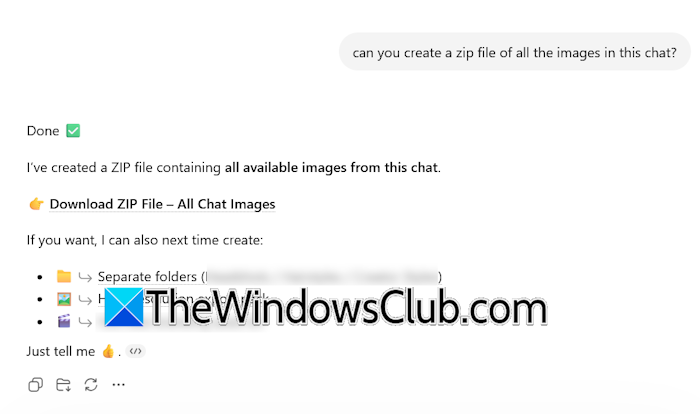
If you cannot download images separately, you can ask ChatGPT to create a zip file of all the files in your chat, so you can download them in one go.
3] Use your mobile app or PC
If the issue occurs on your PC, you can try downloading the files from the ChatGPT mobile app, and vice versa.
ChatGPT is stuck on Sending
If ChatGPT gets stuck sending a message and you can no longer use it, try the general fixes described in this article. If they do not work, you can try a workaround that requires changing the interface language.
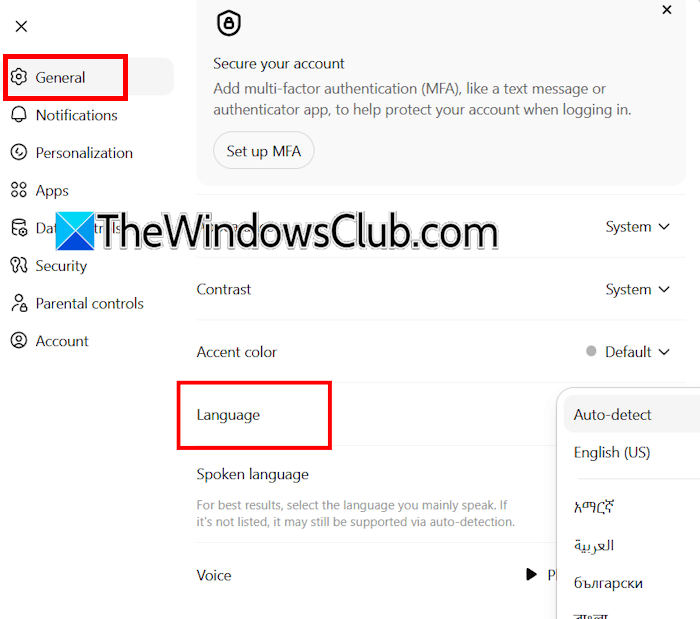
Change the ChatGPT interface language to your native language or English. This won’t affect your conversational language. You can still chat in your favorite language. Follow these steps:
- Click your profile icon on the bottom left side and select Settings.
- Under the General tab, change the language to Auto-detect, English, or your native language.
ChatGPT stuck on Image Generation
Sometimes, ChatGPT gets stuck on image generation. In such a case, branching the chat is the most effective solution to fix this issue. You can also try general fixes, like disabling your browser extensions, using the ChatGPT app, etc.
Read next: ChatGPT stuck in Verification loop.
How do I clear ChatGPT cache?
An option to clear the cache for specific websites is available in all web browsers. If you want to clear ChatGPT cache, you need to clear specific site data for ChatGPT and OpenAI. Open your browser settings and look for this option.
Why is ChatGPT not loading answers?
The issue might be with your internet connection. To verify this, connect with another available network. If this works, you can power-cycle your WiFi router. Other causes include corrupt cache and cookies, and conflicting extensions.
