
In this article, we explain why you might not be able to delete OneDrive files or folders on your Windows PC and the best solutions to fix the issue. You may want to delete files and folders in OneDrive to free up space, remove files you no longer use, or for your own preferences. Whatever the reason, the process should be as seamless as possible.
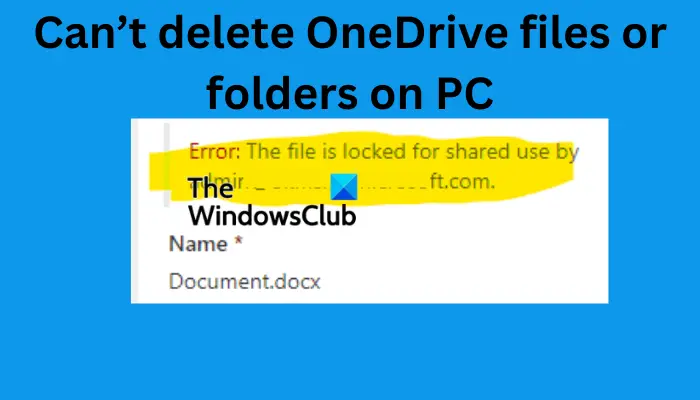
The error says that the OneDrive file is locked or is sometimes grayed out and becomes unresponsive.
Can’t delete OneDrive files or folders on PC
If you can’t delete files on OneDrive, use the following methods to resolve the issue:
- Preliminary troubleshooting steps
- Pause syncing temporarily
- Try to delete the file from another device
- Move or rename the file or folder
- Change Files On-Demand settings
- Reset OneDrive
- Reinstall OneDrive
Let us cover these solutions one by one in detail.
1] Preliminary troubleshooting steps
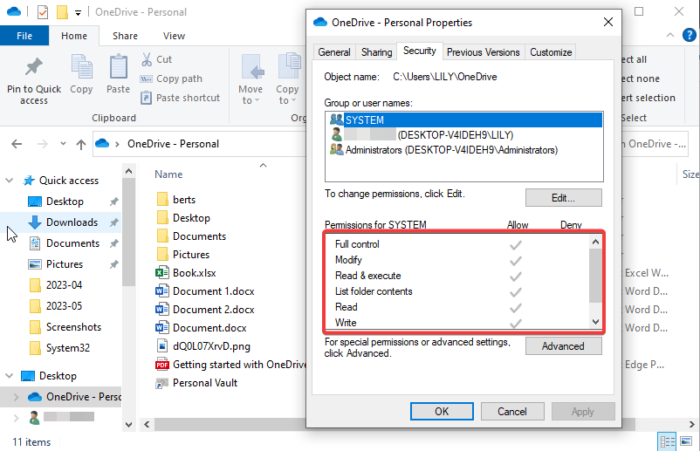
Performing preliminary troubleshooting steps can fix the issue. Before you go to more complex solutions, try the following steps;
- Ensure that the files or folders you want to delete are not in use on another computer or another user is accessing it.
- Try deleting the files using another user account or device.
- If the file is opened on your computer, make sure it’s closed and retry deleting it.
- Check if you have permission to modify the file or folder. If someone else shared the file, ask them to give you the permissions you need to delete it. If the document has limited access, you can’t delete it unless the owner allows you to.
Read: How to remove shared files from OneDrive
2] Pause syncing temporarily
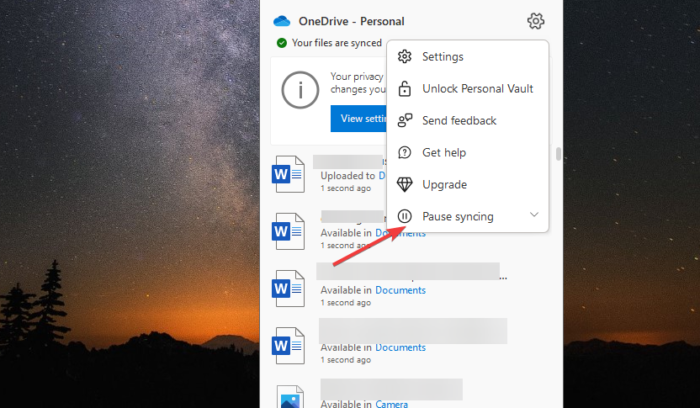
If OneDrive is syncing files while you are trying to delete them, it will not work. To fix this, stop syncing, then delete the files or folders.
To pause OneDrive sync, open the app from the taskbar and go to OneDrive Settings. Here, select Pause syncing and choose the duration you would want to pause. Give it about a minute before you can retry to delete the files or folders.
After you delete them, go back to OneDrive settings and unpause syncing.
Read: Can’t delete files from External Hard Drive in Windows
3] Move or rename the file or folder
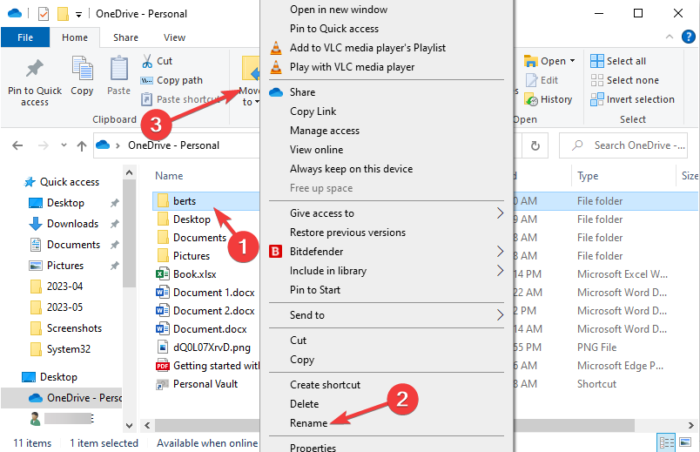
In as much as this solution looks odd, it has worked for some users, hence it’s worth trying in your case.
To rename a file on OneDrive, select the document and click Rename from the top toolbar. You can also select the file or folder and press F2 on your PC keyboard or right-click the file and select Rename. After that, try to delete the folder or file and see if it works.
If that doesn’t work, try to move the file. Right-click on the file and then select Cut. Choose a location outside the folder and press Ctrl + V to paste the file. Try deleting it from the new location.
4] Change Files On-Demand settings
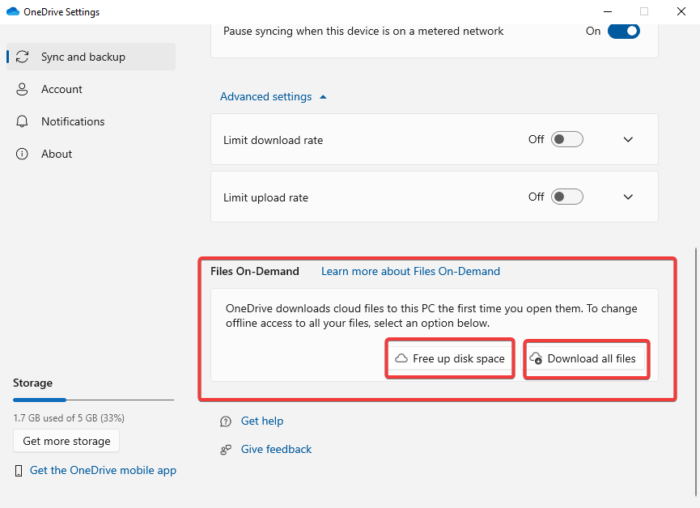
Files On-Demand is a great OneDrive feature that allows users to access files and folders on the cloud without downloading. However, it has been reported to cause issues with OneDrive, such as users being unable to delete files. So, we need to turn the feature off and see whether we can delete files in OneDrive. Follow the steps below;
- Go to the Taskbar tray area, locate the OneDrive icon, and right-click it.
- Go to Help & Settings > Settings.
- Go to Advanced settings and choose your preferred option under the Files On-Demand option. Finally, click Continue to complete the process.
- Go ahead and try to delete the files. Once done, go back and enable the Files On-Demand feature.
5] Reset OneDrive
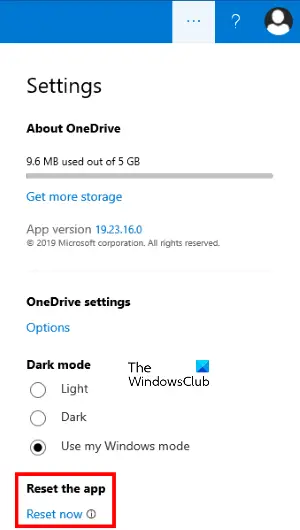
Resetting OneDrive does not make you lose any files or folders. It only removes all the sync connections and you may need to re-add the folders or files you want to sync. If you still can’t delete OneDrive files or folders on your PC, reset the app using the following steps;
- While on the OneDrive app, locate and select the app Settings.
- Scroll down the options and choose Reset.
When the OneDrive app restarts, it will check the registry, then load the settings and rebuild the DAT file. This may resolve the issue preventing you from deleting OneDrive files or folders on your PC.
6] Reinstall OneDrive
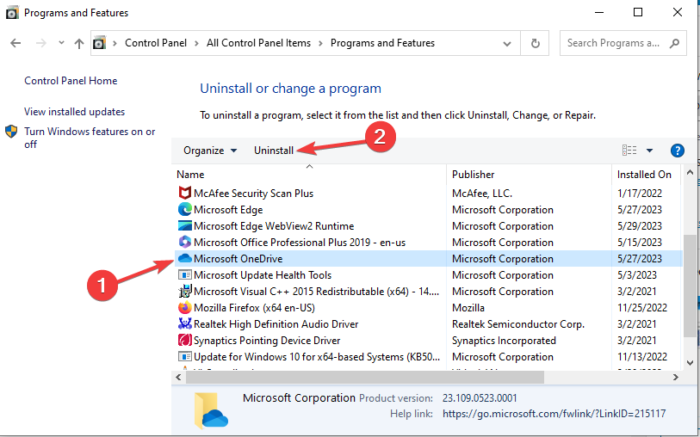
If all other solutions don’t work for you, you can reinstall OneDrive if you still can’t delete OneDrive files or folders. Follow the steps below;
- Open Control Panel by searching it on the search box.
- Go to the Programs and Features option and look for Microsoft OneDrive and select it.
- Click on Uninstall and let the system remove it from your PC.
- Go to the OneDrive website or Microsoft Store, download the OneDrive app, and follow the on-screen directions to reinstall it. Try to delete the files and see if it works.
We hope one of the solutions helps you if you can’t delete OneDrive files or folders on your PC.
Fix: OneDrive error code 0x8004def7
How do I get permission from the system to delete a file?
If the system says that you need administrative permission to delete a folder or file, try to disable the User Account Control (UAC) or take ownership of the file if it was shared with you. You can also try activating the built-in administrator account to get the privileges to access and modify the document. Other ways to resolve the issue include scanning system files with the SFC tool or accessing the files in Safe Mode.
Fix: OneDrive error Sorry there is a problem displaying this folder
Why can’t I delete files from OneDrive?
There are several reasons why you cannot delete files from OneDrive. For example, if you don’t have the necessary permissions to modify a document, you can’t delete the file. If the file is open or in use on another device or by another user, you won’t be able to delete it on OneDrive. Other reasons could include corrupted files, OneDrive app issues or the Files On-Demand feature interfering and preventing you from deleting files or folders on OneDrive.
