
Are you facing an issue in Black Ops Cold War where the game is stuck on an error message Compiling shaders to optimize performance during gameplay? A lot of gamers have reported being stuck on compiling shaders. This basically results in the freezing or crashing of the Black Ops Cold War game. If you are one of those users getting the same issue, this guide is for you. Here, we are going to list down all the potential fixes that will help you resolve the problem at hand. So, without much ado, let us find out the solutions.
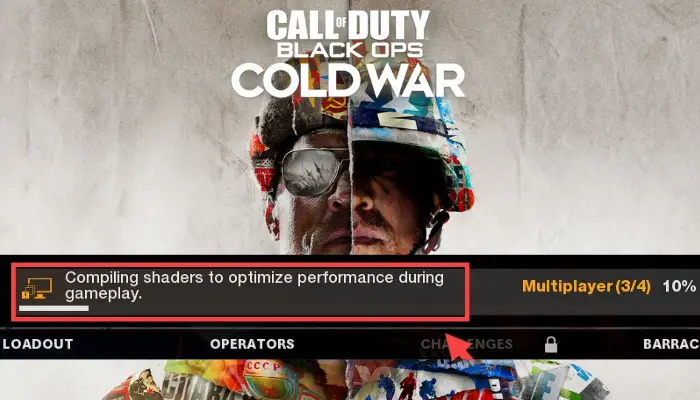
Why is Black Ops Cold War stuck on Compiling Shaders?
Before we talk about the solutions, let us try to understand why shader compilation is stuck on Black Ops Cold War. Here are the potential reasons:
- There may be a temporary glitch in the compilation. So, you can fix the issue by simply restarting the shader installation.
- In many cases, the issue occurs when you are dealing with corrupted or missing game files. Hence, if the scenario applies, you can resolve the problem by verifying and preparing the game files.
- It can also be caused by your outdated or faulty graphics driver. So, make sure you have an updated graphics driver to avoid such problems and errors in games.
- The corrupted cache associated with the game can also trigger the problem at hand. If the scenario suits you, the issue can be fixed by clearing the cache folders.
- In a few instances, if your Activision and Blizzard accounts are not linked, you might face the issue at hand. So, link your Activision and Blizzard accounts by visiting the official Activision website in your web browser to fix the problem.
Now that we know the scenarios that might trigger the “stuck on Compiling Shaders” issue on Black Ops Cold War, let us find the fixes to the problem.
Black Ops Cold War stuck on Compiling shaders to optimize performance during gameplay
If Black Ops Cold War is stuck on an error message Compiling shaders to optimize performance during gameplay, try these suggestions fix the issue.
- Restart the shader’s installation.
- Verify and repair your game files.
- Make sure you have an up-to-date graphics driver.
- Delete the Cache folders.
- Link your Activision and Blizzard accounts.
Let us discuss the above solutions in detail now.
1] Restart the shader’s installation
The first thing we recommend you do is restart the shader installation. There may be temporary problems with the shader’s compilation that can be fixed by starting a fresh installation. Many affected users were able to fix the issue by using this method. It might just work for you as well, so give it a try.
Here are the steps to restart the shaders installation:
- Firstly, launch the Black Ops Cold War game and open its SETTINGS.
- Now, go to the GRAPHICS tab and scroll down and locate the Restart Shaders Compilation option.
- Next, simply tap on the Restart Shaders Compilation option.
- After that, let the reinstallation process finish.
See if the problem at hand is now resolved or not. If not, try the next potential fix.
RELATED: Fix Black Ops Unhandled exception caught error in Windows PC.
2] Verify and repair your game files
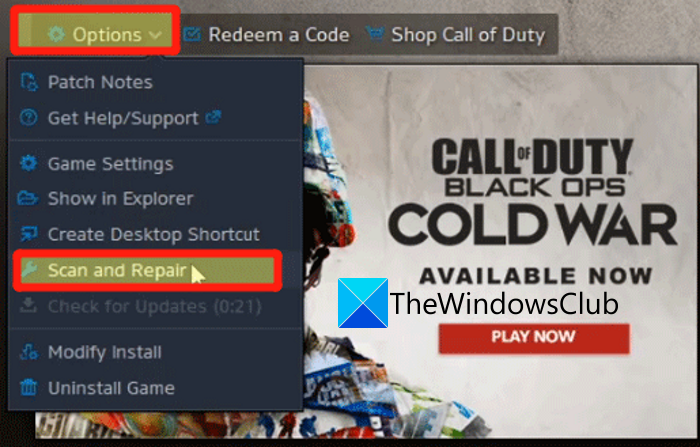
The problem at hand might be triggered if you are dealing with corrupted, broken, or missing Black Ops Cold War game files. Hence, the next step to fix the error is to verify the integrity of the game files. To do so, you can use the dedicated feature available in the Battle.net game launcher called Scan and Repair. The feature scans for corrupted game files and replaces them with valid ones.
- Firstly, launch the Battle.net client.
- Next, select the Call of Duty: BOCW game from the left-hand side pane.
- Now, click on the Options drop-down button and tap on the Scan and Repair option.
- After that, confirm the repair process and let the launcher verify your game files.
- Once the game files are verified, you can try reopening COD: Black Ops Cold War and check if the problem is fixed.
If the problem persists even after repairing the game files, there must be some other reasons causing the issue. So, move on to the next potential fix.
Read: Connection to the Blizzard game server has been lost, Error Code BLZBNTBGS000003F8.
3] Make sure you have an up-to-date graphics driver
The issue could be caused by outdated or faulty graphics drivers. Gamers reportedly encounter a lot of errors, bugs, and issues because of not having an up-to-date graphics driver on their system. Hence, make sure your graphics driver is updated to its latest version. If it is outdated, you can update graphics drivers using one of the below methods:
- You can launch the Settings app by pressing the Win+I hotkey. Then, go to the Windows Update tab > Optional Updates section and you will get the available driver updates here. Just download and install the drivers’ updates.
- Another method is to download and install the latest versions of your graphics driver from the official website of the device manufacturer.
- The Device Manager app can also be used to update graphics drivers by using the below steps:
- Press the Win+X hotkey and choose Device Manager.
- Expand the Display adapters category.
- Tap your graphics card and right-click on it.
- Select the Update Driver option and let the process finish.
- You can also use free driver update software that can update all your drivers including graphics drivers automatically.
After updating the graphics drivers, reboot your PC and launch Black Ops Cold War to check whether the problem is fixed. If you still encounter the same issue, go ahead and use the next solution to fix it.
Read: Fix Black Ops Unhandled exception caught error.
4] Delete the Cache folders
If you are dealing with the corrupted cache associated with the game, you are likely to experience this issue. Hence, clear the cache folders to fix the issue. Here is how to do that:
- Firstly, you need to close Battle.net and ensure that no related process is running in the background. To do that, you can open Task Manager and close all associated processes.
- Now, open the Run dialog box by pressing the Win+R hotkey and then enter %ProgramData% in its Open field.
- Next, in the opened location, locate and select the Battle.net and Blizzard Entertainment folders select it.
- Then, press the Delete button to delete the selected folders.
- After that, reopen the Run dialog box and enter %appdata% in it.
- Next, select the Battle.net folder and delete it.
- Again, open the Run dialog box and enter %localappdata% in it.
- Now, delete the Battle.net and Blizzard Entertainment folders from the opened location.
- Finally, relaunch Battle.net and open Black Ops: Cold War to check whether the problem is now resolved.
If you still encounter the same problem, we got one more fix for you. So, move on to the next potential solution.
Read: Fix Error Code 0xC0000005 (0x0) N in COD Black Ops Cold War.
5] Link your Activision and Blizzard accounts
In some instances, the issue “stuck on compiling shaders” on Black Ops Cold War might be caused if your Activision and Blizzard accounts are not linked. So, if the scenario applies, link the Activision and Blizzard accounts and then check whether the issue is fixed. To do so, follow the steps below:
- First, visit activision.com in a web browser.
- Now, sign in to your account and tap on PROFILE.
- Next, from the ACCOUNT LINKING section, select the Link with Battle.net Account button and follow the prompted instructions to complete the account linking process.
- Once done, reopen Battle.net, launch Black Ops Cold War, and check if the problem is resolved.
That’s it!
How do I fix Shaders not compiling?
If the shaders on Black Ops Cold War are not compiling, you can try restarting the shader installation. Launch its Settings and go to Graphics. Then click the Restart Shaders Compilation option and see if the issue is fixed.
What does Compiling shaders mean?
Compiling shaders means using OpenGL Shading Language scripts as shaders by loading them into OpenGL. OpenGL uses three different ways to compile shader text into usable OpenGL objects. A Program Object is produced by all these compilation forms.
How long should compiling shaders take?
It should usually take 30 minutes to compile shaders. However, in some cases, depending on your specs, game file status, etc. it could take more than that to compile shaders.
Why are shaders taking so long to install?
As we mentioned above, shaders taking so long to install could be due to corrupted game files. Or, it could also be caused by outdated graphics drivers. Hence, make sure you have updated graphics drivers on your system to avoid such problems. Also, scan and verify the integrity of the game files, and repair them as needed to resolve the issue.
Now read:
- Call of Duty Black Ops Cold War keeps crashing or freezing on PC.
- Fix Connection Interrupted error in COD Black Ops Cold War.
