
So you’re using your Windows 11/10 computer, and out of the blue, one or more of your open program or app windows automatically minimize to the taskbar. You try to bring them back up, but the problem persists. The application (s) stay minimized in the Taskbar, and clicking the icon doesn’t restore or maximize the window. Obviously, this is going to be super annoying, but there’s no need to do that; just keep reading for a few fixes that we hope will solve your problem.
Programs won’t maximize; Application stays minimized in the Taskbar
Cannot maximize Programs from Taskbar? If open windows are automatically minimized to the taskbar & the program or applications continue to stay minimized & clicking on its icon does not maximize the window, then try these suggestions:
- Restart Explorer
- Perform a malware scan
- Check in Clean Boot State
- Perform an SFC Scan in Safe Mode
- Turn off Tablet Mode
- Other suggestions.
1] Restart Explorer
Restart File Explorer and see if it has made the problem go away.
2] Perform a malware scan
First, run your antivirus software and see if it detects malware. You may use the Microsoft Safety Scanner for free – and it’s all about aiding the user in locating and removing malware among other things.
Bear in mind that you are required to use it within the first ten days of downloading or else it’ll expire. If it does expire, then, just download it once more and run the scan. Additionally, it’s designed to work hand-in-hand with your current security software.
3] Check in Clean Boot State
Perform a Clean Boot and see if this happens. When you start the computer in clean boot, it uses a pre-selected minimal set of drivers and startup programs, so some programs may not work as expected. Clean-boot troubleshooting is designed to isolate a performance problem. To perform clean-boot troubleshooting, you must take several actions and restart the computer after each one. You may need to manually disable one item at a time to pinpoint the one causing the problem. Once you identify the offender, you can remove or disable it.
4] Perform an SFC Scan in Safe Mode
To boot Windows 10 into Safe Mode, you must first restart your computer. Once the device has been restarted, press the Shift key+Power button when you’ve approached the sign-in screen, then select Restart. After the restarting of the computer, click on Choose an option from the screen, then finally, select Troubleshoot. The next step, then, is to choose Advanced Options > Startup Settings > Restart.
After that, you’ll see a list of options. This is where you’ll choose the Safe Mode option to start Windows 10 in this area.
To run the SFC Scan in Safe Mode, click on the Start button, then search for CMD. You’re going to right-click the CMD option and select Run as administrator. Finally, type sfc /scannow, press Enter, and wait for the scan to complete.
After that, restart the computer and check if everything is in order.
Related: Program is running but can’t see or is not visible in Windows
5] Turn off Tablet Mode
If you are using the Tablet Mode, you are likely to face this issue; it is a built-in feature. Turn off Tablet Mode if it irritates you. To deactivate Tablet Mode, click on the Notification icon in the taskbar and unselect Tablet Mode.
Read: Restore, Minimize, Maximize & Close buttons not working.
6] Other suggestions
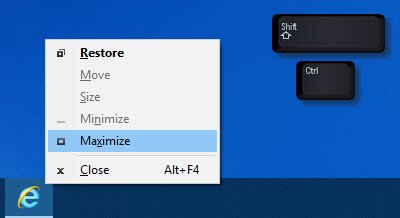
- If a window won’t maximize, press Shift+Ctrl and then right-click its icon on the taskbar and select Restore or Maximize, instead of double-clicking on the icon.
- Right-click on the desktop, select Refresh and see if that helps
- Press Win+M keys and then Win+Shift+M keys to minimize and then maximize all windows.
- Press WinKey+Up/Down arrow key and see.
- Press Alt+Space and see if the Maximize/Restore/Minimize, etc, box appears. If it does, use it.
- The last step is to open Task Manager, kill the program process and start it again.
Let us know if you have any other ideas.
Why can’t I open things from taskbar?
If you can’t click on the taskbar and are unable to open apps from the taskbar try the following suggestions:
- Restart File Explorer
- Re-register Taskbar using PowerShell
- Run Windows Troubleshooters
- Run DISM to Restore System Health
- Check Graphics Drivers
- Perform System Restore
- Create a New User Account.
Read: How to move a window when its Title Bar goes off-screen.
