
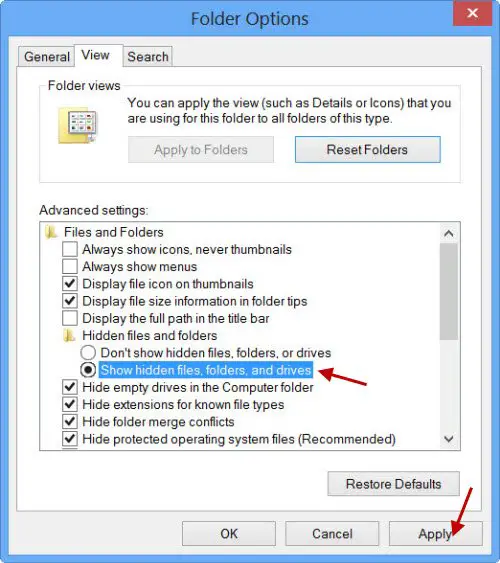
UWP apps can be accessed from and started by clicking on the Tiles on the Windows Start. But where are they installed or located? The Universal or Windows Store Applications in Windows 11/10/8 are installed in the WindowsApps folder located in the C:\Program Files folder. It is a Hidden folder, so in order to see it, you will have to first open Folder Options and check the Show hidden files, folders and drives option.
Now you will be able to see the WindowsApps folder in the C:\Program Files folder.
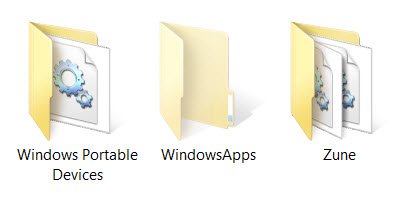
Access or open the Windows Apps folder
Before you read further, we suggest you create a system restore point first.
Now, if you try to click on it to open it, you will not be allowed to, but you will instead see the following road-block.
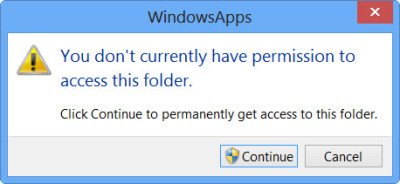
Clicking on Continue will open the following warning box, saying that you have been denied permission to access this folder.

To gain access to the WindowsApps folder, click on the Security tab link. The following Properties box will open.
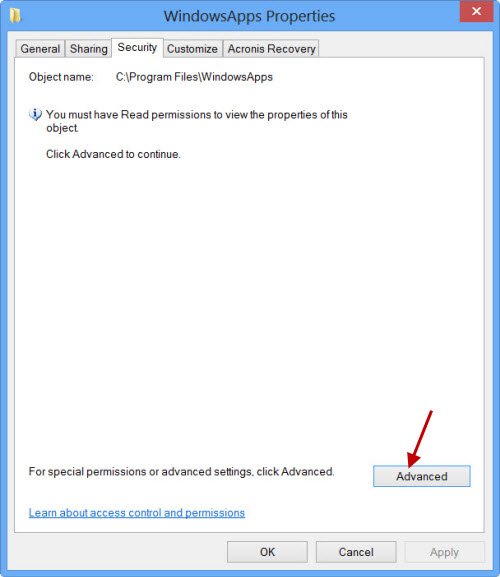
To be able to view the contents of the folder you must have at least Read permissions. Click on the Advanced button to open the Advanced Security Settings for the protected folder.
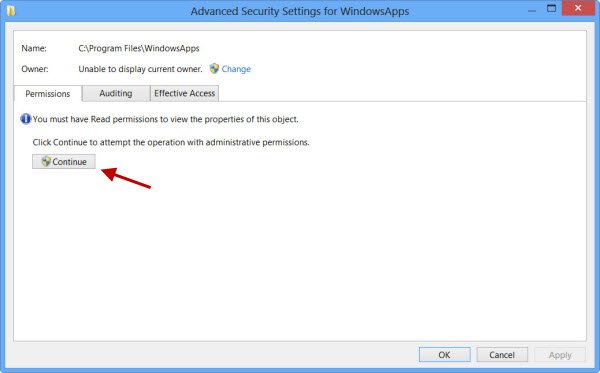
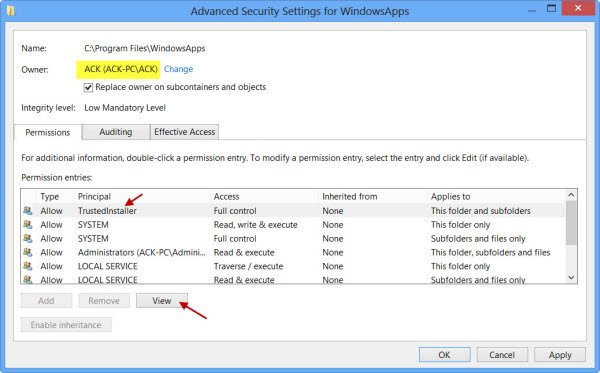
Clicking on Continue will open a box that will list down the permission entries for the folder. You will now have to give yourself permission, and you can do so by changing the Owner from TrustedInstaller to your name. Do note that, as an example, I have given myself complete blanket permissions, but you may give yourself limited permission as are required, by editing the permissions entries from its settings.
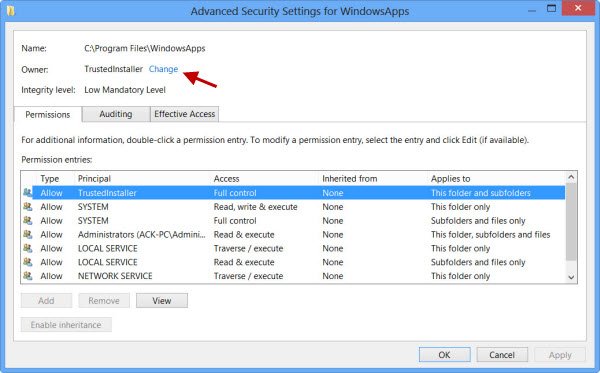
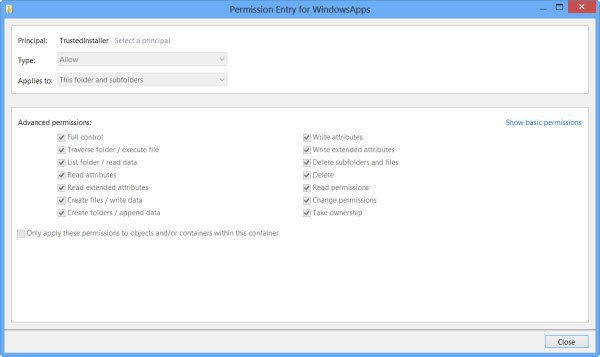
You may click on the desired entry and click View to see the individual permission entries and make changes there too. You will have to change the Principal / Owner first, however.
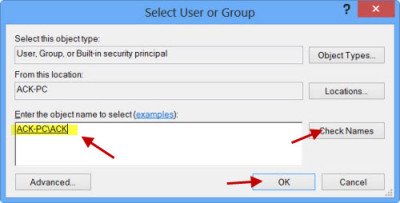
To do so, click on Change in the earlier step and enter the object name and click on Check Names too, as this will check if you have entered the name correctly, and correct it, if you haven’t.
I repeat, as an example, I have given myself complete blanket permissions, but you may give yourself limited permission as are required, by editing the permissions entries from its settings, as shown in the Permissions Entries box above.
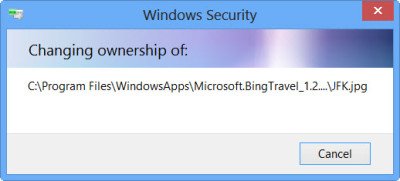
The permission will be changed and will see a dialog box.
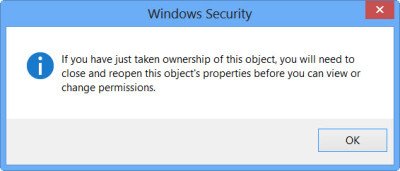
You will have to close the explorer window and re-open it.
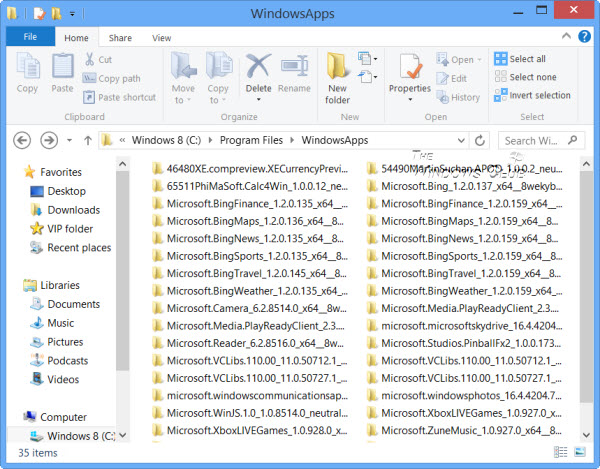
You will now be able to click open on the WindowsApps folder and see its contents.
Any hacker or malware that gains access to this folder, could potentially modify the apps source code maliciously. So it might be a good idea to change the permissions back to their defaults, after you have completed your work. To do this, you have to simply reverse or undo the changes you made in the Advanced Security Settings.
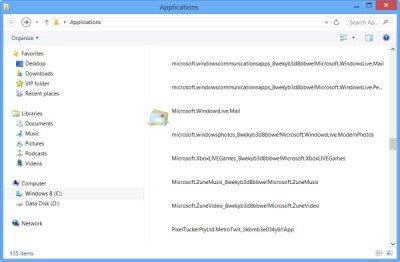
If you wish to only see the list of all the apps along with their shortcuts, you can copy-paste the following in explorer address bar and hit Enter to open the following Applications folder:
explorer.exe shell:::{4234d49b-0245-4df3-B780-3893943456e1}
Using this way you can change the permissions of any folder in Windows.
To reverse the changes, you need to retrace your steps and undo the changes made – or else you could go back to the created system restore point.
Go here to find out how to change the location of the Windows Store Apps default installation folder.
These links may also interest you:

