
Lately, it seems the more Windows computers I work on, the more users have forgotten their password, or they didn’t tell me the password, and when I can’t reach them, I am stuck with no option to get into the computer to fix it. Most of the time, they didn’t take steps to protect themselves from locking themselves out of their own account.
We have seen how to recover lost or forgotten Windows passwords using Windows built-in tools like Password Hint and the Reset Disk or with other free password recovery tools. We have also seen how to reset your Windows password, if your computer is on a domain or if it is a workgroup.
Today we will see, how to use another tool to reset your Password.
I have been using a freeware utility called Offline NT Password & Registry Editor to reset a user’s password to give them access to their account. This small utility is priceless as long as the computer can be booted from either CD or USB.
I have verified in all instances that the computer indeed belonged to the user who had forgotten his password and had notified someone and let them know beforehand. I would never recommend using this on someone’s computer without their knowledge, EVER!
Windows Password Recovery
Setup and use the Offline Password & Registry Editor to Reset your Password
Windows operating system stores its user information, including the encrypted versions of the passwords, in a file called sam, usually found in \windows\system32\config folder. This file is a part of the registry, in a binary format once undocumented, and not easily accessible. The Offline Password & Registry Editor can help you here.
How to set up Offline Password & Registry Editor:
- Download either the Bootable CD Image or the USB Files from its home page.
- To create a Bootable CD just use the software of your choice that supports writing ISO images.
- To create a Bootable USB Drive, Unzip the USB File you downloaded and copy all the files to your USB device.
- Open a Command Prompt as Administrator and run the following command: X:syslinux.exe -ma X: (replace X with the Drive letter given to your USB Device).
- The USB Device should be Bootable now but if you have trouble with this, then you can either make the USB Bootable manually or try any of the numbers of Bootable USB Tools available online.
Read: What to do if I forgot my computer password?
How to use the Offline Password & Registry Editor:
- Boot with the Disk inserted, or USB Device inserted. You may have to go into your BIOS and setup your Boot Device Priority if you have trouble getting it to load. Refer to Manufacturer on how to do this.
- Once you are booted, and the utility is loaded with the introduction screen hit Enter.
- You will be presented with a bunch of driver loads, kernel information, etc. Once this is done and has found your drive\partition that Windows is installed on if you only have one Drive\Partition just click Enter to continue. If you have more select the number for the Drive\Partition Windows is installed on and click Enter.
- You will be presented with a message asking for the path to the registry. As long as everything is correct, you shouldn’t have to do anything but hit Enter.
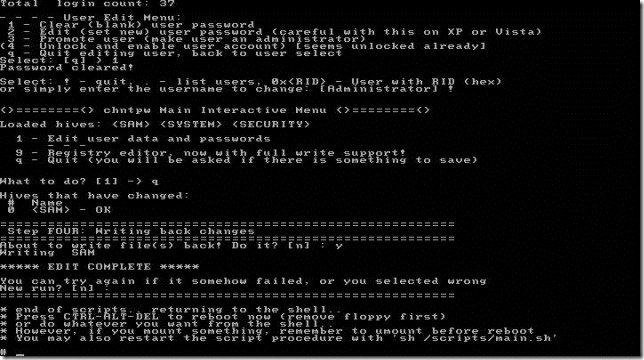
- Next, you will be presented with three choices, 1 for Password Reset, 2 for Recovery Console and q for Quit, select option 1 for Password Reset.
- Next, you will be presented with five choices, 1 for Password Edit, 2 for Syskey, 3 for Recovery Console, 9 for Registry Editor and q for Quit, select option 1 for Edit User Data and Password.
- Now it will list all users on the Local Machine. Choose which user you are trying to reset the password for.
- Some information is displayed about User Account, and you will be presented with 5 options, 1 to Clear Password, 2 Edit Password, 3 Promote User, 4 to Unlock and Enable User Account and q to Quit, generally, I select option 1 to just clean the password and handle setting a new password once I am Logged On.
- If all works, fine you should be presented with Password Cleared!
- Next, hit the ! (Exclamation Mark) key on your keyboard and when it gets back to the main menu hit q.
- Once you hit q, you will be presented with About to write the file(s) back! Do it? Y or N. select Y to save changes, and you should now be able to Log into the account.
NOTE: I have had a few instances where it didn’t work on the first go and had to run through the process a couple of times but always with success. As this edits the SAM file, you should always take caution before trying this method.
The process is fairly quick, only taking a few minutes and once you see it running, it is fairly easy to understand for most users.
There is a fairly extensive walk-through as well FAQs pages available from the homepage of the Offline Password Reset and Registry Editor here.
Do note that if your computer is connected to a Domain, you will not be able to create a Password Reset Disk\USB. You will have to contact your Administrator to reset your password.
Read: Windows Password Recovery review.
Windows Password Reset Disk
To protect yourself from locking yourself out of your user account if you have forgotten your password. Windows includes a very handy feature to help get you back into your account using a Password Reset Disk\USB.
To create a Password Reset Disk\USB:
- Insert the Disk or USB device into your computer.
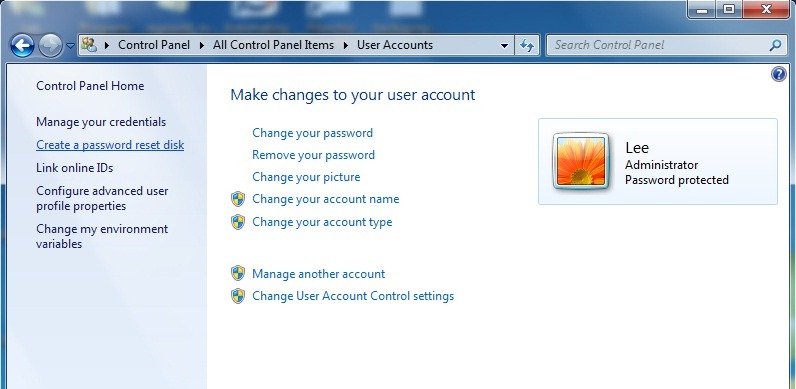
- Navigate to Start Menu\Control Panel\User Accounts and on the left select, Create a Password Reset Disk.
- This will open the Forgotten Password Wizard which will walk you through creating a Password Reset Disk\USB.
Go here to see a detailed tutorial on how to create a password reset disk using Flash drive.
Read: Lazesoft Recovery Suite Free Home Edition for Windows PC
Use the Password Reset Disk\USB to recover your password:
- Start Windows up normally.
- Insert your Disk\USB Device once you reach the Logon Screen.
- Select the Reset Password Option which will walk you through resetting your password. If the option to Reset Password is not shown hit your Enter Key or select the Enter Button to display the Password Reset Option.
If your computer is connected to a Domain, you cannot create a Password Reset diskUSB. You will have to contact your Administrator to reset your password.
Also, see how you can reset the Administrator password in Windows using Sticky Keys. If you are looking for a paid software to reset forgotten Windows passwords, read our Windows Password Key review.
