
In this post, we will see how to manage, customize, rename, change, backup, or restore default power plans in Windows 11/10. We will also show you how to create new Power Plans in Windows 11/10. A Power Plan is a collection of hardware and system settings that manages how computers use and conserve power. You can create custom power plans and customize them as per your requirements.
How to Backup or Restore default Power Plans in Windows 11/10
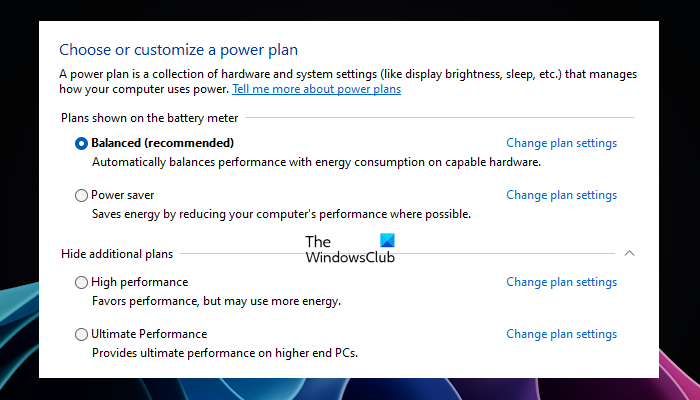
By default, Windows 11/10 and Windows Server include three power plans: Balanced, Power Saver, and High Performance. You can customize these plans for your systems, or create new plans that are based on the existing plans. Let us see how to customize, rename, change backup, and restore Power Plans using the PowerCFG command.
See the list of available Power Plans in Windows 11/10
You can view the list of all power plans currently available on your system by executing a command in the Command Prompt window.
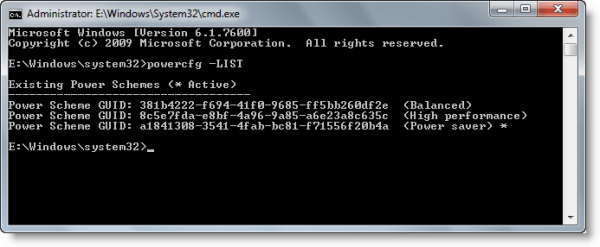
Open an elevated Command Prompt, type the following, and hit Enter:
powercfg -LIST
The above command will show you the list of all power plans that are currently available on your system including the currently active power plan. The power plan that is currently active on your system is marked with an asterisk (refer to the above screenshot). The Command Prompt window also shows the GUID of all the power plans. Keep a note of these GUIDs, as you will require them later.
Create a customized power plan
Windows 11/10 also allows you to create a custom Power Plan. You can create it via the Control Panel. Custom power plans are useful in many cases.
For example, if you are downloading some content, say videos or games, your computer should not go to sleep. If this happens, your download will be terminated. Hence, you need to change the sleep settings in Windows 11/10 settings and change it later. This can be irritating because you have to change the sleep timings every time you start downloading. To avoid this inconvenience, you can create a custom power plan and whenever you download videos or age, you just have to activate that power plan.

Go through the following instructions:
- Open the Control Panel.
- Type power in the Control Panel search bar.
- Select Power Options from the search results.
- Click on the Create a power plan link on the left side.
Follow the on-screen instructions to create and customize a power plan based on an existing plan.

Read: How to delete a Power Plan in Windows.
Capture, export, or backup power plans
After you have created power plans that work for your system, capture the power plans from your technician’s computer, and deploy them to your destination computers. For example, to export a power plan from your technician’s computer called OutdoorScheme, type the following and hit Enter:
powercfg -EXPORT C:\OutdoorScheme.pow {guidScheme-New}
When you create a new power plan in Windows 11/10, Windows assigns it a new GUID. You view the GUID corresponding to that new power plan by running the command in the elevated Command Prompt window as described earlier in this article.
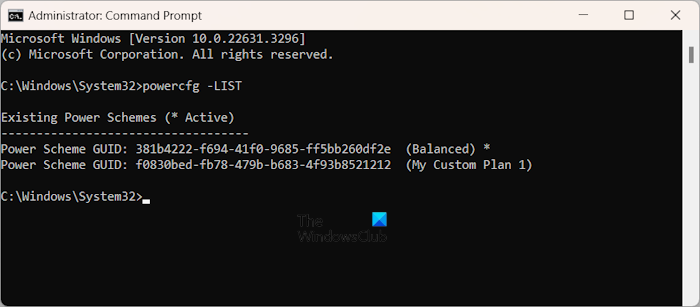
Replace {guidScheme-New} in the above command with the new GUID. Do not write the GUID in curly brackets. As you can see in the above screenshot, a new GUID is assigned to a new custom power plan on my system.
Deploy, import or restore power plans
To import a power plan called OutdoorScheme, open an elevated command prompt, and type:
powercfg -IMPORT C:\OutdoorScheme.pow
Set a power scheme to be the active power plan
You can activate power plans on your Windows 11/10 computer via the Control Panel and the Command Prompt window. Here, we will show you the latter method.
To activate a custom power plan, type the following and hit Enter. For example:
powercfg -SETACTIVE {guidScheme-New}
In the above command, type the correct GUID referring to your custom power plan. We have already talked about how to know the GUID of all power plans using the Command Prompt earlier in this article. Do not enter the GUID inside the curly brackets.
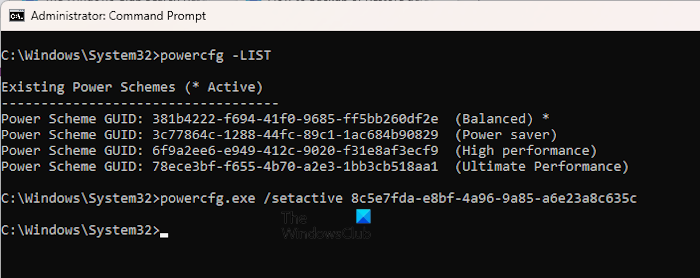
To activate the Power Saver plan, use the following command:
powercfg.exe /setactive a1841308-3541-4fab-bc81-f71556f20b4a
Type the following command in the elevated Command Prompt window to activate the Balanced plan.
powercfg.exe /setactive 381b4222-f694-41f0-9685-ff5bb260df2e
To activate the High-Performance plan, type the following command and hit Enter:
powercfg.exe /setactive 8c5e7fda-e8bf-4a96-9a85-a6e23a8c635c
Restore default Power Plan schemes
You can restore the default power schemes by using the following command:
powercfg –restoredefaultschemes
Restore individual Power Plans
The following commands will help you restore the missing default power plans on your system.

High Performance:
powercfg -duplicatescheme 8c5e7fda-e8bf-4a96-9a85-a6e23a8c635c
Balanced:
powercfg -duplicatescheme 381b4222-f694-41f0-9685-ff5bb260df2e
Power saver:
powercfg -duplicatescheme a1841308-3541-4fab-bc81-f71556f20b4a
If after executing the above commands, Windows does not restore the power plan(s) or if the above commands do not work and you will find only the Balanced power plan in the Control Panel, your system is in the Modern Standby S0 state. You can check this by running the following command in the elevated Command Prompt.
powercfg /a
If your system is in Modern Standby S0 state, first, you have to turn off that state. After that, you will be able to restore the missing power plans on your system.
Read: Power Plan keeps changing in Windows.
Rename a Power Option
Use the following switch in an elevated command prompt:
Powercfg –Changename GUID name [scheme_description]
This will modify the name of a power scheme and, optionally, the scheme description.
Usage:
powercfg–changename GUID namescheme_description
- GUID: Specifies the GUID of the power scheme
- Name: Specifies the name of the power scheme.
- scheme_description: Describes the power scheme.
If the description is omitted, then only the name will be changed.
I hope this helps.
How do I uninstall Windows 11 power plan?
Windows 11 allows you to delete a power plan from the Control Panel, except the Balanced Power Plan. Also, you cannot uninstall or delete the currently activated power plan. To delete a power plan on your system, open the Power Options page in the Control Panel and then click on the Change plan settings link next to the power plan you want to delete. click Delete this plan.
How do I activate my Ultimate power plan?
You can activate the Ultimate Power Plan through the Control Panel. Open the Power Options page in the Control Panel and select the Ultimate Power Plan option. If the Ultimate Power Plan is not there, you can restore it by executing the required command in the elevated Command Prompt window.
Read next: How to enable Ultimate Performance Power Plan in Windows 11/10.
These posts may also interest you:
- How to Change Power Plan Settings & Options using the Control Panel.
- Pros and cons of the different Power Plans
- How to troubleshoot Power Plans.
