
Whenever we face some performance issues with our computer, the first thing we do is open up the Task Manager, and then look for the applications or components that are using the most resources. If you are familiar with Task Manager, then you must have also noticed that at times, the ‘Host Process for Windows Tasks’ or ‘Service Host’ process consuming resources. What these processes are and what you can do if your Host process has stopped working or consumes high CPU, Disk, or Memory usage.
Host Process for Windows Tasks or Service Host
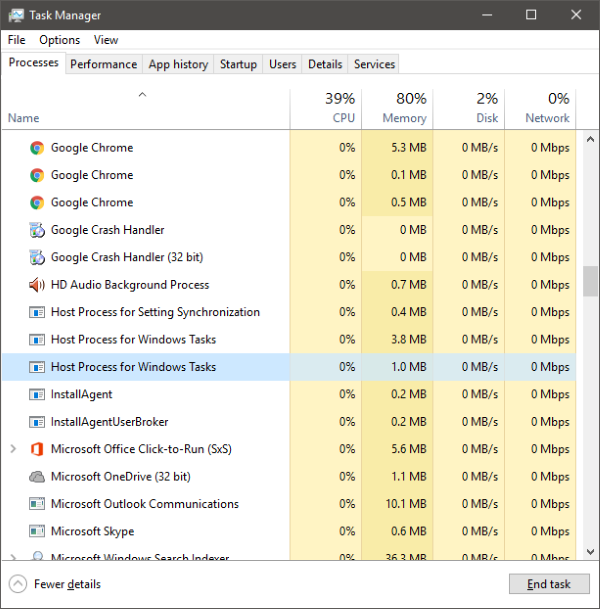
Windows is essentially working because of its services. Many services running in the background facilitate your daily tasks and operations. Some of these services are compiled into EXE files and complete in themselves. These services appear in Task Manager. But some services are written as DLL and cannot be executed directly. Microsoft shifted to DLL files because they were easier to maintain and update from a programming perspective. DLL services require a host process, an EXE that can execute them, and this is what ‘taskhost’ in Windows is.
Taskhost in Windows 11/10 is a core file located in the System32 folder and has been renamed as ‘taskhostw.exe’, from ‘taskhost.exe’ in Windows 7. If you find a file with this name in any other location, it could well be a virus, and you might want to get it checked with your security software.
Each ‘Host Process for Windows Task’ is an instance of ‘taskhost’ that runs a service in the background. Although Windows Task Manager does not exactly let you view what services it is running, other tools can.
What are the Host Process for Windows Tasks and Services?
The Host Process for Windows Tasks (taskhostw.exe) and the Host Process for Windows Services (svchost.exe) are core Windows executables that act as containers for running background services, especially those written as DLLs (Dynamic Link Libraries) rather than standalone EXE files. They are legitimate system processes, but multiple instances may appear in Task Manager depending on how many services are active.
- Host Process for Windows Tasks runs DLL-based services that cannot launch independently. The legitimate DLL file is located at C:\Windows\System32.
- Host Process for Windows Services manages groups of Windows services, such as Networking, Updates, Audio and Security.
Host Process for Windows Services has stopped working or consuming High resources
If you see a ‘stopped working’ message box, you can try the following troubleshooting suggestions:
- Open Task Scheduler. In the left pane, click on Task Scheduler Library > Microsoft > Windows> RAC. Next, click the View Menu and select Show Hidden Tasks. In the middle pane, right-click on RAC Task and click Disable. See if this helps. If not, reverse the change made.
- Open Event Viewer and select the latest Application event log in the left pane which has a red mark. Double-click an event to view the details of the event. See if you find any useful information here. If it displays Host process for Windows has stopped working message, it could help.
- Perform Clean Boot and troubleshoot the issue manually.
There might be times when you find that this process is using a lot of resources. You can now understand that this is caused by the underlying service and not the process itself. Also, you might notice high resource consumption at Windows startup. That is just because the task host is loading all the DLL files and scheduling them to run. Once it is completed, usage will settle to a lower level and remain pretty low for the rest of the time.
I mentioned earlier that the Task Manager does not let you view the underlying services. But you can use Process Explorer from Microsoft to view the services beneath the taskhost. It is a portable utility, and you can run it directly after downloading. You can use this tool to view all the details associated with the taskhost.
Find ‘taskhostw.exe’ in the left pane, and you can read all the details in the lower pane. Another way to view the list of DLL files loaded by taskhost is by typing in the following command in a cmd window:
tasklist /M /FI "IMAGENAME eq taskhostw.exe
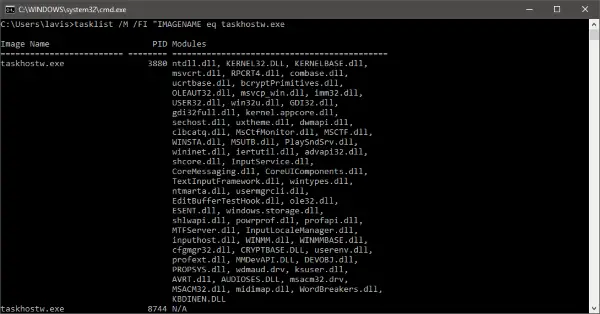
This command lists all DLL files loaded by this process at Windows Startup. If you go through the list, you will find out some essential files that provide core functionality to Windows.
So, in a nutshell, Taskhost is a core Windows process that provides functionality to load and execute dynamic link libraries. Since it hosts various DLL files, it can sometimes consume resources at a higher-than-normal rate. If you are facing any such issues where the process has stopped responding or is using a lot of resources. Use the Process Explorer, Performance Monitor and Resource Monitor and try to troubleshoot the problem manually.
Host Process for Windows High CPU, Memory, Disk usage
If the Host Process for Windows (svchost.exe or taskhostw.exe) is causing high CPU, memory, or disk usage, open Task Manager to identify which specific service is consuming resources. Then, update or roll back your Windows and driver updates, as faulty updates often trigger spikes. Run System File Checker (sfc /scannow) or DISM tool to repair potentially corrupted system files. Disable or stop non-essential services (like Windows Update Delivery Optimization) if they’re stuck in loops. You should also check the Event Viewer for recurring errors.
Host Process for Windows Services wants to make changes
The Host Process for Windows Services (svchost.exe) is a core system executable responsible for managing dynamic-link libraries (DLLs) that run as background services in Windows. When svchost.exe initiates changes, it typically reflects legitimate operating system activity such as driver updates, installation of Windows features, or synchronization with Microsoft servers. However, because third-party applications can also operate under this host process, it is essential to validate the execution context to rule out malicious behavior. As a signed and verified Windows system file, svchost.exe is integral to maintaining system stability and supporting critical functions such as Windows Update, network connectivity, and other background service operations.
Want to know about these processes, files or file types?
Windows.edb files | csrss.exe | Svchost.exe | StorDiag.exe | MOM.exe | ApplicationFrameHost.exe | ShellExperienceHost.exe | winlogon.exe | atieclxx.exe | Conhost.exe | mDNSResponder.exe.
