
If you want to set up and add multiple email accounts to the new Outlook app in Windows 11 or Windows 10 PC, here is how you can do that. Although Outlook aggregates multiple email accounts, it is not clear how to add multiple accounts to it. We have already seen some free email clients. In this post, we will let you know how to go about it. No need for POP or IMAP settings – all you require is your login credentials!
Set up new Outlook app in Windows 11/10
To get started with the setup process, you need to open the Outlook (new) app first. You can find an empty box to enter your email address. You need to enter the email address and click on the Continue button.
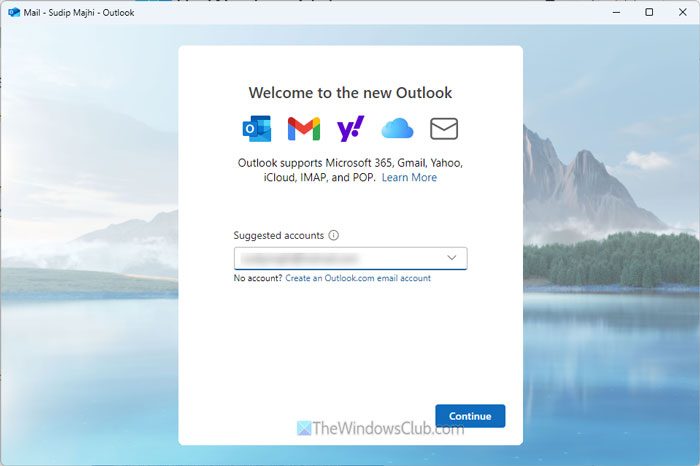
If your email address is the same as the email address you used for your computer, you do not need to enter your password. However, if they are different, it is time to enter your password and click the Continue button.
Add multiple email accounts to Outlook app
At times, you might want to use multiple email accounts in Outlook. If so, you can follow this guide to add multiple email accounts to the Outlook app in Windows 11/10:
First, you need to open the Outlook app on your computer. Now, there are two ways to add a second or third email account.
1] You can click on the settings gear icon visible in the top-right corner.
2] You can click on the Add account button visible under your email address on the left-hand side.
If you choose the first method, you need to click on the settings gear icon visible in the top menu bar. Then, make sure that you are in the Accounts > Your accounts tab. If so, click on the Add account button.
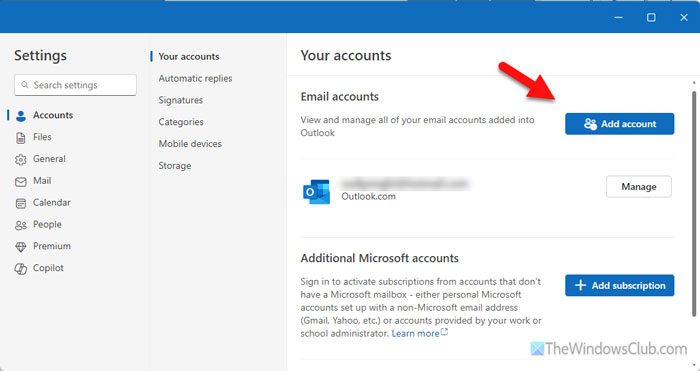
However, if you want to go through the latter method, which is faster than the first one, you need to find the Add account option visible under your email address.
In both cases, you can use any email address, including Gmail, Hotmail, Outlook, etc.
Once you enter your email address, click the Continue button. Depending on the email service provider, it opens different wizards for the credentials. However, if you enter a Microsoft account, you can enter the password using its wizard.
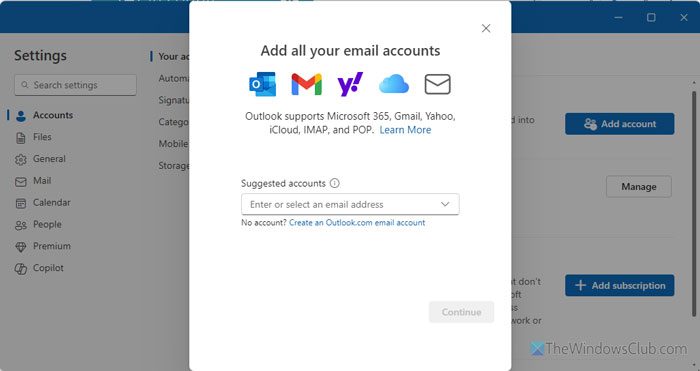
Once done, you can switch between your email addresses from the home screen.
Read: How to change Email Signature in new Outlook app of Windows 11
How do I add multiple accounts in New Outlook?
To add multiple accounts in New Outlook in Windows 11/10, follow these steps:
- Open the Outlook app.
- Click on the settings gear icon visible in the top right corner.
- Ensure that you are in the Accounts > Your accounts tab.
- Click the Add account button.
- Enter your email ID credentials.
How to switch accounts on new Outlook app?
To switch accounts on the new Outlook app, you need to find your accounts on the left-hand side of Outlook’s home screen. Then, click on the desired account as per the requirements. Once you do that, Outlook will open the new account immediately.
Read: How to combine Outlook Inbox of multiple accounts
Set up & add Multiple email Accounts to Mail App in Windows 11/10
To begin with, from your Start, click open the Mail app.
You will get a notification ‘You aren’t signed with a Microsoft account. To use mail, sign in with a Microsoft account and try again’.
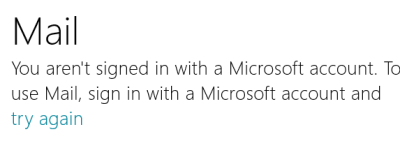
Enter your credentials here and sign in with your Microsoft account.
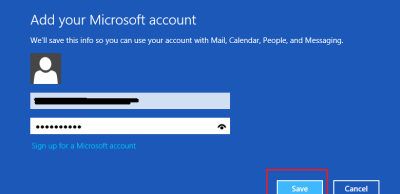
Once done, your Microsoft account will be configured on the Windows Mail app. Now, you will also have the choice to add multiple email accounts.
Add multiple email accounts to Windows Mail app
Once you have configured your Microsoft account, you will be provided with a clue for adding multiple email accounts to the Windows Mail App.
Click on Accounts on the left side, and a panel will pop out from the right side. Here click on ‘+ Add account’ to add an email account.
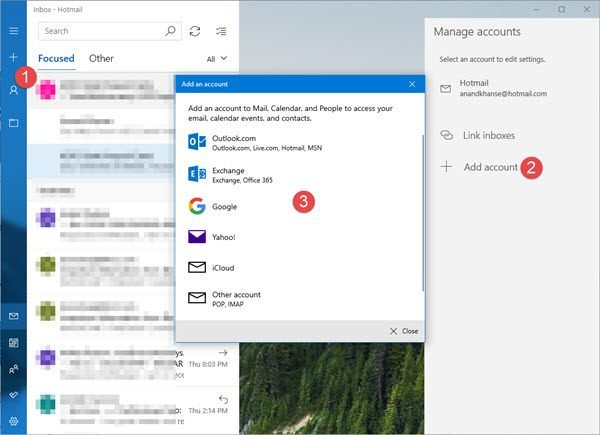
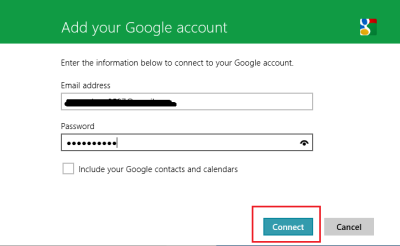
I chose Gmail as the second mail ID to be added; i.e., Google account.
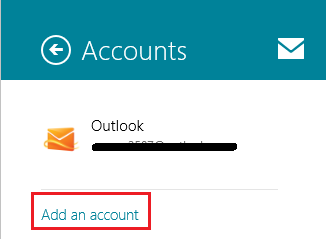
Once selected, enter the required information and click ‘Connect’ to connect to your email account.
That’s it!
How to edit Mail App signature & other settings in Windows may also interest you.
TIP: Learn how to add additional Email IDs in Windows Mail App & how to pin or add multiple Live Tiles, for multiple email accounts to Start Menu, easily.
