
I love my mouse! Hey, don’t get me wrong!! I don’t have a pet mouse or something. I am talking about my computer mouse. Yes, I love to use my computer mouse, and truly speaking, it is one of the niftiest inventions among computer devices. In this first post at TheWindowsClub, I am going to tell you about some mouse tricks I often use to make life on Windows much easier.
I have noticed that people usually use their mouse just to click open a program or document, open the context menu and to select and drag-and-drop files or folders. But the mouse can do much more on your Windows 11/10 PC.
Useful Mouse Tricks for Windows 11 users
These tricks may not be that useful for everyone, but being a writer, I often need to use them. Although some of them are quite common and used by many people around, others are lesser-known yet very useful.
1. Select Text Using [SHIFT] Key
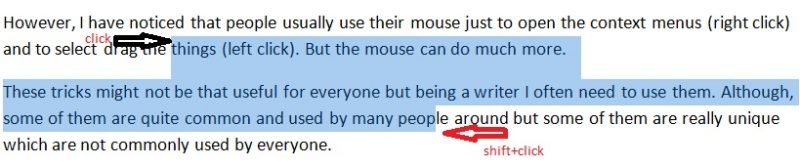
This is one of the simplest tricks of the mouse. However you can easily select the text by clicking the left mouse button and dragging it, but this sometimes becomes inept when we want to select till a specific character. Dragging often selects the entire word, and this trick helps with that. I also use this trick when my mouse doesn’t drag well.
2. Select Multiple Text Pieces Using [CTRL] Key

This trick is not that common, I guess. Using this trick, you can select multiple text pieces in a document. Select a text piece and then press and hold the [CTRL] Key and select the next text piece you want.
Have you ever wanted to select multiple pieces of text on a document? What do you do then? Here’s the answer. Keep the Ctrl key held while selecting text. Again, keeping it pressed, select another piece of text; select the third piece of text and so on.
I must mention here that this trick doesn’t work on the online pages. You can use these tricks only on your Microsoft Office documents only.
3. Select Vertical Text Using [ALT] Key
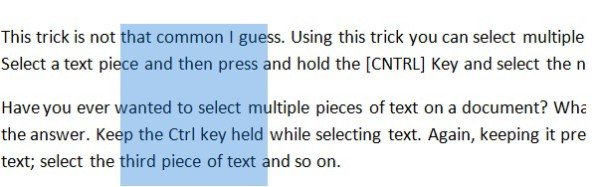
Do you know how to select the text vertically? It’s very easy: just press and hold the [ALT] key, then select the text with the left mouse button.
I must mention here that this trick also doesn’t work on online pages. You can use this trick too, only on your Microsoft Office documents.
4. Zoom In and Zoom Out
I often need this trick as my eyesight is a bit weak. I usually work on Word with a Zoomed In page.
If you also want to Zoom in your Word Document just press the [CTRL] and scroll up and [CTRL] and scroll down to zoom out.
5. Maximize Or Close The Window
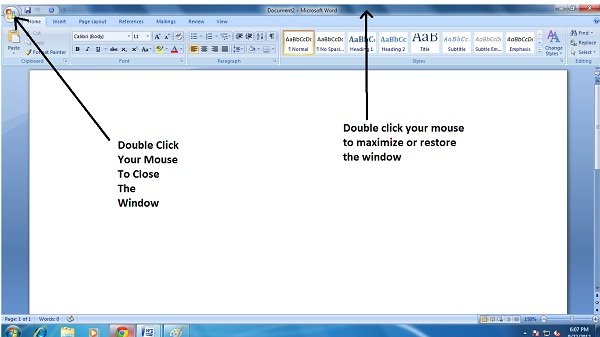
This is actually quite a common mouse trick, but I find it worth adding in my list of useful mouse tricks. If you want to close a Window, just double-click on the Windows logo in the top left corner of your Window.
To maximize or restore the Window, double-click the title bar.
6. Open The Link In New Tab
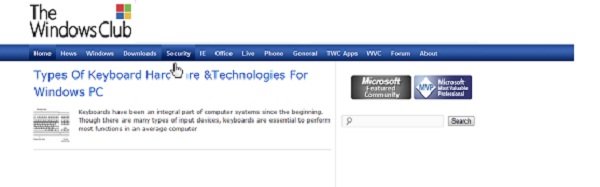
You can open any link in a new tab just by holding the [CTRL] Key and clicking on that link. However, just the right-click gives us the options to open the link in a new window, new tab and in an incognito window, but this trick helps you save time.
This mouse trick is also helpful when your right-click is not working, which is quite common on my Windows PC.
TIP: Clicking on a link with the middle mouse button will open the linked webpage in a new tab.
7. Extended Context Menu
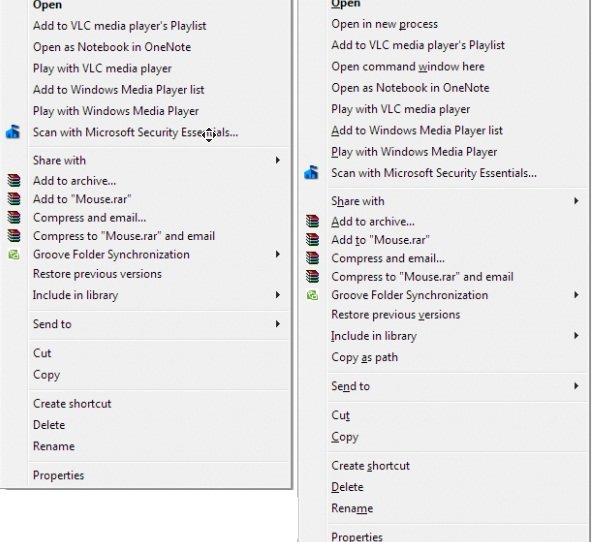
We all know that the right-click of our mouse brings up the context menu, but if you want an extended context menu just press and hold [SHIFT] Key while you click the right button of your mouse. Doing this will show an extended context menu.
8. Open Multiple Links
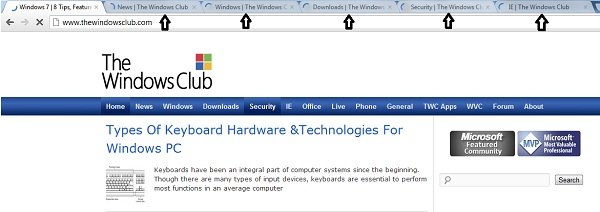
This is one of my favorite and most-used mouse tricks. As a blogger and writer, I research a lot, and this trick helps me open multiple links in real time.
I just press and hold [CTRL] key and click on the links you want to open. All of them will open in a new tab.
9. Auto-Scroll The Window
While reading on the Internet, I often come across posts with long lists or long pages. I hate reading those posts because I hate keeping my fingers on the mouse to scroll all the way down.
I was glad to learn this auto-scroll trick. I just hover the mouse cursor over the scroll bar and click the center button on my mouse, and the whole post scrolls automatically. I just click the left button of my mouse when I want the scrolling to stop.
10. Drag and Drop 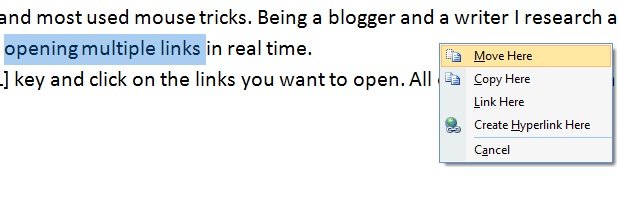
People usually press the right mouse button to open the context menu, but I use it to move, copy, or link a part of my document. I just select the text I want to move or copy, then drag my mouse to where I want it to be and click the right mouse button. I have the options: Move here, Copy here, Link here, Create hyperlink, and Cancel. I select the option I want.
Drag and drop a file into a folder using the right-click. Once you release the mouse button, you will see more options!
If interested, you can take a look at these Mouse middle click button tips as well.
I am done with my list of 10 useful mouse tricks. I am sure there are many more, and I am eager to learn them. If you have any other tricks worth adding to my list, please let me know in the comments box below.
Need more? Check out these posts!
- Tips To Use The Mouse On Windows PC
- Move Mouse pointer using Keyboard one pixel at a time in Windows
- Mouse Pointer disappears & gets replaced with Arrow keys
- Move the mouse pointer with your head movement
- Change Windows Cursor Thickness & Blinking Rate to make it more visible
- Use the Windows computer without a keyboard or mouse
- Enable Windows Mouse Pointer Shadow feature
- Change double click to single click, to open files, folders in Windows
- Activate a window by hovering over it with your mouse
- Windows Pointers & Mouse Settings for left-handed people.
