
This post offers multiple ways to uninstall Microsoft 365 or Microsoft Office 2024/2021 from your Windows 11/10 computer. If you cannot uninstall Office using the Control Panel or Settings on Windows systems, this post will help you.
How to uninstall Microsoft Office
You can uninstall Microsoft 365 or Microsoft Office from your Windows 11/10 computer by following any one of the following methods:
- Control Panel
- Windows Settings
- Office Uninstall Support Tool
- Microsoft Support and Recovery Assistant CMD
- Using Third-party tools.
Let us see these methods in detail.
1] Using Control Panel
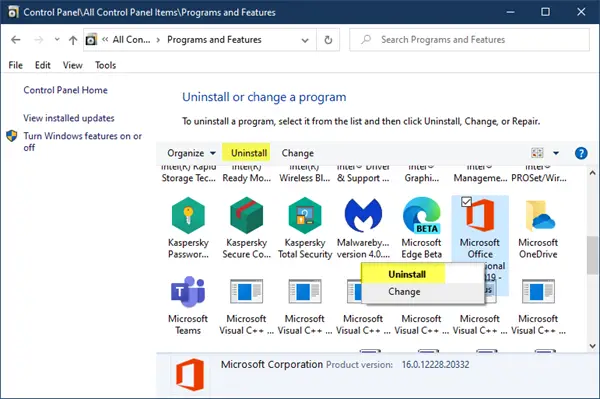
- Restart your computer, then try removing Office from Control Panel > Programs and Features > Uninstall a program.
- Select your Office installation, right-click on it, and select Uninstall.
- Follow the on-screen instructions to uninstall Office.
2] Via Windows Settings
Windows 11
To uninstall Office from your Windows 11 computer:
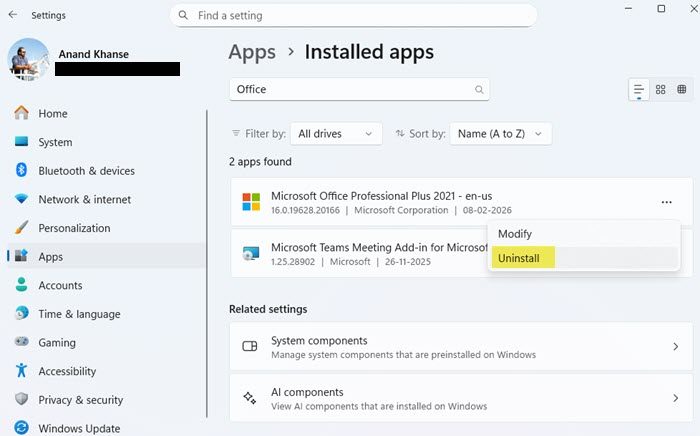
- Open Settings > Apps > Installed.
- Search for Office and select it.
- Click Uninstall to uninstall the program.
- You can uninstall the Office programs (Click-To-Run or MSI), Microsoft 365, Microsoft Office, Office add-ins and the Office apps (Microsoft Store) here.
Windows 10
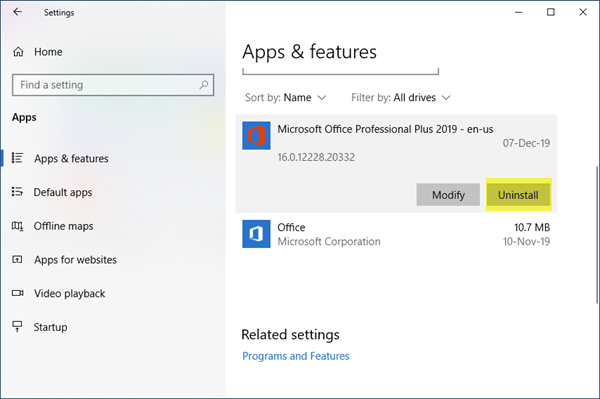
- Open Settings > Apps > Apps and features.
- Search for Office and select it.
- Click Uninstall to uninstall the program.
- You can uninstall the Office programs (Click-To-Run or MSI) and the Office apps (Microsoft Store) here.
Cannot uninstall Microsoft Office
This could happen if the installation process did not complete when you tried to install a new program or the uninstall process did not go through as expected. Or the previously installed Office program installation files may have been corrupted.
If you cannot uninstall Office, use the following tools.
3] Office Uninstall Support Tool
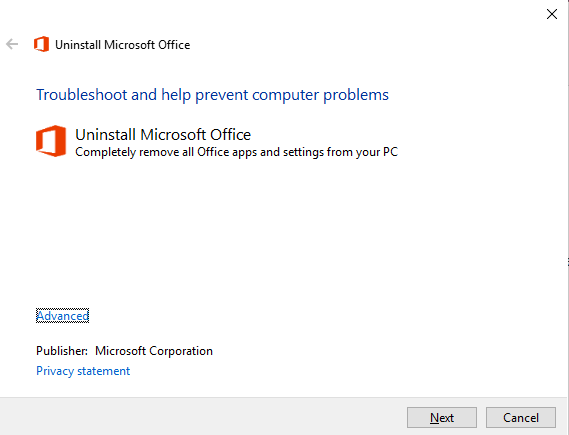
- Download the Microsoft Office Uninstall Tool from Microsoft.
- Run SetupProd_OffScrub, and it will launch the uninstaller.
- Use it to altogether remove your Office installation.
4] Microsoft Support and Recovery Assistant CMD version
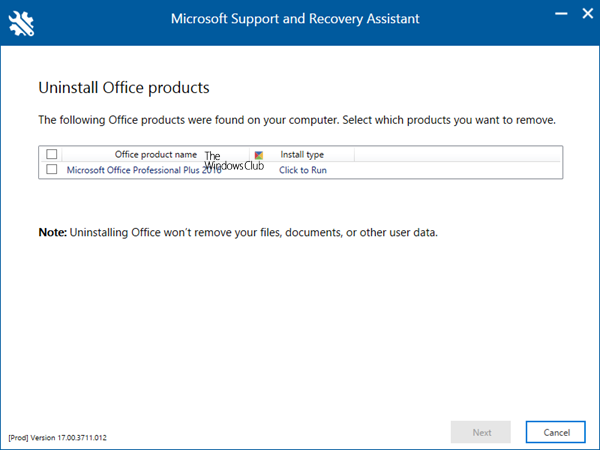
Microsoft Support and Recovery Assistant will help you uninstall Office programs and resolve Office 365 apps, Outlook, OneDrive, Windows, Dynamics 365 & other problems.
The consumer version of Microsoft Support and Recovery Assistant (SaRA) has been deprecated. The SaRA graphical utility is no longer supported as a standalone program. It has been integrated into Microsoft’s Get Help app.
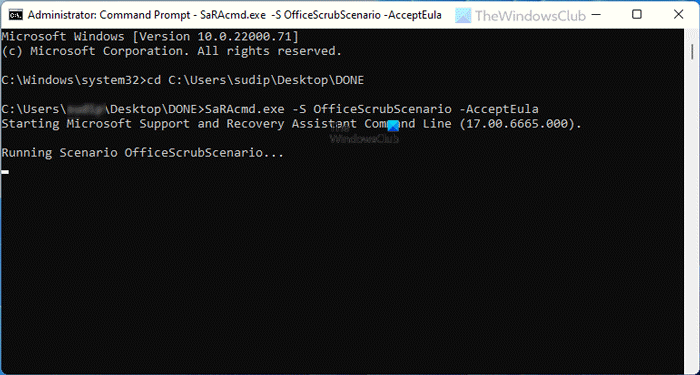
Microsoft officially ceased support for the tool in November 2024. Despite the deprecation, the Enterprise version of SaRA which is a command line tool is still available for download from Microsoft’s official site, for now. This post will show you how to use the SaRA CMD Tool.
5] Third-party tools
You can use the Offscrub script to remove Office, which is available on GitHub.
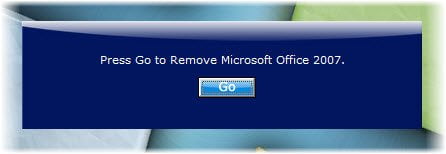
If you are using earlier versions of Office, you could try this utility called RipOutOffice. Create a system restore point first before using this software. RipOutOffice is a 3rd-party freeware tool that completely uninstalls Office (older versions) from your PC when the standard uninstall process fails. But the comments indicate that this tool does not work properly on Windows 11/10.
You can also use Revo Uninstaller or IObit Uninstaller.
You might also want to check out these related posts:
- Uninstall 32-bit Microsoft Office and install the 64-bit version
- Uninstall individual Microsoft Office programs
- Uninstall Microsoft Office Click-to-Run
- Completely Remove or Uninstall Microsoft Office or Office 365.
What happens if I uninstall Microsoft Office?
The documents created by Microsoft Office, i.e., DOCX, PPTX, XLSX, will not open unless you can use an alternate app that supports it. It may also happen that some custom functions only supported by Microsoft Office apps will stop working. However, you can upload these files into OneDrive and still use them.
Do I need a product key to reinstall Office?
You don’t need a product key to reinstall Office unless you have bought a standalone version of Microsoft Office. The application will install, and then you can sign in using the Microsoft account connected to your Office purchase. Once you do that, your copy of Microsoft Office will activate itself. Since this is a subscription-based model, your Office application functionality will be reduced if that expires.
