
When a program installs on Windows 11/10, it also comes with an uninstaller. It is mandatory for every application to offer a script that will, on program uninstallation, clean up all related files & Registry entries. Often, because of missing Registry or programming errors, the uninstaller does not register correctly. If you are not able to find a program in the Uninstall Programs applet of the Control Panel, here are a few things you can do.
How to Uninstall Programs not listed in Control Panel in Windows 11/10
You have the following ways in which you can uninstall Programs not listed in the Control Panel – and so cannot uninstall a program normally:
- Windows Settings
- Check for its uninstaller in the Programs Folder
- Redownload Installer and see if you can uninstall
- Uninstall programs in Windows using the Registry
- Shorten the Registry Key Name
- Use third-party Uninstaller Software.
1] Windows Settings
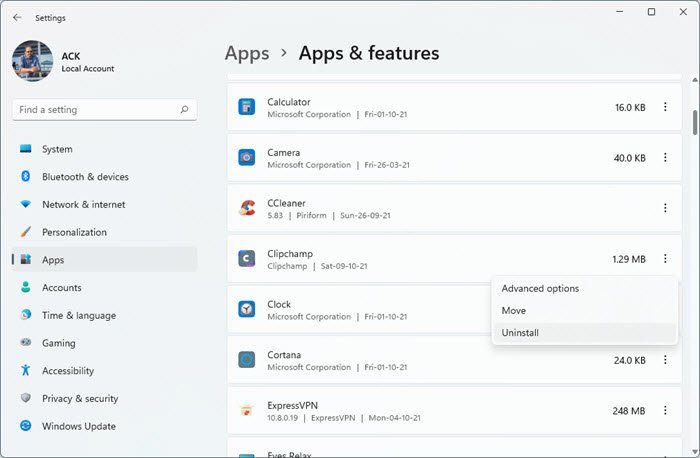
In Windows 11, open Settings > Apps > Apps and Features. Locate the app, click on the 3 vertical dots and select Uninstall.
In Windows 10, open Settings > Apps > Apps and Features. Check if the program is listed here.
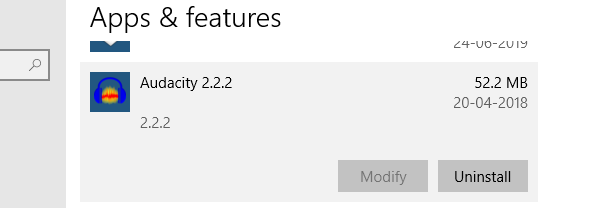
If you have the old habit of looking into Programs and Features of the old Control Panel, then try here. If it is listed, click on it, and click on the Uninstall button.
2] Check for its uninstaller in the Programs Folder
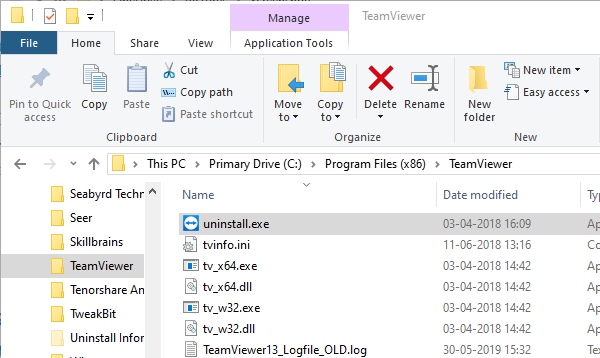
Most of the programs are installed in C:\Program Files and C:\Program Files(x86), and they come with an uninstaller script. The same script is registered with Windows. When you run the Uninstall from the Control Panel, it calls the same script.
If the program is not listed, then you can manually go to that folder, and locate that .exe tool, and run it. It will have the uninstall name appended to it.
3] Redownload the Installer & see if you can uninstall
Some programs offer an uninstaller with their installer. They first check if the program is already installed, and instead of giving you the option to install it, they offer to uninstall it. See if these options work for you.
4] Uninstall programs using the Registry
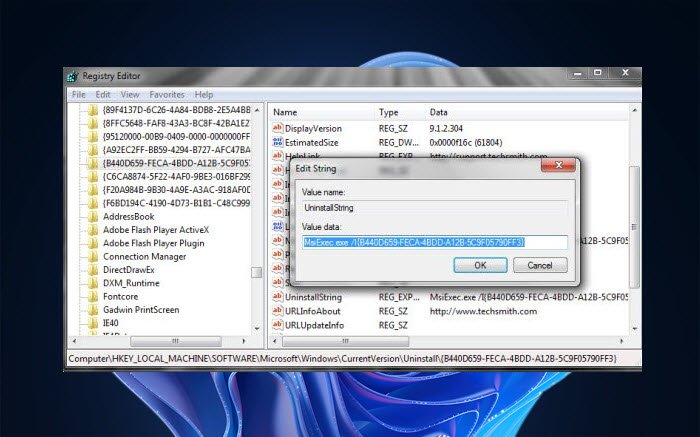
You can also uninstall programs using the Windows Registry. Check if this option helps.
5] Shorten the DisplayName in the Registry Key
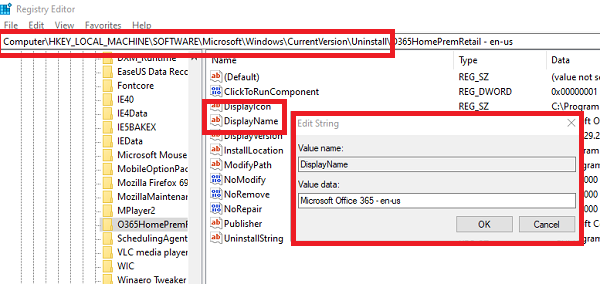
When the display name of an application is longer than 32 characters, then its not displayed. We need to change the DisplayName of the program in the Registry Editor.
Type regedit in the Run prompt and hit Enter to open the Registry Editor.
Navigate to:
HKEY_LOCAL_MACHINE\SOFTWARE\Microsoft\Windows\CurrentVersion\Uninstall
Click the Registry key of the program you installed
Click Rename on the Edit menu, and then use a name with less than 60 characters
To rename it, double-click DisplayName and use a name up to 32 characters in length.
Exit Registry, and open the Control Panel applet. You should see the program listed here, and you will be able to uninstall it.
6] Use third-party Uninstaller Software
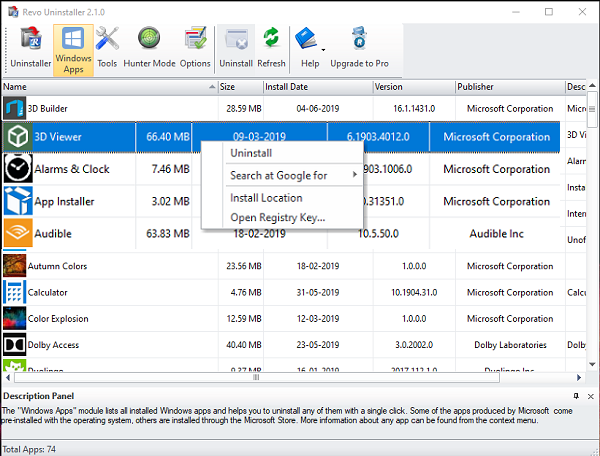
There are a lot of free Uninstaller software like Revo Uninstaller, and many more which can uninstall programs that are missing off the list.
I hope you find the post useful.
How do I uninstall an app that doesn’t show up in Windows 11?
To uninstall an app that doesn’t show up in Windows 11, check for its uninstaller in the Programs Folder, use the Windows Registry or make use of a free Uninstaller software.
