
When updating Windows, if you receive an error code Windows Update failed to install error 0x80240034, then it has happened because the update services are failing at some point. You may also see Error constant WU_E_DOWNLOAD_FAILED with the description that Update has failed to download. It could be because of the timeout, duplicate update, installation is not allowed, etc. In this post, we are suggesting possible fixes that can help you resolve this issue.
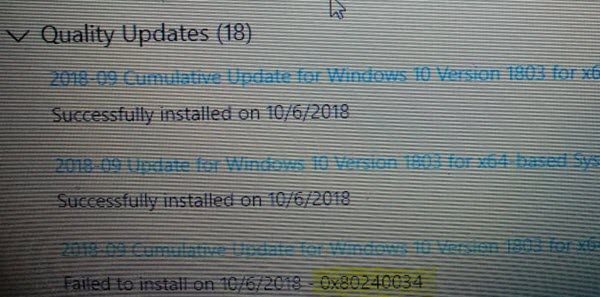
Error 0x80240034, Windows Update failed to install
1] Restart PC and Try again
Simply restart your Windows PC, and run Windows Update again. Often, the issues resolve on their own and could be a simple network or PC error that automatically resolves.
2] Delete Files from Software Distribution Folder & Catroot2
When Windows downloads the updates, they are kept in a dedicated folder called as SoftwareDistribution. Follow this procedure to clear the contents of the SoftwareDistribution folder. You may also reset the Catroot & Catroot2 Folder.
3] Run Windows Update Troubleshooter
Run this inbuilt Windows Update Troubleshooter to fix the most common Update problems on Windows 11/10.
4] Clean Up Temporary Files and System Files
Windows comes with Storage Sense feature which can either automatically clean all the temporary files from your computer or you can do it manually.
When running manually, make sure to check folders like the download, where you keep downloading files. This will make sure you are not deleting important files.
5] Temporarily isable Antivirus during Setup
External tools often trigger this error code. Your files may be just fine, and it’s the Antivirus that is the cause. You can disable the Anti-Virus and Security software whenever an update is not going smoothly. You can either disable such software or completely uninstall it till you fix the Update issues.
6] Run DISM Tool
When you run DISM (Deployment Imaging and Servicing Management) tool it will repair Windows System Image and reset Windows Update Components in Windows 11/10. All of the system inconsistencies and corruptions should be fixed. You can either use Powershell or the command prompt to execute this command.
7] Run System File Checker
This will repair corrupted or damaged Windows files. You will need to run this command from an elevated CMD, i.e., a command prompt launched with admin privileges.
8] Use Media Creation Tool or ISO
If nothing else works, we suggest you use the Media Creation Tool or Windows ISO to install the feature update. However, do make sure all your drivers and hardware are compatible with the feature update.
Let us know if any of these tips helped you resolve the Windows Update failed to install error 0x80240034.
