
Windows Hello is a faster, more secure way to sign in to Windows 11/10 devices. It supports both PIN-based authentication and biometric sign-in methods, which include fingerprint and facial recognition. Some users cannot use Windows Hello Facial Recognition sign-in on their computer because of the “Couldn’t turn on the camera” error. If you encounter this error, the solutions provided in this article will help you.
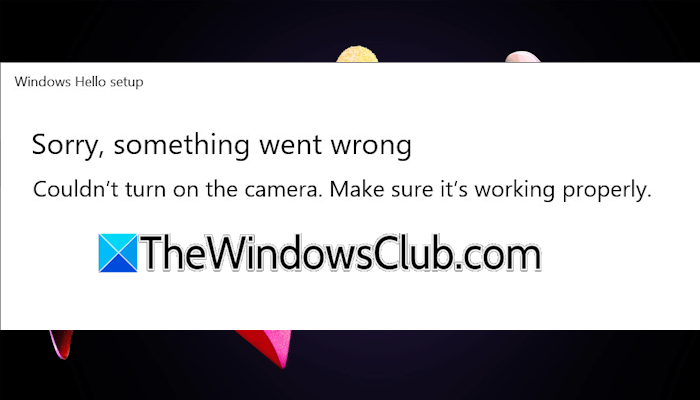
The complete error message is:
Sorry, something went wrong
Couldn’t turn on the camera. Make sure it’s working properly.
Windows Hello Couldn’t turn on the camera
According to feedback, the error “Couldn’t turn on the camera” on Windows 11/10 devices usually occurs during Windows Hello Facial Recognition setup or when signing in to Windows using Windows Hello Facial Recognition. Use the fixes provided in this article to fix this error:
- Use a compatible camera
- Are you using a USB hub?
- Check your camera permissions
- Check the status of your camera driver
- Roll back or reinstall your camera driver
- Delete and set up Windows Hello Facial Recognition again
- Reset your PC
All these fixes are explained in detail below:
1] Use a compatible camera
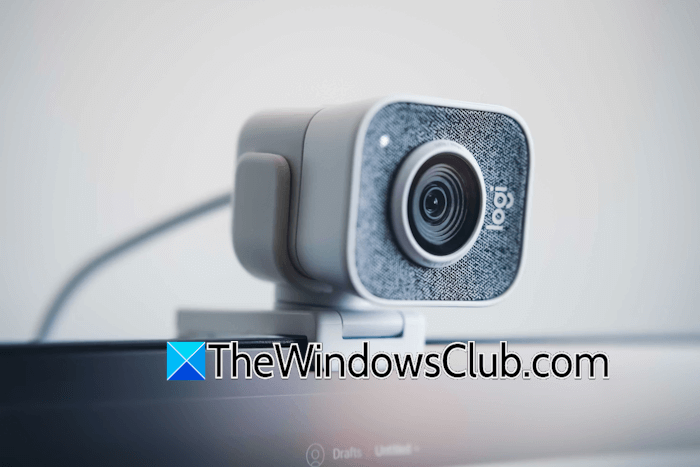
Windows Hello Facial Recognition requires an infrared camera. Cameras other than the infrared cameras won’t work with Windows Hello Facial recognition. Therefore, if you are using a normal webcam, Windows Hello Face will not work. Use a compatible camera to set up Windows Hello Face.
2] Are you using a USB hub?
If you have connected your camera to your system through a USB hub, disconnect it from the USB hub and connect it directly to your computer. Connect your webcam to all available USB ports of your system. Sometimes, the problem is associated with a particular USB port of a computer.
3] Check your camera permissions
Check your camera permissions. You should allow Windows to access your camera. If your camera is inaccessible, you cannot set up Windows Hello Facial Recognition.
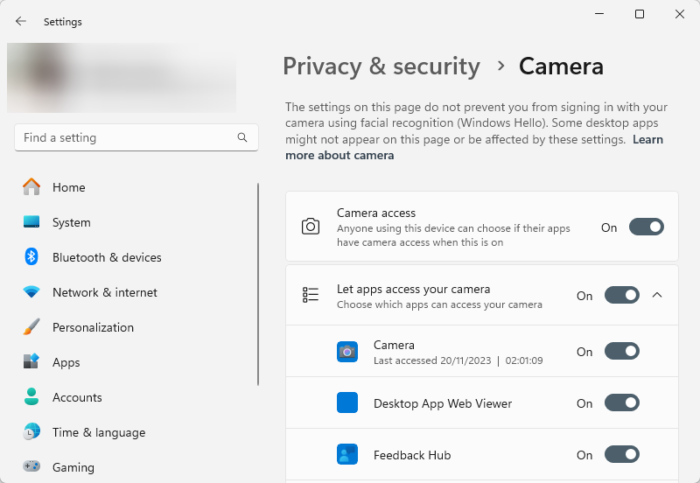
To check your camera permission, follow these steps:
- Open Windows 11 Settings.
- Go to Privacy & Security.
- Scroll down and select Camera under the App permissions section.
- The Camera access should be turned on. If it is turned off, turn it on.
4] Check the status of your camera driver
The problem might be associated with your camera driver. Check this in the Device Manager.
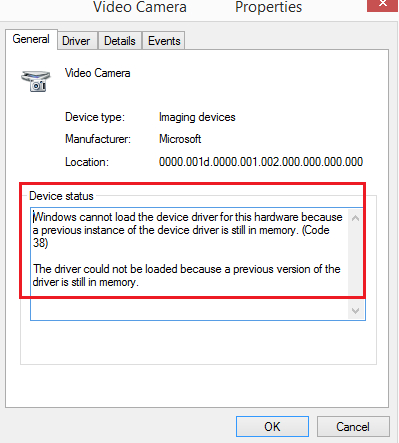
Follow these steps:
- Open the Device Manager.
- Expand the Cameras branch.
- If your camera driver is showing a warning sign, right-click on it and select Properties.
- Read the message under the General tab. The message is one of the Device Manager error codes.
Note down the error code and troubleshoot the issue accordingly. If you see the message “This device is disabled,” right-click your camera driver and select Enable device.
5] Roll back or reinstall your camera driver
If you have a supported camera, but it is not working with Windows Hello Facial Recognition, you can try rolling back its driver to the previous version.
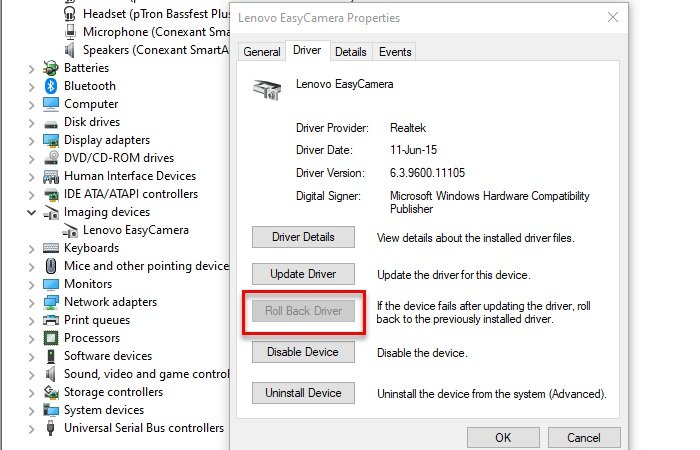
Follow these steps:
- Open the Device Manager.
- Expand the Caremas branch.
- Right-click on your Camera driver and select Properties.
- Navigate to the Driver tab and click the Roll Back Driver button.
If the Roll Back Driver button for your camera driver is greyed out, try other methods to roll back your camera driver to a previous version.
If you cannot roll back the camera driver, reinstalling the driver can help. Visit the manufacturer’s official website and download the latest version of your camera driver. Now, run the installer file to install the camera driver.
6] Delete and set up Windows Hello Facial Recognition again
If you cannot sign into Windows using Windows Hello Face, use another available method to sign in, and then delete the Windows Hello Facial Recognition sign-in method from your system. After doing that, set it from scratch.
Follow these steps:
- Open Windows 11 Settings.
- Go to Accounts > Sign-in Options.
- Expand the Facial Recognition (Windows Hello) tab and click Remove.
Restart your computer and set up Windows Hello Facial Recognition from scratch.
7] Reset your PC
If the issue persists, reset your PC to the factory default settings. While performing this action, select the Keep my files option, as this option prevents Windows from deleting your data on the C drive during the factory reset.
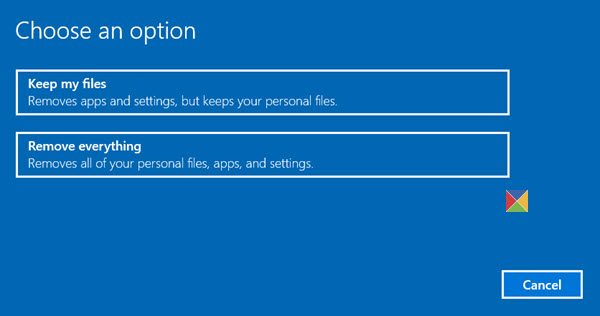
If the issue persists, the last resort is to perform a clean installation of Windows. This will wipe out all the data from the selected hard drive partition. Therefore, before proceeding, back up all your important files from all your hard drive partitions.
That’s it. I hope this helps.
Why won’t my Windows camera turn on?
If your Windows camera won’t turn on, its driver might be disabled. Check this in the Device Manager. If the driver is disabled, enable it. If this does not work, reinstall the camera driver. Also, check the camera permission in Windows settings.
Why won’t Windows Hello use my camera?
Windows Hello Facial Recognition requires an infrared camera. Normal cameras do not work with Windows Hello Face. Therefore, if you want to set up Windows Hello Face login on your system, use an IR camera.
Read next: Windows Hello isn’t available on this device.
