
Windows Defender, also known as Microsoft Defender Antivirus, is a built-in antivirus engine that runs in the background on a Windows PC to detect and block viruses, malware, and other online threats. However, you may need to temporarily disable its Real-time Protection if it is using excessive system resources, interfering with a legitimate app, or blocking software from installing. While it is quite easy to disable Windows Defender, a few users have reported that Real-time Protection keeps turning itself back on automatically. In this guide, we will explain why Windows Defender keeps re-enabling and why its real-time protection keeps turning on in Windows 11, and how to fix the issue.

Windows Defender keeps re-enabling itself on Windows 11
If Windows Defender real-time protection keeps turning on in Windows 11, try restarting your system. Sometimes, a simple restart can fix temporary Windows Security glitches. If the issue persists, use these solutions:
- Disable Defender through the Registry Editor
- Disable Defender using Group Policy Editor
- Turn off Tamper Protection
- Add the app or folder to Defender Exclusions
- Defender does not detect 3rd-party antivirus
- Repair WMI Repository
- Install another antivirus program
Let us see these methods in detail.
1] Disable Defender through the Registry Editor
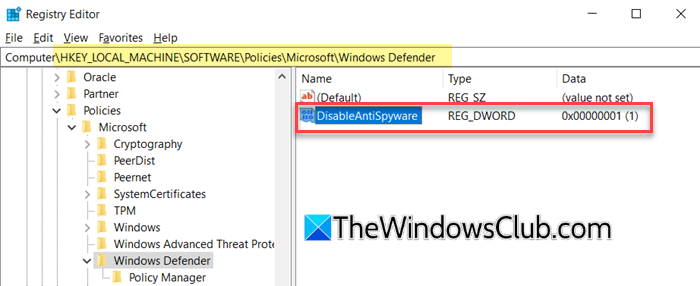
This method involves modifying a Registry value called DisableAntiSpyware. In older versions of Windows, this policy key was used by OEMs and IT administrators to disable Microsoft Defender Antivirus when deploying another antivirus solution. By setting this value to 1, Windows was instructed to turn off Microsoft Defender automatically.
However, Microsoft has gradually phased out this method in newer Windows versions. Starting with Defender platform version 4.18.2108.4 and later, Microsoft began ignoring the DisableAntiSpyware key on many systems, especially when Tamper Protection is enabled. As a result, this method may not work on all PCs. However, it remains one of the most commonly used methods to stop Microsoft Defender from re-enabling itself automatically.
Note: Before proceeding, create a System Restore Point or back up your Registry, since incorrect Registry changes can cause system issues.
Press Win + R to open the Run dialog box. Type regedit and press Enter. Click Yes in the UAC prompt.
Navigate to the following path:
HKEY_LOCAL_MACHINE\SOFTWARE\Policies\Microsoft\Windows Defender
Right-click on the empty area in the right pane and select New > DWORD (32-bit) Value. Name the value DisableAntiSpyware.
Double-click the newly created value and set its Value data to 1. Click OK and restart your computer.
2] Disable Defender using Group Policy Editor
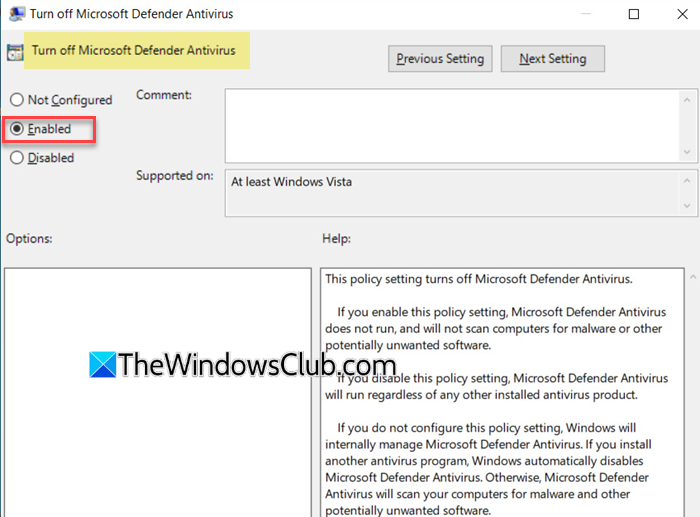
If you have Windows Pro, Enterprise, or Education edition, you can use the Group Policy Editor to disable Microsoft Defender. This method changes Defender policies at the system level, preventing Defender from re-enabling itself. However, like the Registry method, this policy may also not work on some newer Windows 11 systems.
Press Win + R to open the Run dialog box. Type gpedit.msc and press Enter.
Navigate to the following path:
Computer Configuration > Administrative Templates > Windows Components > Microsoft Defender Antivirus
Double-click Turn off Microsoft Defender Antivirus. Select Enabled. Click Apply > OK.
Restart your computer after making these changes.
3] Turn off Tamper Protection
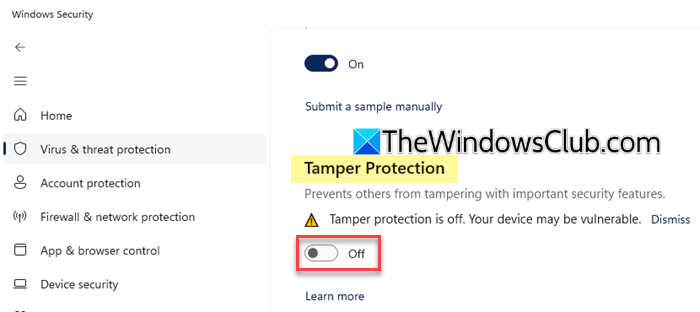
If the above two methods do not work on your system, you may be using a newer Windows 11 build where Tamper Protection is enabled by default. This security feature prevents apps, scripts, malware, or unauthorized users from changing important Microsoft Defender settings and may automatically restore Real-time Protection after it is disabled.
To turn off Tamper Protection in Windows 11, follow these steps:
- Open the Settings app.
- Go to Privacy & security > Windows Security.
- Click Virus & threat protection.
- In the Windows Security window, click Manage settings under Virus & threat protection settings.
- Scroll down and turn off Tamper Protection.
Once disabled, proceed with the Registry Editor or Group Policy method, then restart your PC. Windows Defender should stop re-enabling itself automatically.
Note: Since Tamper Protection is an important Windows security feature, turn it back on once you no longer need to disable Defender.
4] Add the app or folder to Defender Exclusions
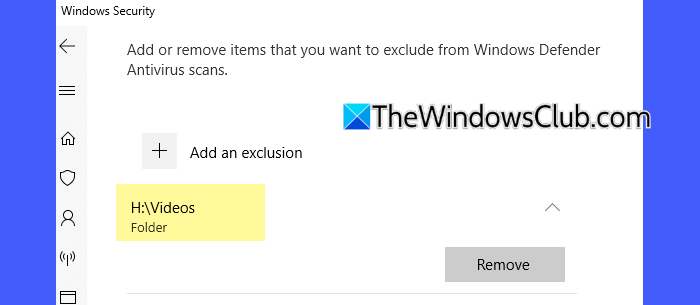
If you are trying to disable Microsoft Defender because it is blocking a trusted application, interfering with a setup file, or causing issues with a specific process, you can add that app, file, folder, or process to the Defender exclusion list. Keep in mind that items excluded from scanning by Microsoft Defender Antivirus will no longer be checked, which could leave your device more vulnerable to threats. Therefore, add exclusions only for files or apps you fully trust.
- Open Settings.
- Go to Privacy & security > Windows Security.
- Click Virus & threat protection.
- Under Virus & threat protection settings, click Manage settings.
- Scroll down to Exclusions and click Add or remove exclusions.
- Click Add an exclusion and select the file, folder, or process you want to exclude.
After adding the exclusion, Windows Defender should stop scanning or blocking that specific app or folder.
5] Defender does not detect 3rd-party antivirus
If Windows Defender does not detect 3rd-party antivirus software, re-register WMIUTILS.DLL and see if it helps.
To re-register the dll file, press Win + X and click on “Command Prompt (Admin) and run:
regsvr32 /u WMIUTILS.DLL
Reboot the System and now run:
regsvr32 WMIUTILS.DLL
Reboot your system and check.
This dll is responsible for reporting whether a security software is installed or not.
6] Repair WMI Repository
To repair WMI Repository, execute the following command in an elevated CMD:
winmgmt /salvagerepository
See if this helps.
7] Install another antivirus program
If the issue persists, installing a third-party antivirus may help. Microsoft Defender Antivirus is designed to automatically disable itself when Windows detects another active antivirus program on the system. You may look at some of the best free antivirus software for Windows that we have already covered.
Once a compatible antivirus program is installed and active, Windows Security should automatically turn off Microsoft Defender’s Real-time Protection to avoid conflicts between multiple antivirus engines running at the same time.
I hope this helps.
Related: Can’t Turn On or Off Real-Time Protection on Windows 11
Why does real-time protection keep turning itself back on?
In newer Windows 11 builds where Microsoft limits permanent methods for disabling Defender, Real-time Protection may keep turning itself back on after a restart or system update. To fix this, turn off Tamper Protection, install another compatible antivirus program, or use the other methods suggested in this post.
Read: Windows Defender is turned off or not working in Windows.
Can I permanently turn off Windows Defender?
Permanently disabling Microsoft Defender has become more difficult in newer versions of Windows 11. The most reliable way to keep Defender inactive is to install another compatible antivirus program, which usually causes Windows Security to disable Defender automatically.
Read Next: How to stop Windows Defender from deleting files in Windows.
