
Smart App Control (SAC) is a security feature in Windows 11 that enhances protection against untrusted apps. When turned on, it helps block potentially unwanted, untrusted, malicious, or unsigned apps. However, some users have complained that Smart App Control settings are greyed out and they can’t turn them on/off or switch to its Evaluation mode. This post will help you fix this issue with working solutions.
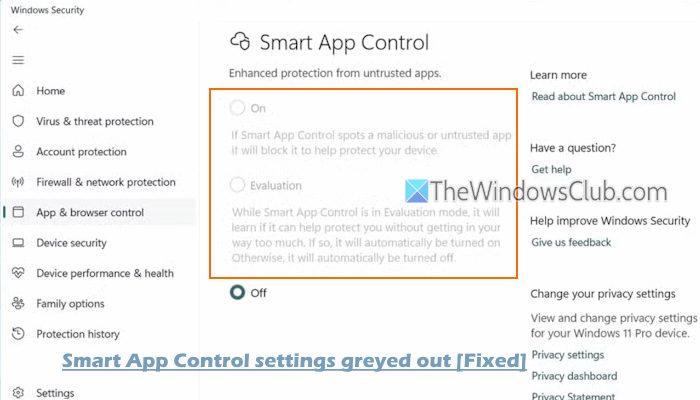
Why is Smart App Control greyed out?
Smart App Control (SAC) settings in Windows Security could be greyed out because the feature can only be enabled on a clean installation of Windows 11 or after a full reset. If your system was upgraded from Windows 10, or SAC was manually turned off, you cannot re-enable it without reinstalling Windows.
Additionally, if your device is running in Windows S mode, you haven’t received the recent Windows updates to switch SAC on or off, or your device is managed by your organization or enterprise, Smart App Control will be disabled or greyed out.
It could also be blocked due to missing hardware requirements, such as TPM 2.0/Secure Boot.
Smart App Control settings are greyed out in Windows Security
If Smart App Control settings are greyed out or missing in Windows 11, use these fixes:
- Update Windows
- Enable Smart App Control settings using the Windows Registry.
1] Update Windows
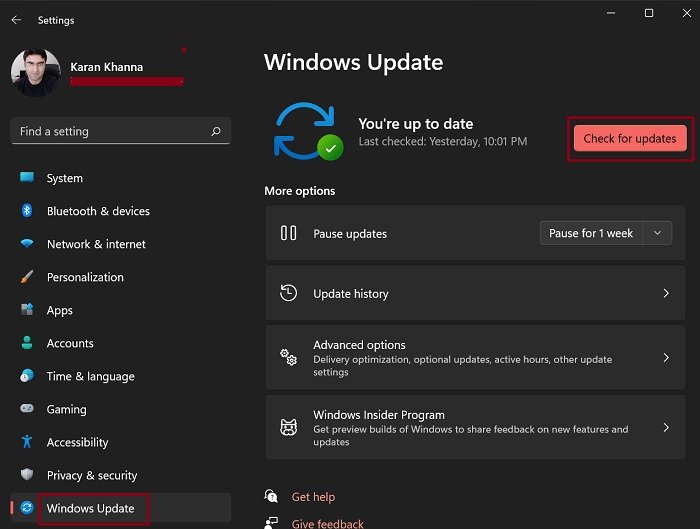
Earlier, Microsoft ensured that this feature could only be used in fresh Windows 11 installs. We weren’t able to turn it on without resetting or reinstalling Windows. But, with recent Windows updates, the Smart App Control feature can be enabled without any clean install requirement.
This feature is rolling out gradually. So, update Windows, and restart your PC. Access Smart App Control settings in Windows Security to turn it on and see if it works. If not, you may have to wait to get the update.
2] Enable Smart App Control settings using the Windows Registry
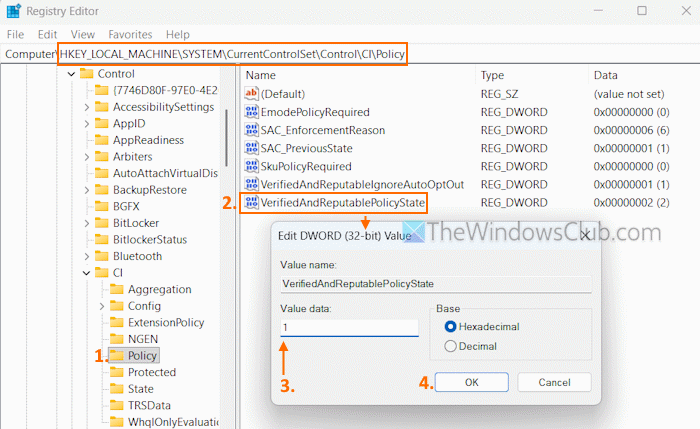
There’s a Registry setting associated with Smart App Control that can be used to switch SAC on or off or set it to Evaluation mode. If that setting is not present or configured, you will find that Smart App Control settings are missing in Windows 11 Security, or it is turned off. In this case, you can create that Registry setting and set its Value data to enable or turn on Smart App Control settings using the Windows Registry. First, backup Windows Registry, and follow these steps:
- Open the Registry Editor on your Windows 11 PC
- Access the Policy Registry key. The path is:
HKEY_LOCAL_MACHINE\SYSTEM\CurrentControlSet\Control\CI\Policy
- Look for the VerifiedAndReputablePolicyState Registry value. If it is not present, create a new DWORD (32-bit) Value, and rename it to VerifiedAndReputablePolicyState. If this Registry value is already present, you don’t need to create one
- Double-click on the VerifiedAndReputablePolicyState. A small Edit Value box will pop up. There, add 1 in the Value data text field
- Press OK and close the Registry Editor
- Close Windows Security (if opened) to apply the changes and reopen it
- Access Smart App Control settings (under the App & browser control), and it will be set to On mode.
You can also add 0 and 2 in the Value data field of the VerifiedAndReputablePolicyState Registry value to operate Smart App Control in Off mode and Evaluation mode.
That’s all.
Now read: Disable or Enable Potentially Unwanted Applications protection in Windows PC
How do I fix Smart App control has blocked part of this App?
To fix the Smart App Control blocked an app that may be unsafe, or Part of this app has been blocked error, you can temporarily turn off Smart App Control on your Windows 11 PC. If possible, contact the app developer to sign the app with a valid signature, as there’s currently no way to bypass this protection for individual apps. If you encounter this error when running the Dell Encryption installer, upgrade to Dell Encryption Personal 11.6.0 before enabling the Smart App Control feature.
Read next: App and Browser Control Missing in Windows PC.
