
Microsoft has always been striving towards making its systems and applications more secure. In addition to releasing security patches, it keeps adding more security features to the system to make it more secure. One such newly added feature is Smart App Control. feature in Windows 11.
Smart App Control in Windows 11 Security
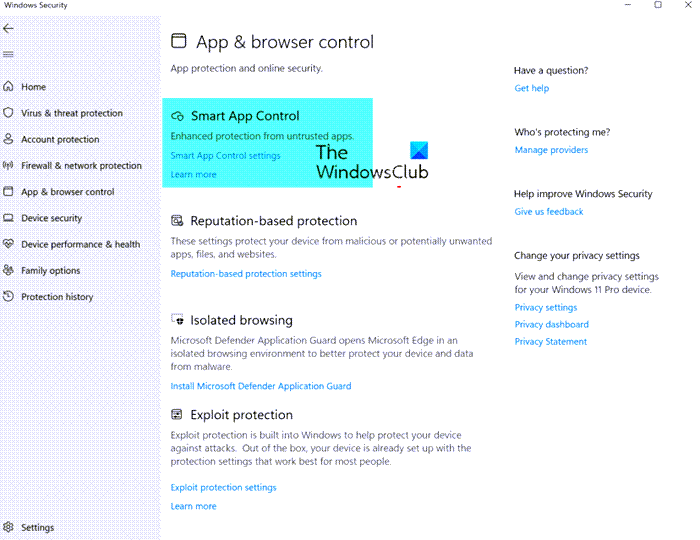
What is Smart App Control?
Windows 11 with Smart App Control blocks ISO and LNK files that have mark of the web just like Macros.
Smart App Control in Windows Security adds an additional layer of protection against malware and emerging threats. It does so by blocking malicious or untrusted apps, as well as Potentially Unwanted Applications. Such apps can cause your PC to run slowly, offer bundled software, or display ad popups.
While we can control and block applications on our Windows System, the process is manual. There was no option to detect which app could harm your system and block it automatically. To resolve this problem, Microsoft introduced the Smart App Control feature. The difference between the new feature and the previous mechanism is that earlier, the process was manual and now a smart technology automatically recognizes the troublesome app and restricts it.
Smart App Control (SAC) feature works alongside your other security software, such as Windows Defender or antivirus tools, for added protection.
Microsoft maintains a cloud-based list of approved applications. If the app is unsigned and you are the developer, then you can get it signed to prevent it from being classified as Untrusted.
How to turn on Smart App Control in Windows 11?
The procedure to access Smart App Control Settings is as follows:
- Go to the Windows Search bar and search for Smart App Control. When you find the application, click on it to open the same.
- Now click on Smart App Control Settings to open the same.
- Under Smart App Contol Settings, the following options are available:
- On: It will block malicious and untrusted apps
- Evaluation: In this learning mode, the feature will evaluate if the app disturbs you too much, and if so, will block it in the future.
- Off: If it is Off, then the feature cannot be turned on without reinstalling Windows.
Why is Smart App Control turned off?
Microsoft has decided that the feature will be available for “good candidates” only. This is because the feature can produce problematic false negatives, thereby impacting the operating system’s performance. This is called testing the application in the Evaluation mode. This option is currently available only for fresh installs of Windows 11. So, if you have not found the option yet, it is most likely because your operating system is not a fresh install, or you are not a good candidate for the option.
While it is possible, it is not recommended. It is advisable to let the Evaluation mode determine the same for you.
Why do I see If Smart App Control is off it can’t be turned on without reinstalling Windows message?
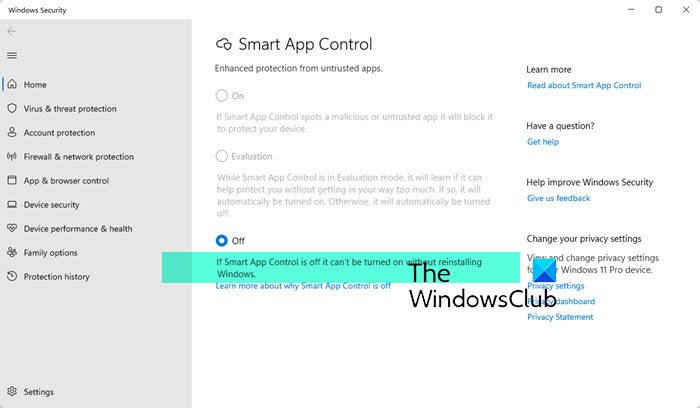
If you see If Smart App Control is off it can’t be turned on without reinstalling Windows message it probably means that your Windows installation is not a fresh install, but an upgrade. If SAC is Off, then the feature cannot be turned on without reinstalling Windows, where the OS will first test it in the Evaluation Mode. Microsoft wants to ensure that no untrusted apps are already running on the device when Smart App Control is turned on.
This post will help you if Smart App Control settings are greyed out in Windows Security.
Why am I unable to return to Evaluation mode for Smart App Control?
If the Evaluation mode period is over, or you manually turned Smart App Control ON or OFF, you will not be able to return to Evaluation mode directly. However, if you reinstall the operating system, you might return to Evaluation mode for Smart App Control.
Read: Windows 11 hidden features you didn’t know existed.
