
When reviewing the list of Event Logs in the Event Viewer, we noticed Event ID 1512, which indicates that Windows cannot unload your registry file. The error indicates that Windows fails to release the user registry hive (stored in NTUSER.DAT and UsrClass.dat) during shutdown or logoff. This prevents profile settings from saving correctly, often leading to temporary profiles on the next login, lost customizations, and system slowdowns. In this post, we are going to talk about this issue and see what you can do to resolve it.

Windows cannot unload your registry file. The memory used by the registry has not been freed. This problem is often caused by services running as a user account. Try configuring services to run in either the LocalService or NetworkService account.
Source: User Profile Service.
Event ID: 1512
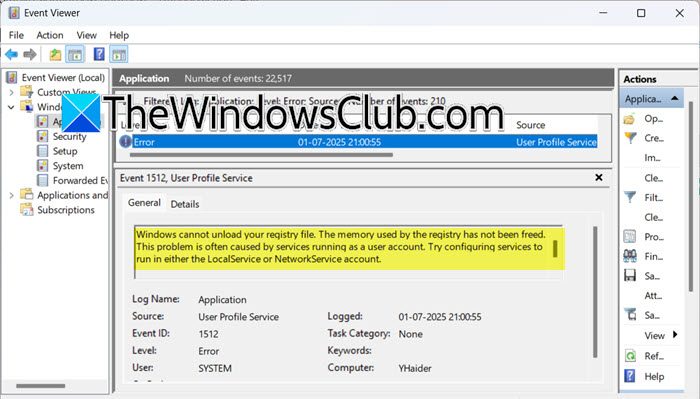
Windows cannot unload your registry file, Event ID 1512
If Windows cannot unload your registry file and displays Event ID 1512 in the Event Viewer of Windows 11/10, follow the solutions mentioned below.
- Disable Fast Startup
- Create a new profile
- Repair System Files and Profiles
- Change Unloading Policy
- Troubleshoot in Clean Boot.
Let us talk about them in detail.
1] Disable Fast Startup
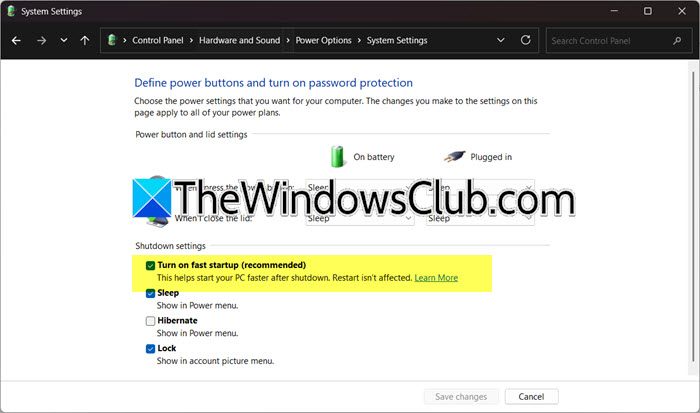
Event ID 1512 occurs because Windows can’t unload the user registry hive (NTUSER.DAT/UsrClass.dat) during shutdown/logoff. Since Fast Startup bypasses the full shutdown process, it leaves registry handles locked. It basically closes user applications and logs off users. So, in order to resolve the issue, we need to disable the Fast Startup using the steps mentioned below.
- Open the Control Panel and click on Hardware and Sound.
- Click on Power Options.
- On the left side of the screen, click on Choose what power button does.
- Click on Change settings that are currently available.
- Untick Turn on fast startup.
- Click on Save changes.
Hopefully, check if the issue is resolved.
2] Create a new profile
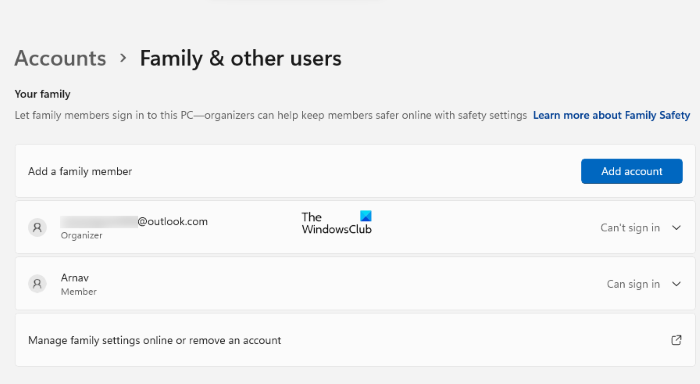
The core issue behind Event ID 1512 is often corruption in the user’s registry hive (stored in C:\Users\<YourProfile>\NTUSER.DAT and UsrClass.dat). When this hive is damaged, Windows cannot unload it during shutdown/logoff, triggering the error. Creating a new profile bypasses corrupted files, resets the profile-system link, and clears lock-handles. To create a new profile, you will have to follow the steps mentioned below.
- Open Settings.
- Go to Accounts > Family.
- Click on Add someone or Add account.
- Add the local account and create a new admin user.
- Finally, migrate the old profile data from C:\Users\OldProfile\Desktop to the new one.
Alternatively, you can run the following commands to create a new profile.
New-LocalUser -Name "NewUser" -Password (Read-Host -AsSecureString) -Description "Temporary fix profile"
Add-LocalGroupMember -Group "Administrators" -Member "NewUser"
Once done, check if the issue is resolved.
3] Repair System Files and Profiles
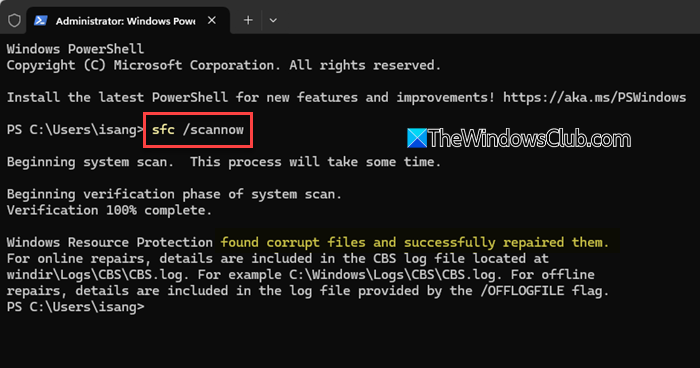
Since this issue can be due to corrupted system and profile files, we can try repairing those files and see if that helps. You can open the Command Prompt as an administrator and then run the following commands one by one.
sfc /scannow
dism /online /cleanup-image /restorehealth
# Reset Profile
icacls "C:\Users\Default" /reset /T
Finally, check if the issue persists.
4] Change Unloading Policy
In this solution, we aim to reduce the time Windows spends trying to unload your registry hive during shutdown. By default, Windows retries unloading 60 times (causing delays) if processes block the registry. Lowering retries to 5 forces faster shutdowns and may bypass the error if the blockage is temporary (e.g., a slow-releasing app). You can follow the steps mentioned below to make the changes.
Group Policy Editor
Open Gpedit and go to Computer Configuration > Administrative Templates > System > Logon. Double-click on Maximum retries to unload and update user profile, set it to Enabled, and click on OK.
Registry Editor.
- Create a backup of your registry.
- Go to the following location.
HKEY_LOCAL_MACHINE\SOFTWARE\Policies\Microsoft\Windows\System
- Right-click on the empty space, and select New > DWORD (32-bit) Value.
- Name it ProfileUnloadTimeout and set it to 5.
Reboot your computer and see.
Read: How to Load or Unload a Registry Hive in Windows
5] Troubleshoot in Clean Boot
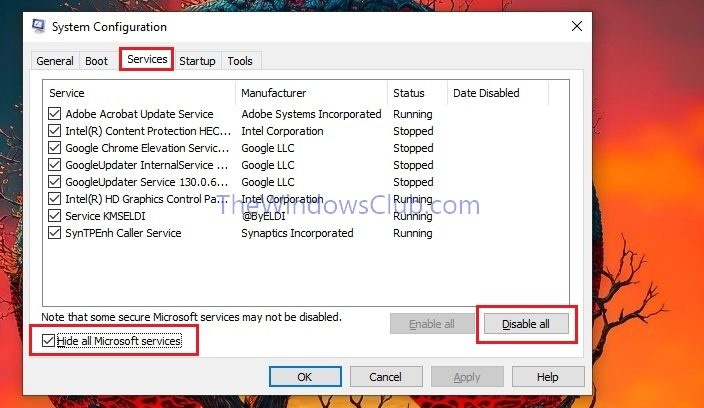
Performing a Clean Boot helps resolve Event ID 1512 by temporarily disabling all non-Microsoft apps and services that might interfere with Windows during shutdown. When third-party programs like antivirus tools, cloud services, or drivers fail to release their grip on your registry files properly, they can prevent Windows from unloading your profile cleanly, triggering the error. By starting your PC with only essential Microsoft services running, you eliminate these outside conflicts. If the error stops, you’ll know a disabled app was the culprit, and you can then re-enable them one by one to pinpoint and fix the specific offender.
To perform a Clean Boot, you need to follow the steps mentioned below.
- Open Run by Win + R, type “msconfig”, and click OK.
- Under Services, check Hide all Microsoft services, then click Disable all.
- Open Task Manager > Startup tab and disable all entries.
Reboot your computer. Once it starts, check if you see the temporary profile. If the issue is resolved, enable processes manually to find out the culprit.
We hope that you are able to resolve the issue using the solutions mentioned earlier.
Read: Please wait for the User Profile Service takes too long in Windows
How to restore Windows registry files?
To restore the Windows registry, you would need a backup of the registry. If you have that, open the Registry Editor, go to File > Import, navigate to the location where you have stored your export, and select it. If you are asked for some confirmation, give that and proceed. Hopefully, you will be able to restore the Windows Registry easily.
Read: Repair Windows User Profile data & settings with ReProfiler
What is user profile service event ID 1500?
User profile service Event ID 1500 is an error that occurs when Windows cannot load a user’s profile during login because it cannot find the required NTUSER.DAT file in the C:\Users\Default directory, which serves as the template for creating new profiles; this issue prevents the system from generating a profile for the user, leading to failed logins and is often caused by corruption, accidental deletion, or incorrect permissions in the default profile folder.
Also Read: You’ve been signed in with a Temporary Profile error in Windows 11.
