
Here is what to do if Windows 11 Dynamic Refresh Rate is not showing or is missing. The Dynamic Refresh Rate feature is the best introduction to Windows OS. You can use it to quickly switch between different refresh rates, which will automatically save your battery backup. However, many users have reported that the dynamic refresh rate option is not showing on their system. If you are facing the same problem, continue reading this post.
What is Dynamic Refresh Rate in Windows 11?
Dynamic Refresh Rate is one of the newest features in the latest Windows OS. As the name suggests, you can use this feature to switch between different refresh rates on your system. If enabled, this feature will automatically adjust the refresh rate based on the app interface and workflow.
For instance, if you are reading a document, the feature will show you 60 Hz. Whereas, when you are playing a high-quality video or game, the refresh rate will automatically switch to 120 Hz. This feature is mainly helpful in Windows 11 laptops, is it effectively helps in managing battery life.
In previous Windows versions, you were limited to a single monitor refresh rate. But now, with the addition of the Dynamic Refresh Rate feature, you can switch between different refresh rates as per the app’s requirements.
Windows 11 Dynamic Refresh Rate missing or not showing
Now, if Windows 11 Dynamic Refresh Rate is not showing or is missing from your system, see our suggestions to address the issue:
- Ensure that your system meets the Minimum Requirement
- Re-enable DRR
- Download latest Windows OS, Optional & Driver Updates
Not able to change Monitor Refresh Rate
1] Ensure that your system meets the Minimum Requirement
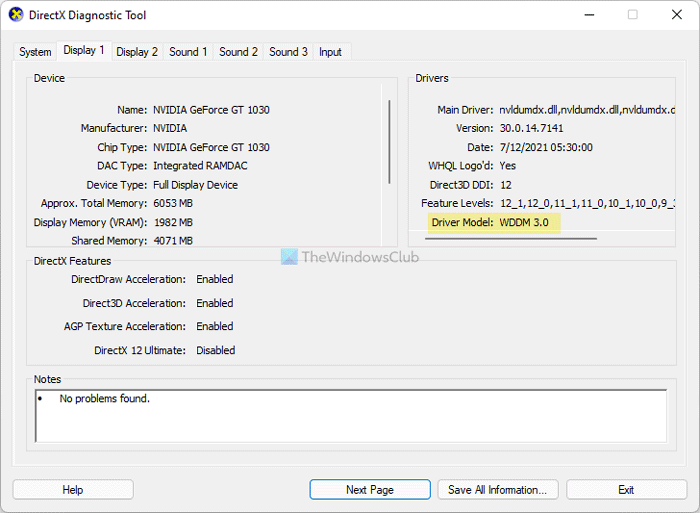
If your laptop is not compatible with the dynamic refresh rate, it’s no surprise that this option is missing or not showing on your system. To use the dynamic refresh rate feature, the display of your laptop must be compatible with the Variable Refresh Rate (VRR).
Additionally, it must have a different rate of at least 120 Hz and Graphics driver Model WDDM 3.0. You can ensure that the Display Driver version on your laptop is compatible or not by following the below steps.
- Press the Windows key to open the Start menu.
- Type dxdiag and press Enter.
- Click on the Display section. Look for the Drivers section.
- Check the version number and driver model.
Ensure that the driver version and driver model match the minimum requirement.
If your device is not compatible, don’t worry, as Microsoft is expanding it to more OEMs.
2] Re-enable DRR
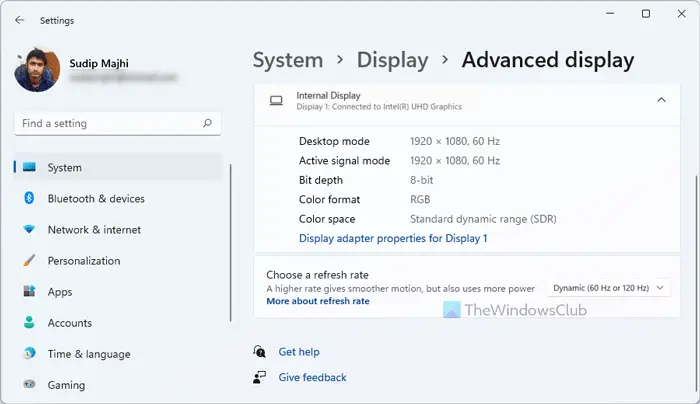
You can manually re-enable the DRR to fix the problem. Sometimes, there can be a temporary glitch causing the issue, you can just re-enable the feature to fix the problem. Here’s what you need to do to re-enable Dynamic Refresh Rate or DRR.
- Press Windows + I shortcut key to open the Settings menu.
- Navigate to System > Display.
- Click on Advanced display.
- Tap on the drop-down menu presents next to Choose a refresh rate option.
- Choose the Dynamic option.
Now check if the option is showing or not.
3] Download latest Windows OS, Optional & Driver Updates
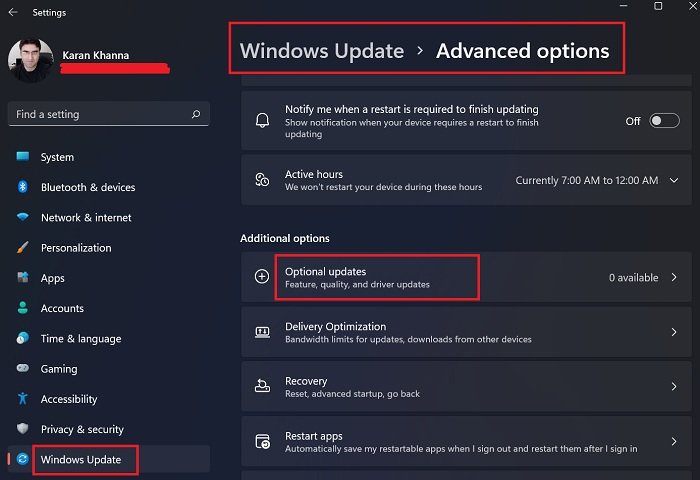
If the dynamic refresh rate is still not showing up on your system, the last thing you can try is to update your OS. It may be that you haven’t downloaded the latest Windows 11 update, which is why this feature is missing from your system. Thus, downloading the latest update can be an effective solution. To do so, here are the steps you need to follow.
- Press Windows + I shortcut key to open the Settings menu.
- Tap on the Windows Update option present at the left panel of the screen.
- Click on Check for updates.
Now, Windows will look for any available update. If found, click on the download icon present next to the update to begin the process. Also, install the Driver & Optional Updates if they are offered.
Once you have downloaded the update, restart your system. Check whether the dynamic refresh rate option is now shown.
That’s it. We hope this guide was helpful.
Does Windows 11 support 120Hz?
Yes, Windows 11 does support 120 Hz. In fact, the OS will automatically switch the refresh rates as per the requirements of the apps. These features ensure that your Windows 11 laptop offers a better battery life and a smooth display experience.
Should I turn on VRR?
VRR, aka Variable Refresh Rate, helps the game console or PC transfer video frames to the monitor instantly. This feature is really helpful, especially if you are an online gamer who loves to play multiplayer and Battle Royale games. It lowers the latency and offers better picture quality.
Does my display support VRR?
You can check whether your display supports VRR by going to Settings > System > Display > Advanced display > Choose a refresh rate. If you don’t see more than one option under “choose a refresh rate”, then your display does not support VRR.
Read next: Windows 11 Tips and Tricks you need to know.
