
After installing the latest Windows Update on my Windows PC today, I found that my Windows Start Search was not displaying any results – It just showed a blank white screen. If you face this issue, here are some suggestions that will help you fix the problem.
No Results Found, says Windows Search

Windows 11 Start Search not displaying results
If you face this proble, take these steps:
- Run Search and Indexing Troubleshooter
- Configure the Windows Firewall
- Reinstall Search
- Run SFC and DISM scans.
1] Run Search and Indexing Troubleshooter
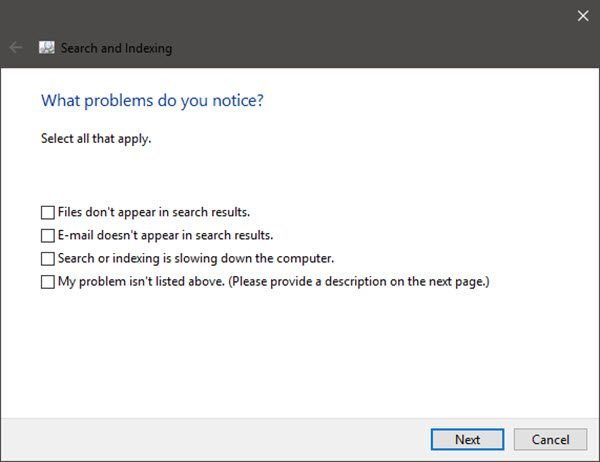
Run the Windows Search and Indexing Troubleshooter and see if that helps. You can access it via Settings Troubleshooters page.
Read: Windows Search bar Text is white or blank
2] Configure the Windows Firewall
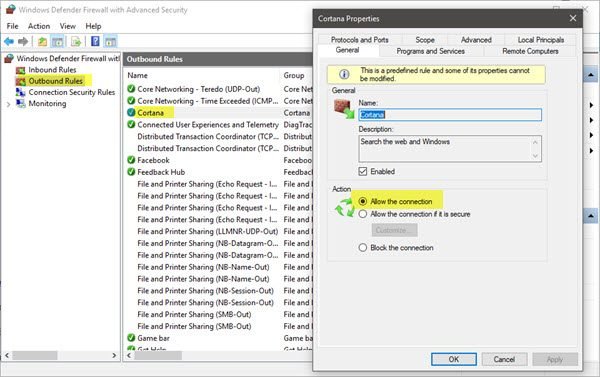
Press Win+Pause or Win+Fn+Pause keys to open the Control Panel. Next, open Windows Defender Firewall applet and click on Advanced Settings to open Windows Defender Firewall with Advanced Security panel.
Locate Cortana or Windows Search and double-click on it to open its Properties window.
Ensure that Allow the connection is selected. This is the default working setting.
Alternatively, you may reset the Firewall settings to default.
3] Reinstall Search
If you do not see Search in the Windows Defender Firewall with Advanced Security panel, then you may need to reinstall it.
Right-click on the Taskbar and select Task Manager. Select File menu > Run new task.
Type powershell in the given field and select Create this task with administrative privileges.
Press OK and a PowerShell console will open.
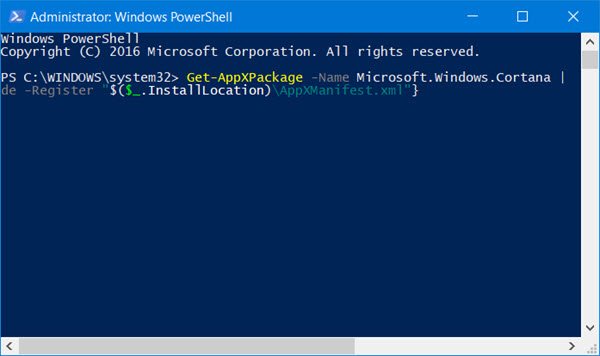
Copy-paste the following command and hit Enter:
Get-AppXPackage -Name Microsoft.Windows.Cortana | Foreach {Add-AppxPackage -DisableDevelopmentMode -Register "$($_.InstallLocation)\AppXManifest.xml"}
This is what got my Windows Start Search working back!
4] Run SFC and DISM scans
You should also run the SFC and DISM scans and see if they help.
Related reads:
- Start Menu and Taskbar Search not working
- Windows Search not working or finding files in Windows 11.
