
If the Windows 11 Search bar is white or blank, this post will help you resolve the issue. This issue has been reported by some Windows 11/10 users who use the Dark theme.
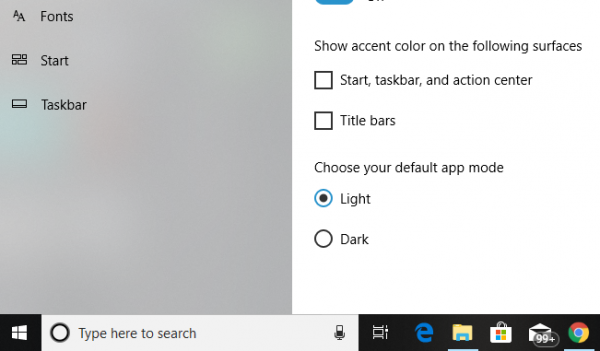
Windows 11/10 Search bar is white or blank
Remember, these fixes will change all white search boxes to black, and one of the fixes needs admin privileges.
1] Change Default App Mode
Windows offers two modes – Dark and Light. You can switch to Dark mode, and your box will be black as well, but then the theme completely changes everything too dark mode. There will be no light mode anywhere.
- Click on Start Button and then click on the cog icon. This will launch the Windows Settings.
- Open Personalization from the Settings Menu, and then select Colours from the left pane.
- Scroll till the bottom till you find the option ‘Choose your default app mode’.
- Select the option “Dark”.
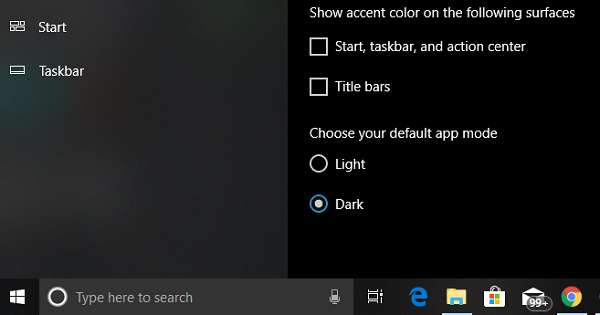
This will instantly change the search bar to black. Apart from this, you will see the UI changing to dark mode everywhere.
2] Change Registry Value
If you are familiar with editing registry keys, you can try this option as well. However, always make sure to create a restore point first.
In the Run prompt (WIN +R), type regedit. If you get a UAC prompt, click yes. This will launch the registry editor.
Next, navigate to the following key:
HKEY_CURRENT_USER\Software\Microsoft\Windows\CurrentVersion\Search\Flighting\0\WhiteSearchBox
Double-click on the key “Value” on the right pane. Set the value as “0” instead of “1”, and click OK.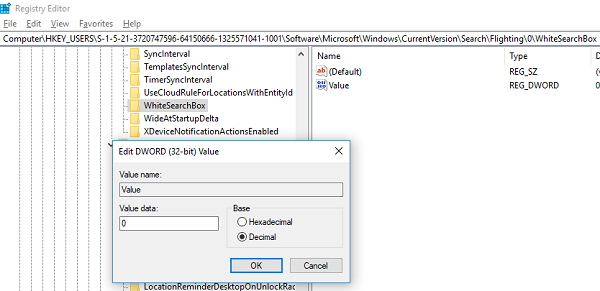
This will instantly change the text box color to black/grey.
3] Change Region
This tip has worked for few as we have seen in the forums. You will need to temporarily change PC region settings
- Type Regional Settings in the box, and when it appears.
- Select a region to some other
- Select apply to that region. This will change the color of the box.
- Now, sign out, and sign in back.
- Revert to original settings and see.
4] Restart Windows Search Service
Press Win + R, type services.msc, and hit Enter to open Services Manager. Locate the Windows Search service, right-click on it and click on Restart.
Read: Windows Start Search not displaying results; shows blank white
5] Rebuild the Search Index
Open Control Panel > Indexing Options > Advanced > Rebuild the Search Index.
6] Reset Windows Search settings to default
Reset Windows Search settings to default and see if that helps.
Let us know if this helped to change the Search Bar to a normal one.
