
We noticed a very peculiar issue where Wi-Fi reduces when coming out of the sleep mode and goes back to normal if we disconnect and reconnect it. This issue typically occurs due to power management misconfigurations, driver incompatibilities, or the Modern Standby feature in Windows 11/10 failing to properly reinitialize the network adapter. In this, we will talk about this issue and will try to find a remedy to the slow WiFi.

Windows sometimes turns off your Wi-Fi during sleep to conserve power, but fails to turn it back on properly when you wake the computer, resulting in a slow connection. Old or faulty Wi-Fi drivers from brands like Realtek or Intel can also cause trouble when switching between sleep and wake modes. Windows 11’s “Modern Standby” feature, designed for quick sleep and wake cycles, may not restart the Wi-Fi correctly. Lastly, the “Fast Startup” setting, which helps your PC boot faster, can interfere with how devices like Wi-Fi reconnect after sleep, leading to speed drops. These issues combine to slow down your internet.
Wi-Fi speed reduces when coming out of Sleep Mode in Windows 11/10
If your Wi-Fi speed decreases when coming out of sleep mode, follow the solutions mentioned below.
- Disable Adapter Power Saving via Registry
- Reset Power Plan Settings
- Change Power Saving Mode
- Reinstall network adapters
- Disable Fast Startup
- Update BIOS/UEFI
Let us talk about them in detail.
1] Disable Adapter Power Saving via Registry
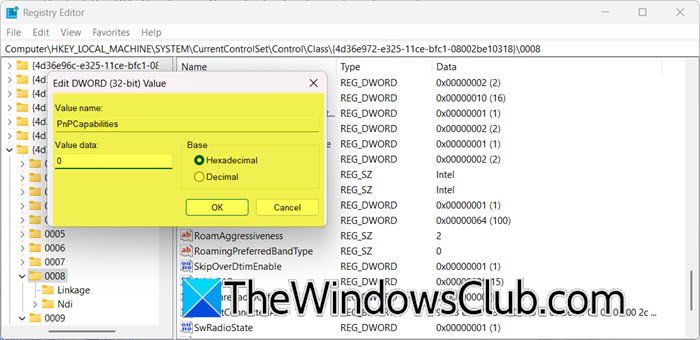
We are going to make some registry tweaks to force your Wi-Fi adapter to stay active during sleep states by disabling Windows’ ability to power it down. The PnPCapabilities=0 setting overrides hidden power management features when the standard “Power Management” tab is missing from your adapter’s properties.
Before making any changes, you need to create a backup of Registry. Once done, open the Registry Editor and go to the following location.
HKEY_LOCAL_MACHINE\SYSTEM\CurrentControlSet\Control\Class\{4d36e972-e325-11ce-bfc1-08002be10318}
You need to expand subkeys (e.g., 0000, 0001) to find your adapter’s DriverDesc value. This way, you can figure out which subkey you want to edit.
Once you figure out your subkey, look for PnPCapabilities. If you can’t find it, create a new DWORD (32-bit) value named PnPCapabilities. You need to set the Value data to “0”.
Finally, check if your issue is resolved.
Read: Internet or WiFi gets disconnected after Sleep in Windows
2] Reset Power Plan Settings
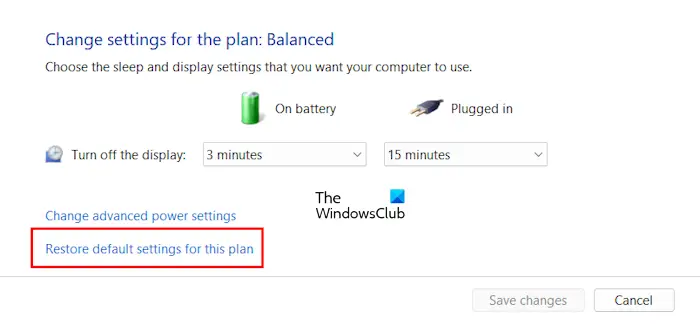
Corrupted power plans can cause your Wi-Fi to become trapped in a sleep-like state, even after waking. Therefore, we recommend that you reset the Power Plan Settings on your computer to resolve this issue. To do so, follow the steps outlined below.
- Open the Control Panel.
- Change the View by to Large/Small icons.
- Then, click on Power Options.
- Select “Change plan settings” associated with your current plan.
- Finally, click on Restore default settings for this plan.
Once done, check if the issue is resolved.
3] Change Power Saving Mode
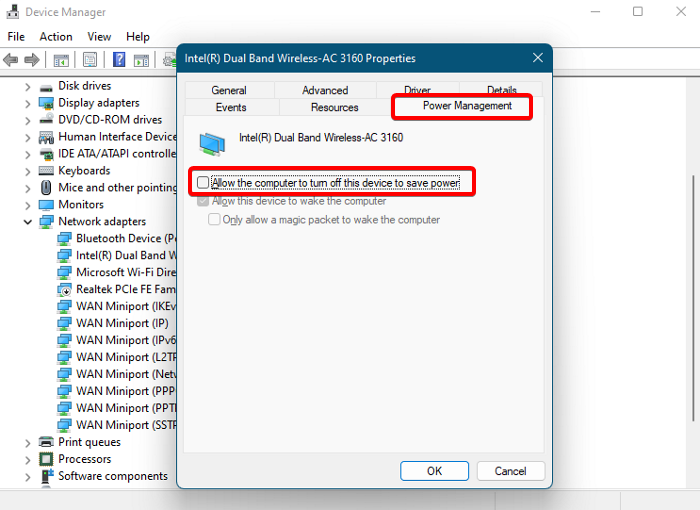
We need to make some changes to the Power Saving Mode to get this issue resolved. We will try disabling Power Saving Mode as it forces your Wi-Fi adapter to stay fully active at all times, preventing Windows from putting it into low-power sleep states. When adapters enter deep sleep, many drivers (especially Realtek/Intel) fail to properly wake them back to full performance after system sleep, leaving them stuck in a sluggish half-awake state.
To do so, open the Device Manager, expand Network adapters, right-click on your network driver, and select Properties. Go to the Power Management tab and untick Allow the computer to turn off this device to save power. Click on OK.
Finally, check if the issue is resolved.
4] Reinstall network drivers
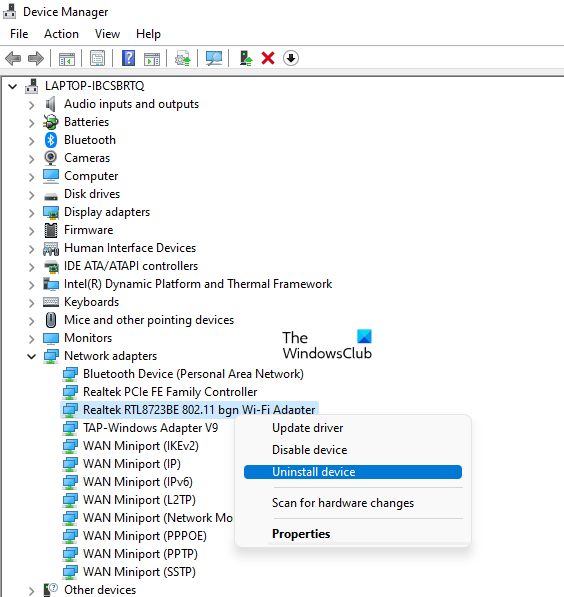
One of the things you can do to resolve this issue is to reinstall the network driver, as that can remove the corrupted driver. You can go ahead and uninstall the Drivers. Once done, install the latest version of the driver. Hopefully, this will do the job for you.
Read: No internet, Secured WiFi error on Windows 11
5] Disable Fast Startup
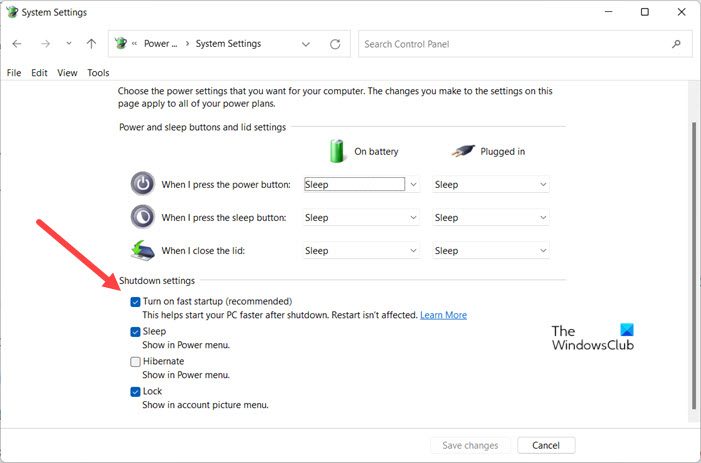
Fast Startup saves a snapshot of your system state (including drivers) to hiberfile.sys at shutdown. When you boot next time, Windows reloads this snapshot instead of initializing hardware from scratch. If your Wi-Fi driver was in a buggy, low-power state when you last shut down (e.g., after a problematic sleep cycle), that exact broken state gets reloaded on startup. Therefore, disabling Fast Startup will resolve the issue for you.
6] Update BIOS/UEFI
Finally, if nothing works, your last job is to update the BIOS/UEFI. BIOS updates often resolve power management bugs with sleep states.
Hopefully, this will resolve the issue.
Read: WiFi disappeared or does not work after installing Windows Update
Why is the Wi-Fi speed slow in my laptop Windows 11?
Your laptop’s Wi-Fi might be slow on Windows 11 because your laptop is too far from the router, physical obstacles like walls are blocking the signal, other devices are using too much bandwidth, or something nearby (like a microwave or cordless phone) is causing interference. It could also be due to outdated Wi-Fi drivers in Windows 11, your laptop’s power-saving settings reducing Wi-Fi performance, a temporary router glitch, or simply a slow internet plan from your provider.
Read: How to fix WiFi problems in Windows 11
Does Windows 11 affect Wi-Fi?
Yes, Windows 11 can affect your Wi-Fi. It might slow down your connection if your Wi-Fi drivers are outdated, incompatible, or buggy after an update. Power-saving settings in Windows 11 might also reduce Wi-Fi performance to save battery, or a Windows glitch could temporarily disrupt the signal.
Also Read: Internet works only after restart on Windows 11.
