
A common issue in Windows 11 is that the Wi-Fi network adapter fails to reconnect or disappears entirely from the system after the computer resumes from sleep mode. This problem, reported by users across different device brands, often leaves you with no internet connection until you restart your PC. In this post, we will see what you can do if the WiFi network adapter isn’t waking up or goes missing after sleep in Windows 11/10.
After your Windows 11 computer wakes from sleep, the WiFi (and sometimes LAN) adapter fails to power back on. The network icon may show a globe or ‘No Connections Available,’ and the adapter may be missing from Settings and Device Manager. The only temporary fixes are a full system restart or, curiously, connecting to a mobile hotspot, which has triggered the adapter to reappear for some users.
The root cause is often a problematic interaction between Windows 11 and your hardware. Issues can stem from specific Windows updates, buggy or incompatible network driver versions, or the system’s Modern Standby (S0 low-power idle) mode, which handles sleep differently than the traditional S3 mode and can prevent adapter power settings from being available.
The WiFi network adapter isn’t waking up or goes missing after Sleep in Windows 11
If your Wi-Fi network adapter isn’t waking up or goes missing after sleep, follow the solutions below.
- Disable Fast Startup
- Prevent the adapter from Powering Down
- Install a Different Network Driver
- Disable Link State Power Management (LSPM)
Let us talk about them in detail.
1] Disable Fast Startup
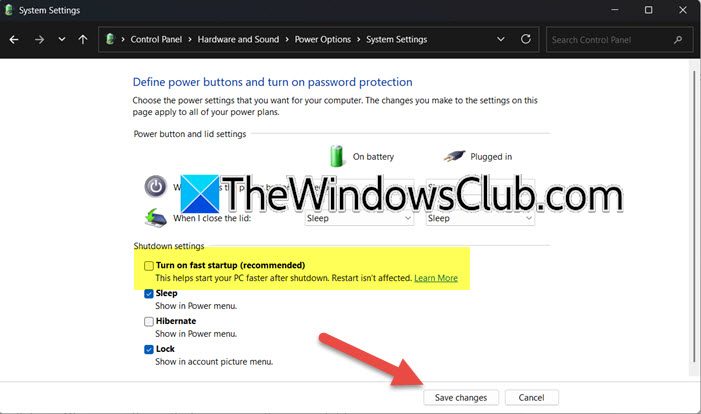
Fast Startup uses a partial hibernation state that saves the kernel and driver session. Upon waking from sleep, the system attempts to reload this saved state rather than fully reinitializing hardware, which can leave the WiFi adapter stuck in an inactive power state. Disabling it forces a complete driver reload from scratch during every startup, preventing the conflict.
To disable Fast Startup, follow the steps below.
- Open Control Panel.
- Change View by to Large icons.
- Select Power Options.
- Click Choose what the power buttons does > Change settings that are currently unavailable.
- Uncheck the box for Turn on fast startup (recommended) and save changes.
Finally, check if the issue is resolved.
2] Prevent the adapter from Powering Down
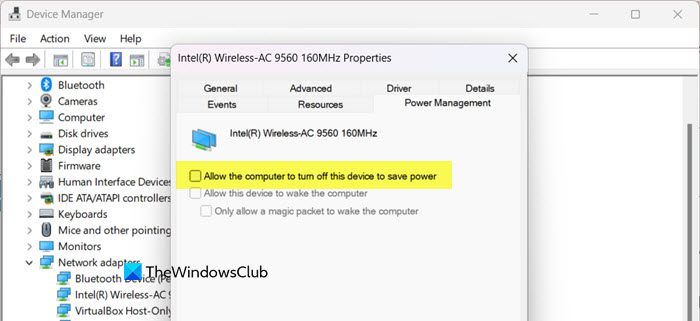
We need to stop Windows from turning off the adapter to save power. If the Power Management tab is missing from your adapter’s properties (common with Modern Standby), you will need to make a registry edit to make it visible.
Follow the steps below to do the same.
- Open Device Manager, expand Network adapters, right-click your WiFi adapter, and select Properties.
- Go to the Power Management tab.
- Uncheck the option that says Allow the computer to turn off this device to save power.
- Click OK.
If the Power Management tab is missing, we need to make some registry changes to force the system to use the legacy S3 sleep state. However, before that, you need to take a backup of the registry.
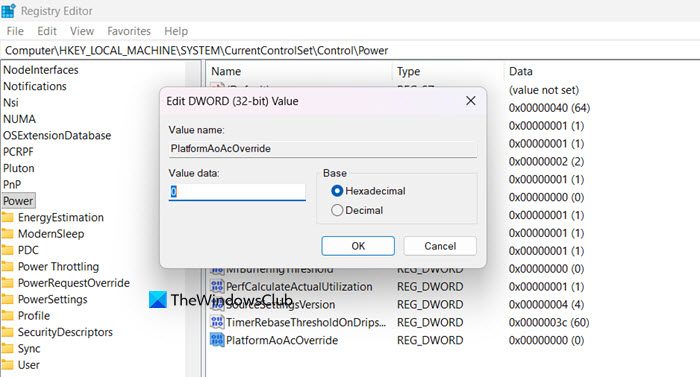
Then, open Regedit and navigate to the following location.
HKEY_LOCAL_MACHINE\System\CurrentControlSet\Control\Power
Right-click in the right pane, select New > DWORD (32-bit) Value, and name it PlatformAoAcOverride.
Double-click it and set its Value data to 0. Click OK and restart your PC.
3] Install a Different Network Driver
A buggy or generic driver is a frequent culprit, and replacing it with a stable version can help. You should begin by attempting to roll back to the previous driver using the option in Device Manager.
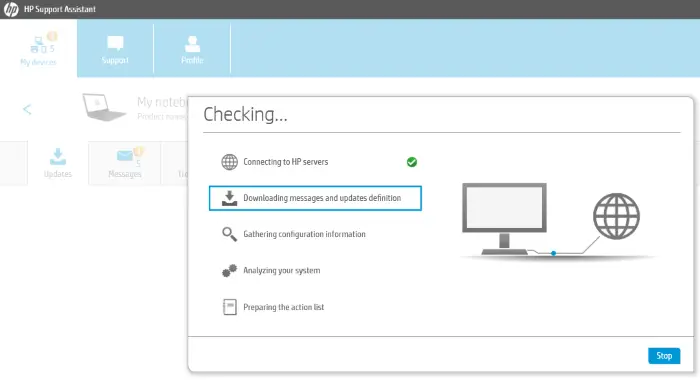
If that does not work, avoid the generic driver from Windows Update and instead install a manufacturer-specific driver downloaded directly from your laptop or motherboard maker’s support website for your exact model. Another effective approach for some users has been to manually locate and install an older, known-stable driver version from the Microsoft Update Catalog website. Basically, try updating your Network driver and see if that helps in resolving your issue.
4] Disable Link State Power Management (LSPM)
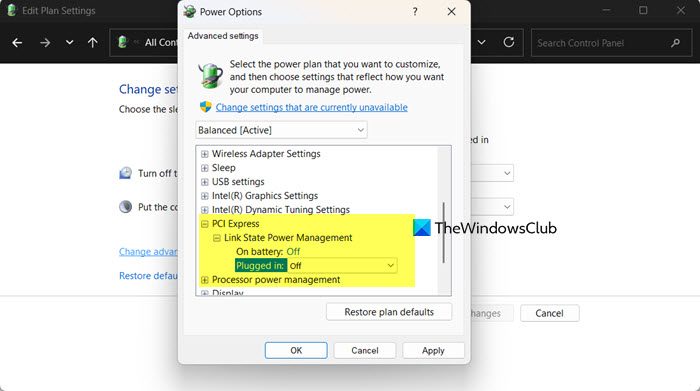
When enabled, LSPM can turn off the physical link to your WiFi adapter during sleep, and the system may fail to properly re-establish that connection upon waking. Disabling it ensures the communication pathway stays active, allowing the adapter to be reliably detected.
Follow the steps mentioned below to do the same.
- Open the Control Panel and go to Power Options.
- Click Change plan settings for your active plan, then Change advanced power settings.
- In the new window, expand PCI Express > Link State Power Management.
- Set both On battery and Plugged in to Off.
- Click Apply and OK.
Finally, check if the issue is resolved.
That’s it!
Read: WiFi disappeared or does not work after installing Windows Update
Why does my Wi-Fi option disappear after sleep Windows 11?
Your Wi-Fi option may disappear after Sleep in Windows 11 due to a power management issue that prevents the system from properly reawakening the network adapter. This is often caused by driver incompatibility or by the operating system’s Fast Startup and Modern Standby features incorrectly powering off the hardware to save energy.
Read: WiFi option not showing in Windows 11
How to fix Wireless adapter missing in Windows 11?
To fix a missing wireless adapter in Windows 11, first check Device Manager and use Scan for hardware changes, then disable power-saving features for the adapter in its properties. If the adapter is missing entirely, performing a clean reinstall of the manufacturer-specific network driver from your laptop or motherboard’s support website is typically the most effective permanent solution.
Also Read: Fix WiFi problems in Windows 11.
