
If you notice a process named Secure System in the Task Manager on your Windows 11 PC, you are not alone. Many users have reported seeing this process running silently in the background, sometimes consuming a noticeable amount of system resources. In this post, we will explain what the Secure System process is, why it runs on your system, and whether you should be concerned about its resource usage.
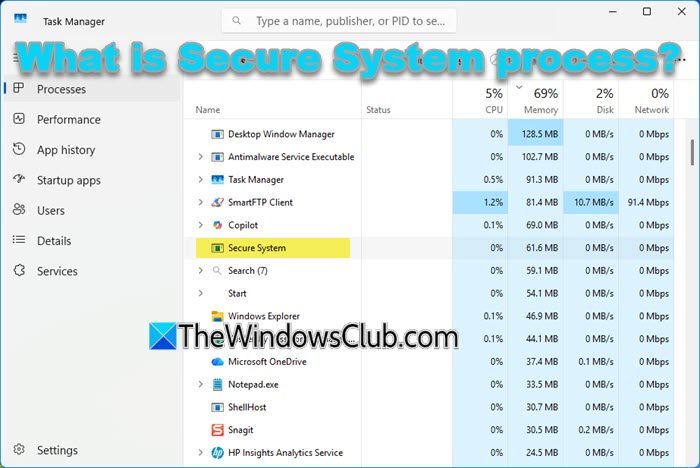
What is Secure System process in Task Manager of Windows 11
The Secure System process is a built-in Windows component that runs as part of the system’s advanced security framework. It is created by virtualization-based security features to isolate and protect sensitive operations from threats. It is located in the following folder:
C:\Windows\System32
Understanding the Secure System process
Many of the terms associated with the Secure System process can sound technical at first. However, the concept becomes much easier to understand when you start with the basics.
What is virtualization?
Virtualization is a technology that allows your computer to create a separate, isolated space within itself. You can think of it as a small, secure section inside your system where certain tasks can run independently from the rest of Windows.
How Windows uses virtualization for security
While virtualization is commonly used to run multiple operating systems on the same machine, Windows also uses it to improve security.
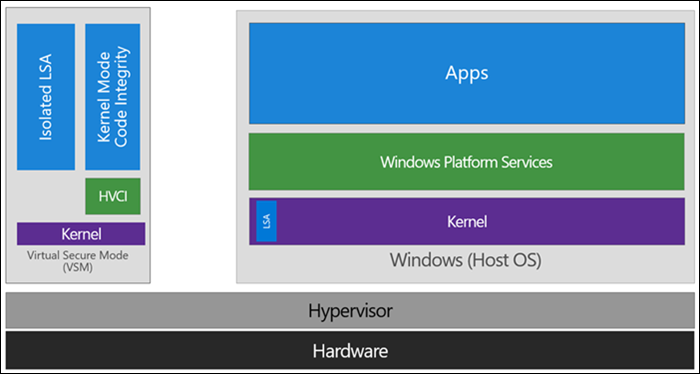
Windows leverages virtualization through a feature called Virtualization-Based Security (VBS). With VBS enabled, Windows creates a highly secure environment in your system’s memory. This environment, known as Virtual Secure Mode (VSM), is separated from the main operating system and is used to handle sensitive operations. It serves as a secure, isolated area where critical security processes can run safely, away from potential threats.
Why the Secure System process appears in Task Manager
The Secure System process is the visible indication that this secure, isolated environment is active on your PC. It appears when certain security features are enabled, especially those under Core Isolation. One of the main features is Memory Integrity, also known as Hypervisor-Protected Code Integrity (HVCI).
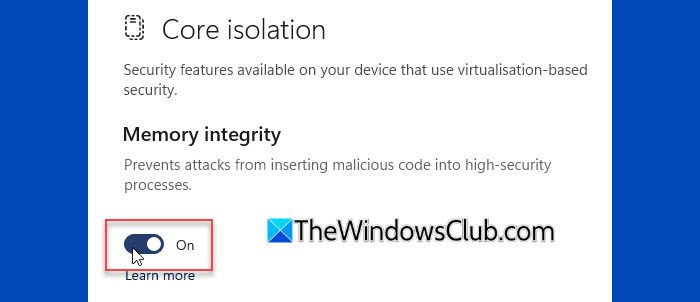
When Memory Integrity is turned on, Windows uses virtualization-based security to ensure that only trusted code and drivers can run in the system. To achieve this, it creates a secure, isolated environment (VSM), which is then shown in Task Manager as the Secure System process.
Is the Secure System process safe?
Yes, the Secure System process is completely safe. It is a legitimate Windows component that works as part of the system’s built-in security framework. It is not a virus or suspicious program, even if its name sounds unfamiliar.
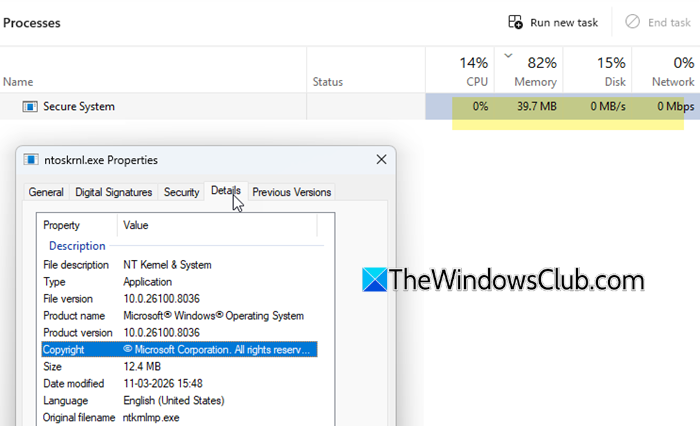
You can verify this directly from Task Manager. When you right-click the process and select Properties, you may notice that it is associated with core Windows components such as ntoskrnl.exe (Windows NT Kernel & System) and is digitally signed by Microsoft. This confirms that it is a legitimate system process and not malware.
Should you be worried about its resource usage?
VSM needs dedicated RAM to store sensitive data and run security checks safely, which is why the Secure System process uses memory. Unlike regular processes, it does not constantly perform visible tasks, which is why CPU usage usually remains at 0%, and there is no disk or network activity.
The memory is mainly reserved to keep this secure environment active and ready. In most cases, a typical usage range of around 100–300 MB is considered normal.
Should you disable the Secure System process?
In general, you should not disable the Secure System process. It exists to enhance your system’s security by isolating important operations in a protected environment. Disabling it would mean turning off features like Memory Integrity (Core Isolation) or other virtualization-based protections, which can make your system more vulnerable to attacks.
That’s all! I hope you find this useful.
Read: What is Secure Boot, Trusted Boot, Measured Boot in Windows.
How to disable Secure System Windows 11?
You cannot directly disable the Secure System process, as it is tied to Windows security features. To stop it from running, you need to turn off Core Isolation (Memory Integrity) or other virtualization-based security features. Go to Windows Security > Device Security > Core Isolation > Memory Integrity and toggle it off, then restart your PC. Keep in mind that doing this reduces your system’s protection against advanced threats, so it should only be done if necessary.
Is Windows 11 a secure operating system?
Windows 11 is designed to be a highly secure operating system with built-in protections like Secure Boot, TPM 2.0, and virtualization-based security. It uses hardware-backed security features to protect against malware, ransomware, and unauthorized access. Features like Memory Integrity and Credential Guard further strengthen system defenses. Overall, it offers stronger default security compared to earlier versions of Windows.
Read Next: System Guard Enabled but not running in Windows.
