
In computer terminology, a device driver is a set of files that tells a piece of hardware how to function by communicating with a computer’s operating system. In this post, we discuss what is a Chipset driver and how do you update Chipset drivers on Windows 11 or Windows 10 system.
All hardware requires a driver, from your internal components, such as your graphics card, to your external peripherals, like a printer. In all versions of Windows the drivers are stored in the C:\WINDOWS\inf and C:\Windows\System32 folder in the sub-folders Drivers, DriverStore and if your installation has one, the DRVSTORE directory. These folders contain all the hardware drivers for your operating system. In the folder location, C represents the drive on which you have Windows installed; this may be a different letter on your system.
What is a Chipset driver?
Chipset drivers are software instructions that tell Windows how to communicate with and operate your motherboard and its small subsystems, and are based on the processor family you can use on that motherboard. Chipset drivers play a significant role in controlling communication between different components, including hard drives and system memory.
In Device Manager, you’ll find the chipset device drivers under the System devices section.
How to update Chipset drivers?
Outdated chipset drivers on your Windows 11/10 computer will slow down your system performance. To improve your system performance, it is necessary to update chipset drivers timely. You can update or download the Chipset drivers in the following ways:
1] Update Chipset drivers via Manufacturer’s website
Prior to installing/updating the chipset drivers, you can check your motherboard manual for the motherboard model and serial number. Then you can visit the official website of your motherboard manufacturer to download the drivers for the chipsets and MOBOs that support your Windows OS. Alternatively, PC manufacturers have special driver download software for their brands that you can use.
2] Update Chipset drivers via Windows Optional Update
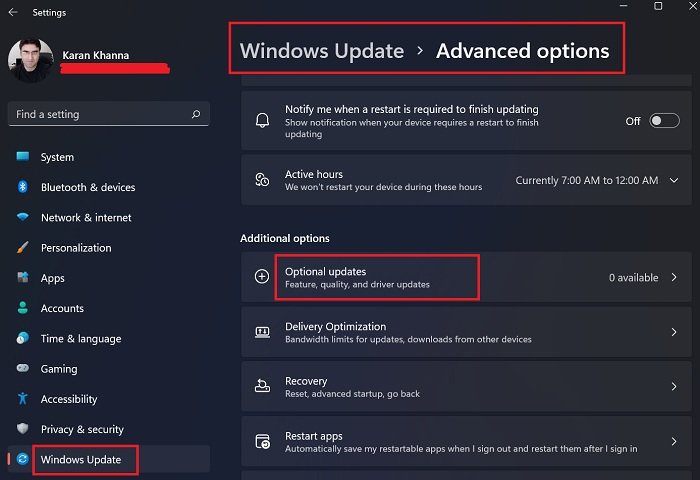
Microsoft has introduced a new and intuitive and easier way for PC users to discover the available Windows 11/10 feature updates, monthly non-security quality updates, and driver updates. You can get the chipset driver updates (if available) under the Optional Updates section in Windows Update.
3] Update Chipset drivers via Command Prompt
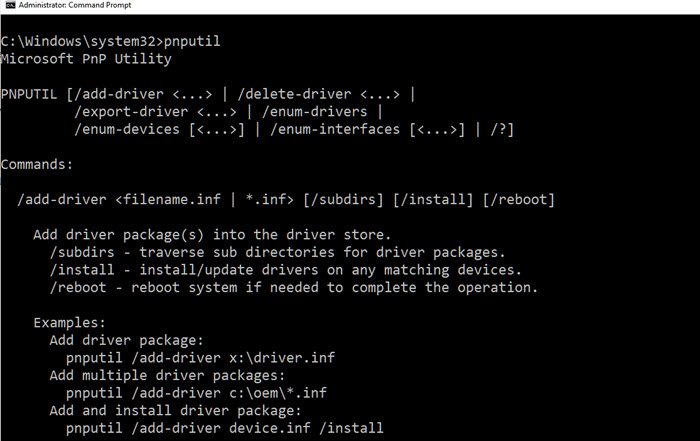
Microsoft offers a built-in utility PnPUtil.exe that allows an administrator to add a driver package, install or update and delete a driver package from the driver store. The utility also enables PC users to view the list of driver packages currently installed in the driver store.
You can update chipset drivers via the Command Prompt. With this method, you will first have to download the package from the OEM website or copy it from a USB drive or other storage media to the computer, then run the utility to update the driver.
4] Update Chipset drivers using Driver Update Software
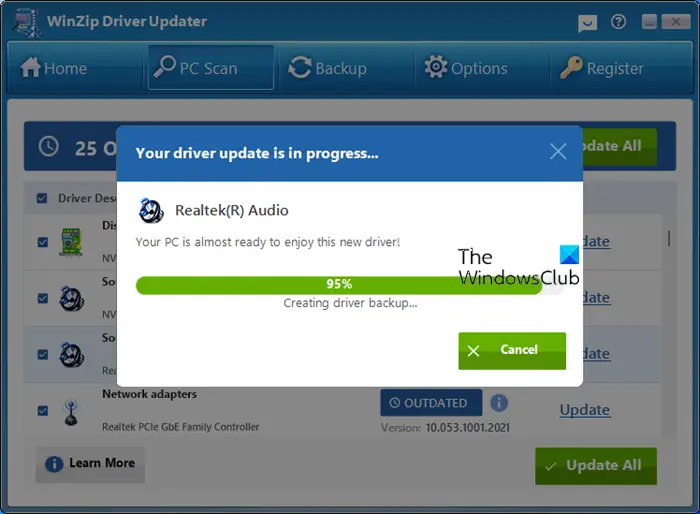
Another option available for you is to automatically update your chipset drivers using any of the free Driver Update Software for Windows 11/10 PC. These third-party software let you update the device drivers easily, and are especially handy for PC users who don’t want to visit the manufacturer’s website to download the driver.
However, one must be careful while using these software and create a system restore point first before using it.
5] Update Chipset drivers using INF file in Device Manager
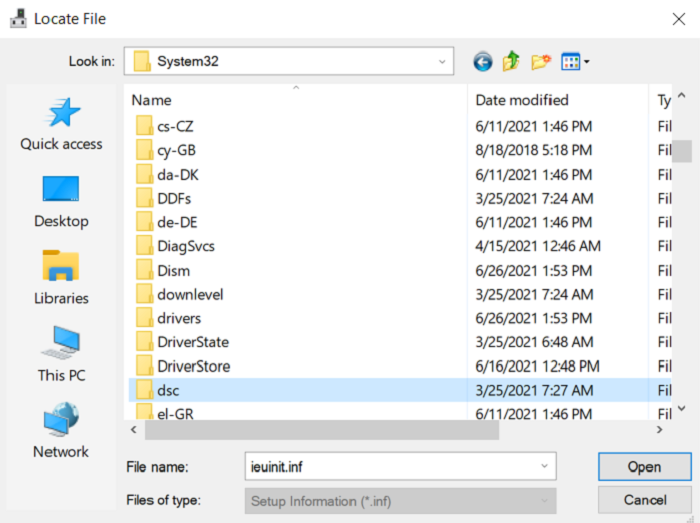
You can manually update chipset drivers via Device Manager if you have already downloaded the .inf or .sys file for the driver. An INF file, or Setup Information file, is a plain-text file used by Microsoft Windows for installing software and drivers. INF files are most commonly used for installing device drivers for hardware components. A SYS file often contains device drivers or hardware configurations for the system. The .sys files are real-mode device drivers and are not the same as .inf files.
I hope this post is informative enough for you.
Related post: PCI device driver missing; Where do I download it?
Should you update chipset drivers?
You probably don’t need to update the chipset drivers. If anything critical were needed, it would probably appear through Windows Update if you haven’t disabled driver updates.
Why is chipset important?
An electronic chipset manages the flow of data between components on a motherboard. It’s the traffic controller between the CPU, GPU, RAM, storage, and peripherals. Experts have referred to it as the “glue” of the motherboard.
What is difference between chipset and processor?
In a nutshell, the CPU is the main processor in the computer that performs all calculations, whereas the chipset is the set of components that connect the CPU to the rest of the computer. The chipset is also the part that dictates which CPU the motherboard can support.
Is chipset same as SoC?
Chipsets are usually composed of one to four chips and feature controllers for commonly used peripherals, such as the keyboard, mouse or monitor. A System-on-a-Chip (SoC), integrates almost all of these components (chipset features) into a single silicon chip.
