
In Windows 11 or Windows 10, a Theme may specify the accent color for apps and window frames and may include one or several desktop backgrounds, a set of sounds, mouse cursors, and desktop icons. In this post, in addition to changing the theme via the Settings app, we will show you 5 other ways to change the Theme in Windows 11/10. You can change Windows Themes via Settings, Command Prompt, PowerShell, Control Panel or Explorer.
A theme file is a classic text file containing parameters, values and resources, such as wallpapers, which are usually located in a subdirectory. Microsoft uses the Themepack and Deskthemepack archive (ZIP or CAB) package files, which contain all theme resources, to simplify theme sharing and redistribute themes via the Microsoft Store. There are three types of themes stored in different locations in Windows 11/10 viz;
- My Themes — manually created or saved, or downloaded and installed from a themepack file or Microsoft Store. These themes are saved in the
%localappdata%\Microsoft\Windows\Themesfolder. - Windows Default Themes — pre-installed themes on your Windows OS. These themes are stored in the
C:\Windows\Resources\Themesfolder. - High Contrast Themes — specially made for people with vision problems and are part of the Ease of Access feature. These themes can be found in the
C:\Windows\Resources\Ease of Access Themesfolder.
There are several ways to change the theme in Windows 11/10. We will discuss these methods as follows:
How to change Theme in Windows 11
1] Change the Theme via Windows Settings
To change the theme in Windows 11 via Windows Settings, follow these steps:
- Press Win+I to open the Windows Settings.
- Go to Personalization > Themes.
- Select a theme you want to apply.
- Click on the theme to enable it.
To get started, you need to open the Windows Settings panel by clicking the Win+I button together. Following that, go to Personalization and select the Themes menu.
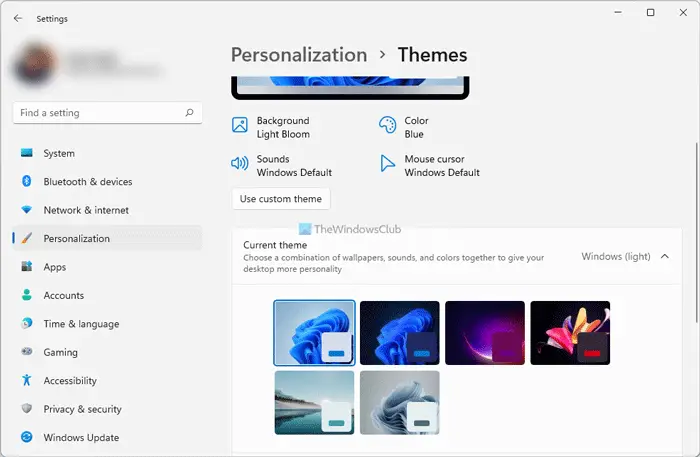
Next, select and click on a theme you want to apply. It will be applied automatically and immediately.
These posts will also interest you:
- How to change Login Background in Windows 11
- How to change Desktop Background or Wallpaper in Windows 11
To begin customizing Windows 10, head over to your desktop, right-click on it and click on Personalize. Personalization Settings allows you to change the background colors and accent, lock screen image, wallpaper, and themes on your PC.
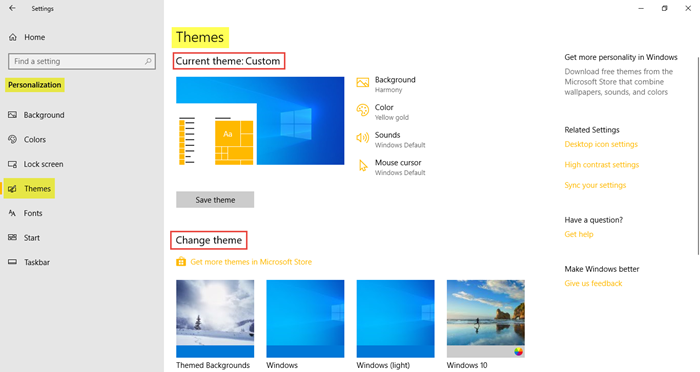
Here you can select the Background, Color, Sounds, and Mouse cursor – and Save the theme as your custom theme.
Scroll down and you will see the option to Change theme.
Here you can select one of the existing themes, use your custom theme or download a new theme from the Microsoft Store and use it. Not only can you select the desired theme for your PC, but you can also get some more themes online. Clicking on Get More Themes in Microsoft Store will take you to the official website of Microsoft, which has an extensive collection of interactive and creative themes in different categories. Browse the categories and download the desired theme. The download time will depend on the theme size and your internet connection of course. After it is downloaded on your PC, just open it and follow the instructions to install and apply it.
Scroll down further and under Related Settings, you will see links that allow you to:
- Change Desktop icons
- Use High Contrast Themes
- Sync your settings.
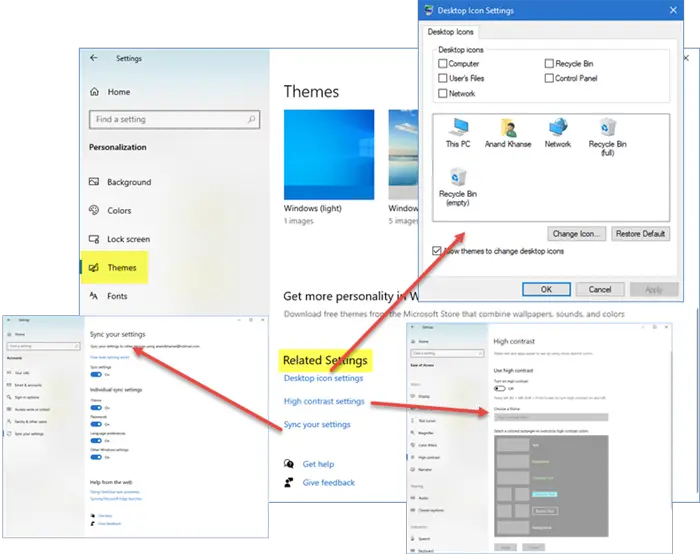
You can see the default themes and four high contrast themes that are purposely designed for night usage and those with challenges. Select the desired theme and click on Save Theme. You can also create new Windows themes if you wish to.
2] Change Theme via Desktop

The easiest method to change the theme in Windows 11/10 is via the desktop. To change the Theme via Desktop, do the following:
- Right-click on an empty area on the Desktop.
- Select Personalise from the context menu.
- In the Personalisation window, under the Select a theme to apply section, simply click the theme you want.
3] Change Theme via File Explorer
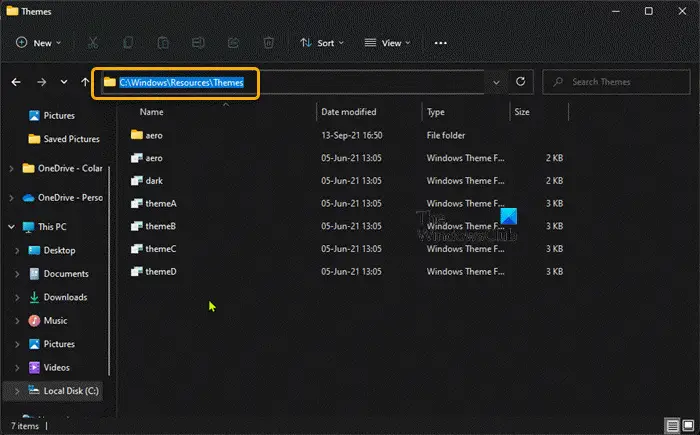
To change Theme via File Explorer in Windows 11/10, do the following:
- Press Windows key + E to open File Explorer.
- Navigate to the folder below or any other folder containing the theme you want to apply
C:\Windows\Resources\Themes
- At the location, double-click the theme file for the theme you want.
- Close the Settings app that opens automatically when you double-click the theme file.
- Close File Explorer.
4] Change Theme via Command Prompt
To change Theme via Command Prompt in Windows 11/10, do the following:
- Press Windows key + R to invoke the Run dialog.
- In the Run dialog box, type cmd and hit Enter to open Command Prompt.
- In the command prompt window, type or copy and paste the path below OR the full path to the theme file you want and hit Enter:
start "" "C:\Windows\Resources\Themes\aero.theme"
The theme will be applied, and the Personalization page in the Settings app will automatically open. You can close the Settings app. If you want the theme to be applied without you having to interact with extra windows, run the modified command as follows:
start "" "C:\Windows\Resources\Themes\aero.theme" & timeout /t 3 & taskkill /im "systemsettings.exe" /f
When the command executes, it will apply the theme, wait 3 seconds using the timeout command, and forcibly close the Settings app with the taskkill command.
5] Change Theme via PowerShell
To change Theme via PowerShell in Windows 11/10, do the following:
- Press Windows key + X to open Power User Menu.
- Tap I on the keyboard to launch PowerShell (Windows Terminal).
- In the PowerShell console, type or copy and paste the path below OR the full path to the theme file you want and hit Enter:
start-process -filepath "C:\Windows\Resources\Themes\aero.theme"
The theme will be applied, and the Personalization page in the Settings app will automatically open. You can close the Settings app. If you want the theme to be applied without you having to interact with extra windows, run the modified command as follows:
start-process -filepath "C:\Windows\Resources\Themes\aero.theme"; timeout /t 3; taskkill /im "systemsettings.exe" /f
6] Change Theme via Control Panel
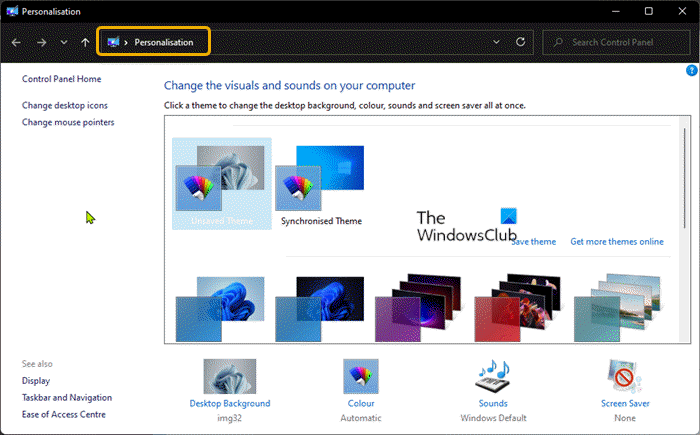
To change Theme via Control Panel in Windows 11/10, do the following:
- Press Windows key + R to invoke the Run dialog.
- In the Run dialog box, copy and paste the shell command below and hit Enter:
shell:::{ED834ED6-4B5A-4bfe-8F11-A626DCB6A921}
- In the Personalisation window, click the desired theme under the My Themes, Windows Default Themes, or High Contrast Themes sections.
- Exit Control Panel when done.
That’s it on the 5 ways to change Theme in Windows 11/10! Let us know in the comments section below if you know any other method to perform this task.
Tip: PC users can personalize their computing experience, and can make their system faster and more private using our Ultimate Windows Tweaker.
Related post: How to prevent users from changing the Theme
Do Windows 10 themes work on Windows 11?
Most of the themes are old ones from Windows 10 and they have been adapted for Windows 11 but that’s still a huge selection to consider. You can right-click anywhere on your desktop and click on Personalize > select Themes to apply any of the installed themes on your PC, or click on Browse themes to find some more themes on the Microsoft Store.
Are Windows 11 themes safe?
Themes from Microsoft are generally fine, but be cautious of any other source. Some ‘themes’ include malware-infected screensavers. Make sure your Windows 11/10 PC is running up-to-date antivirus software.
How do I enable dark mode in Windows 11?
To enable dark mode in Windows 11, go to Personalization in Windows Settings and switch to the Colors section. From here, expand the Choose your mode drop-down list, and select the Dark option. Alternatively, you can select a dark theme from Windows Settings.
How do I change my Windows theme?
To change your Windows theme, go to Personalization > Themes and select a theme. The process is almost the same whether you use Windows 11 or Windows 10.
How do I change my Windows theme color?
To change the Windows theme color, go to Personalization > Colors. From here, you can select various color options that suit your needs. You can also change the Windows colors, Windows borders, title bar color, etc.
Read next: Best Free Windows 11 Themes and Skins to Download from Microsoft Store.
