
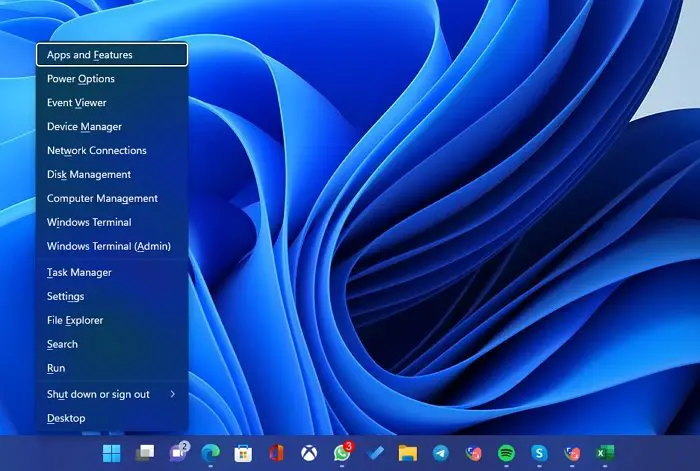
WinX menu, also called Power Menu, offers quick access to some of the core features of Windows Administrative applications. It was first introduced in Windows 8, continued in Windows 10, and is available in Windows 11.
What is the WinX menu in Windows 11?
WinX menu was designed for power users who want to quickly access apps that can be used to manage the computer. The list of tools include:
- Apps and Features – This opens the Windows 11 and Windows 10 app settings to the Apps & features section, where it is possible to change, delete, and repair apps.
- Mobility Center – Displays the Windows Mobility Center, which allows you to edit settings for mobile Windows devices such as laptops and tablets.
- Power Options – You can change the active power plan in the Settings app by visiting the Power & Sleep section in Windows or the Power & Battery section in Windows 11.
- Event Viewer — Displays the Event Viewer, useful if something goes wrong while running your operating system.
- System – This brings up the About tab of the Settings app, where you can browse through information about your device, such as the type of processor, installed RAM, or Windows edition.
- Device Manager – It displays the Device Manager, which allows you to navigate and manage the drivers and hardware in Windows.
- Network Connections – found in the Network and Internet section of the Settings app, enables you to view and manage your network connections.
- Disk Management – allows you to manipulate your disks and partitions through the Disk Management tool.
- Computer Management – Launches the Computer Management panel, which provides access to many useful Windows administrative functions.
- Windows PowerShell – Opens PowerShell in Windows
- Windows PowerShell (Admin) – Opens PowerShell with administrative permissions in Windows.
- Windows Terminal – Accessible as a shortcut in Windows 11; Opens Windows Terminal.
- Windows Terminal (Admin) — The Windows 11 command-line shortcut opens Windows Terminal with administrative privileges.
- Task Manager – Gets you to the Task Manager, which lets you manage your running apps and processes.
- Settings – This allows you to customize the operating system by configuring the settings in detail.
- File Explorer is the program that lets you view, manage, and access your files.
- Search: Find things on your computer or the internet.
- Run: Opens Microsoft’s Run program. From this program, you can execute Windows commands and execute files.
- Shut down or sign out – Displays the Options menu with four options: Sign out, Sleep, Shut down, and Restart.
- Desktop – Minimizes everything and gives you access to the desktop in Windows 11 or Windows 10.
Read: How to rename items in the Win+X menu of Windows?
What are the different ways to access WinX menu
The easiest way to open the WinX or Power Menu is by right-clicking on the Start button to reveal it. You can also open it by pressing WinKey + X. The flyout menu reveals useful tools and apps stacked on top of each other.
Read: How to add items to Win-X Power User Menu?
Where is WinX Folder?
All the tools that WinX displays are taken from a dedicated folder that contains three folders-Group 1, Group 2, and Group 3. Each of these folders contains shortcuts to the power tools, as you can see in the image below.
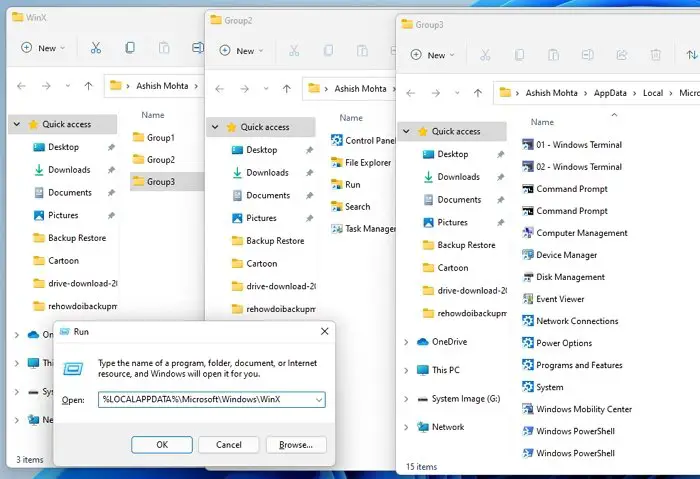
You can access them by executing the path in File Explorer or Run prompt
%LOCALAPPDATA%\Microsoft\Windows\WinX
I hope the post was easy enough to follow, and you were able to under what WinX menu is and how you can open and use it.
How do I open the advanced menu in Windows 11?
To open the Advanced Menu in Windows 11, right-click the Start button or press the Windows key + X on your keyboard. This will display a list of advanced system tools like Device Manager, Settings, and more, providing quick access to essential features.
How do I bring back the classic menu in Windows 11?
To bring back the classic Start menu in Windows 11, use third-party software to customize the interface. Popular tools like Open-Shell or StartIsBack allow users to emulate the classic Windows Start menu appearance, offering greater control over menu style and functionality.
Read next: How to show Control Panel in WinX Menu?
