
Windows has always amazed us with its collection of wallpapers; however, Windows 11 took a step forward in improving the aesthetics and usability. The wallpapers and themes have been created such that the contrast created between the background and the text is easier to read.
How to change Wallpaper in Windows 11
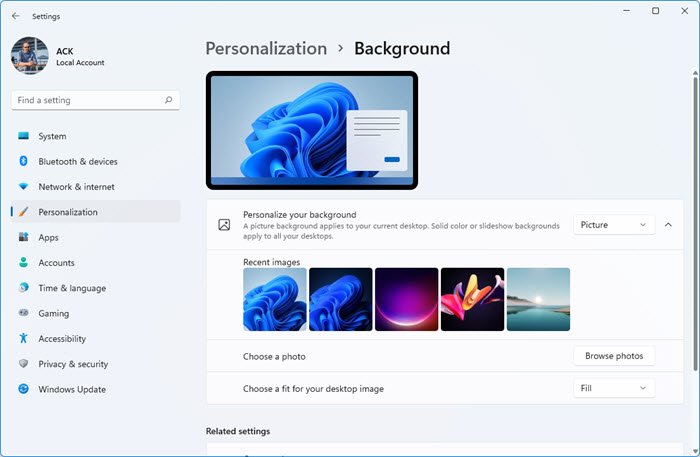
The default wallpaper of Windows 11 (Flow) is amazing but if you wish to change the wallpaper, you have 4 more options in the system itself. The procedure to change the Windows 11 wallpaper is as follows:
- Right-click on the Start button and select Settings.
- Go to the Personalization tab on the list on the left-hand side.
- Click on Background to expand its menu.
- For Personalize your background, keep the option selected at Picture.
- Now, select any background wallpaper from the list of 5 images shown.
Alternatively, you can choose from more backgrounds by selecting Browse photos corresponding to Choose a photo.
To select from the various versions of Windows default wallpapers, go to the default Windows wallpaper location ie at C:\Windows\Web\Wallpaper. Then open the folders and use the wallpaper of your choice.
Similarly, you can set any other image on your system as the wallpaper in Windows 11.
These posts will also interest you:
This is how it looks in Windows 10:
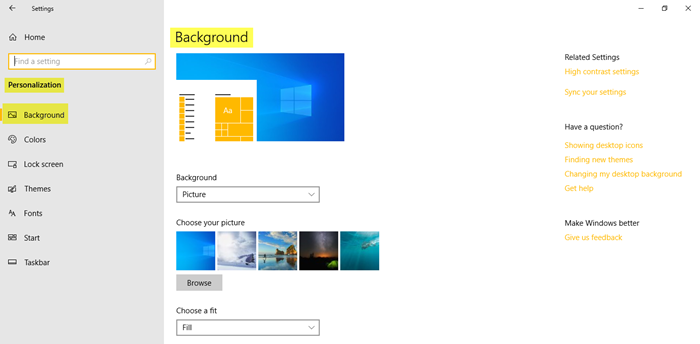
Go to Personalization and click on Background to change the wallpaper of your Windows 11/10 PC. Select your favorite picture from the gallery. You can also choose a Fit for the picture. Microsoft offers an extensive collection of Windows 10 Wallpapers on its website and if you want you can download some and set them on your PC.
If you wish to set an image or photograph as your desktop background, right-click it, as you always have and click Set as desktop background. To let Windows 10 change your wallpaper automatically, select Slideshow from the Background drop-down menu, then set the desired folder containing your images.
Read: Where are Wallpapers and Lock Screen images stored in Windows.
Categories of Windows 11 wallpapers
The new Windows 11 wallpapers are beautiful and well-contrasted with the theme text. We checked the default wallpapers at the location C:\Windows\Web\Wallpaper and found that the default Windows wallpapers are of 4K size which is 3840×2400.
The Wallpaper folder has 5 categories of wallpapers –
- Captured motion,
- Flow,
- Glow,
- Sunrise,
- Windows.
We found some additional wallpapers in the folder C:\Windows\Web\touchkeyboard. However, these wallpapers are of the size 2736×1539.
Interestingly, none of these wallpaper images use the Windows logo. Most wallpapers offer options for both the light and dark themes.
Let us discuss the wallpaper options individually:
- TouchKeyboard wallpapers
- Captured Motion
- Flow
- Glow
- Sunrise
- Windows
1] TouchKeyboard wallpapers
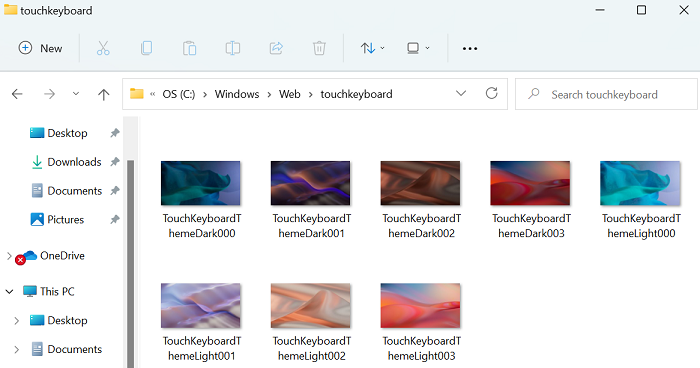
The wallpapers in the TouchKeyboard folder are a kind of 3D modern art. One resembles a sand dune, while others are symbolic of astronomical figures.
2] Captured Motion
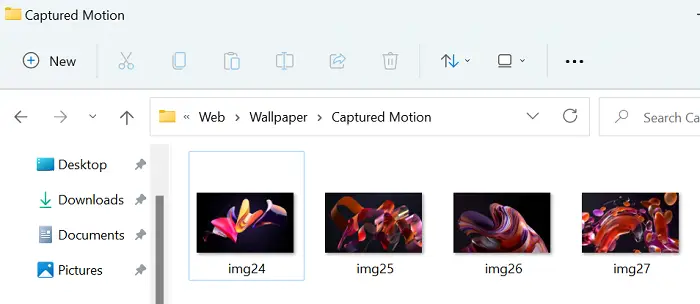
The Captured Motion wallpapers are amazing works of art that capture 3D views of flowing wind, flowers and petals, and droplets.
3] Flow
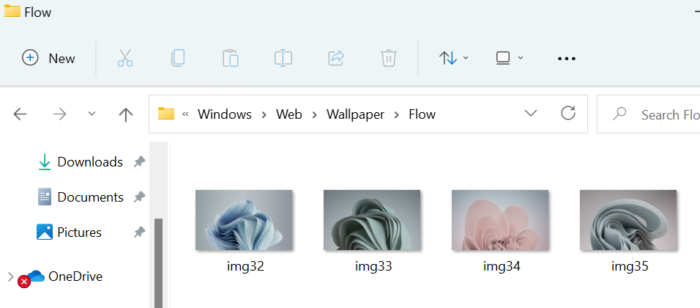
Flow is another series of Windows 11 wallpapers featuring 3D still images of a flower blooming.
4] Glow
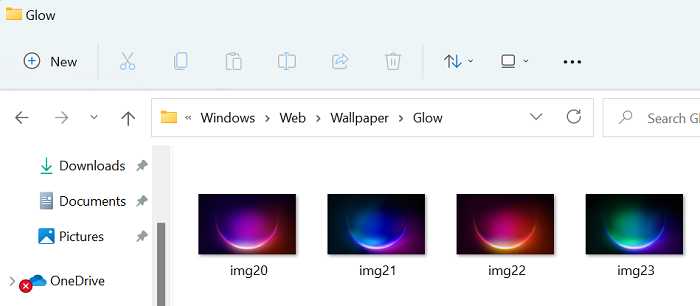
If you are searching for beautiful wallpapers to match your system’s Dark Mode, try the Glow series, which evokes the night.
5] Sunrise
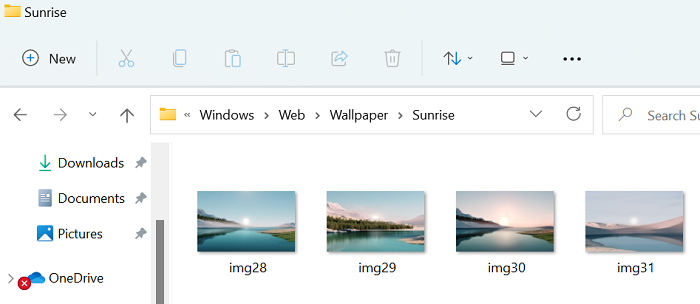
The interesting part with Windows 11 wallpapers is that, unlike Windows 10, they didn’t focus much on nature-based wallpapers. Mostly, the wallpapers are 3D art. However, if you are fond of nature imagery, try the Sunrise wallpaper series.
6] Windows
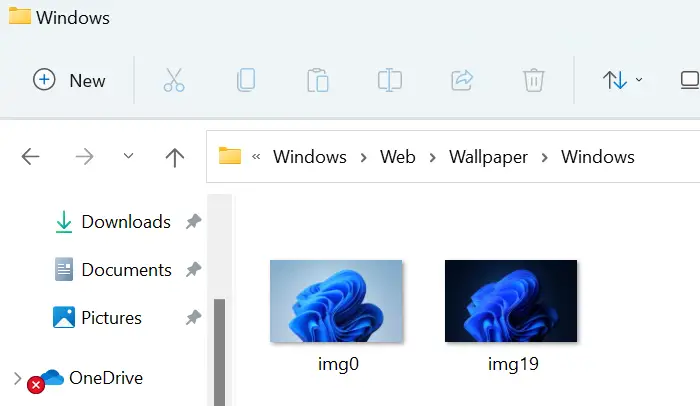
The default Windows wallpapers have received much-deserved appreciation from Windows 11 users. You have options for both light mode and dark mode.
TIP: Download Windows 11 wallpapers in exciting colors for your PC.
How to download the latest Windows 11 wallpaper
Those who are using Windows 10/8/7 and wish to check all the Windows 11 wallpapers at once and download them accordingly, can do so here from imgur.com. There are some excellent Windows 11 wallpapers you can download.
