
If you’re unable to sync folders to OneDrive on your Windows 11 PC, this post will help you fix the issue. I encountered this problem while trying to use Windows Backup to back up my system files and settings. Although I was signed in to OneDrive with a valid Microsoft account, Windows couldn’t sync the selected folders and displayed the following error:
Unknown error 0x8004016c
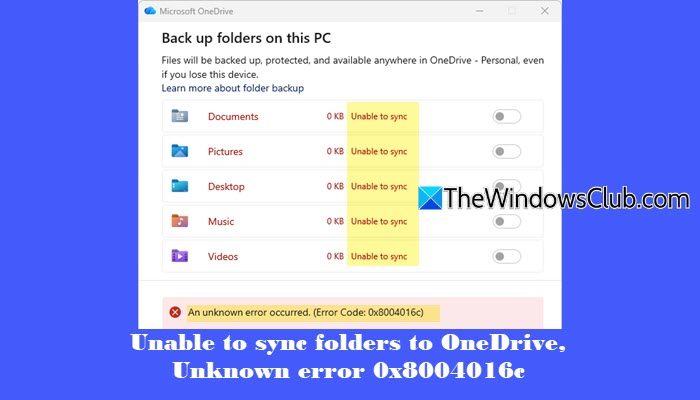
No further details about the error were provided. After doing some research, I found that several other users had also encountered the same issue. This prompted me to investigate the problem and put together this troubleshooting guide.
What does error code 0x8004016c mean?
Error code 0x8004016c is a OneDrive error that occurs when the app can’t sync folders or access a shared library. It often indicates network connectivity issues, account authentication problems, or local sync configuration issues. Microsoft hasn’t clearly documented the exact cause of this error, but users have reported it while setting up OneDrive, syncing shared folders, and using Windows Backup.
Unable to sync folders to OneDrive, Unknown error 0x8004016c
If you’re unable to sync folders to OneDrive and encounter error 0x8004016c, use the following fixes:
- Unlink and relink OneDrive
- Clear the OneDrive sign-in configuration file
- Remove the problematic folder shortcut
- Check firewall and network settings
- Check available storage space
- Reset OneDrive
Before trying the fixes below, ensure your PC has a stable internet connection and that OneDrive isn’t experiencing a service outage. You can check the service status on the Microsoft 365 Service health status page.
Let’s look at the solutions above in detail.
1] Unlink and relink OneDrive
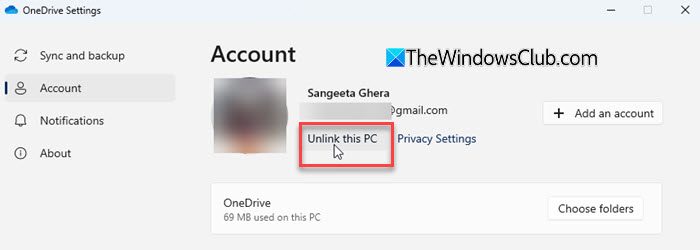
This fix worked for me. When you unlink OneDrive, you disconnect your PC from your OneDrive account without deleting the files stored in your cloud account. Relinking creates a fresh connection and refreshes account authentication and sync settings. This can help resolve issues caused by stale sign-in credentials or a corrupted sync connection.
- Click the OneDrive icon in the system tray.
- Click the Help & Settings (gear) icon and select Settings.
- Go to the Account tab.
- Click Unlink this PC and confirm your choice.
- Restart your PC.
- Open OneDrive and sign in using your Microsoft account.
- Follow the on-screen instructions to set up OneDrive again.
Once the setup is complete, check whether OneDrive can sync the selected folders without displaying the error.
2] Clear the OneDrive sign-in configuration file
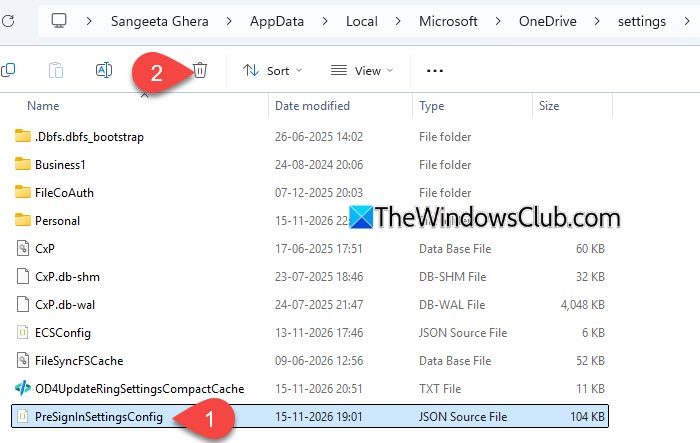
If unlinking and relinking OneDrive doesn’t resolve the issue, try clearing its saved sign-in configuration file. This file stores configuration information related to the OneDrive sign-in process. Removing it may help resolve problems caused by a corrupted or outdated sign-in configuration.
- Right-click the OneDrive icon in the system tray and select Pause syncing > Quit OneDrive.
- Press Win + R, type %localappdata%\Microsoft\OneDrive\settings, and press Enter.
- Locate the PreSignInSettingsConfig.json file and delete it.
- Restart your PC.
- Open OneDrive and sign in to your Microsoft account.
- If OneDrive displays the message A folder already exists, select Use this folder to continue using your existing OneDrive location. Select Choose new folder if you want to change its location.
- Allow OneDrive to synchronize your files and folders again.
3] Remove the problematic folder shortcut
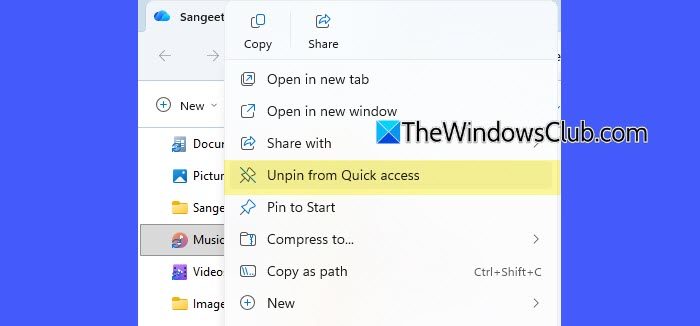
A broken folder shortcut can sometimes interfere with OneDrive synchronization. If you previously added a shared folder to OneDrive or pinned a folder in File Explorer, try removing the shortcut and adding it again.
To remove the shortcut from OneDrive on the web, follow these steps:
- Sign in to OneDrive.
- In the Files view, select the shared folder you want to remove.
- Select Remove shortcut from My files.
- Open the original folder in OneDrive, Teams, or SharePoint and select Add shortcut to My files (provided you still have permission to access the folder).
- Wait for the OneDrive desktop app to synchronize the folder again.
To remove the shortcut from File Explorer, follow these steps:
- Open File Explorer.
- Expand Quick Access in the navigation pane.
- Locate the affected shortcut.
- Right-click it and select Unpin from Quick access.
- Restart OneDrive and check whether synchronization works.
4] Check firewall and network settings
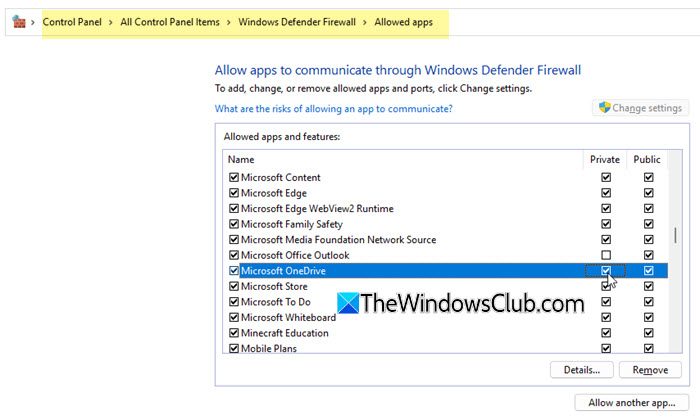
Your firewall or antivirus software may sometimes interfere with OneDrive’s connection and prevent it from syncing files and folders. A user who encountered error 0x8004016c while setting up OneDrive on a new computer reported that uninstalling McAfee and running its removal tool resolved the issue.
Try the following:
- Temporarily disconnect your VPN, if you’re using one.
- Open Windows Security > Firewall & network protection > Allow an app through firewall. Ensure Microsoft OneDrive is allowed through the firewall on your active network.
- If you use third-party antivirus software, check whether it is blocking OneDrive. Temporarily disable the relevant protection for testing, if safe and permitted.
Once you’ve made the necessary changes, restart OneDrive and check whether folder synchronization works.
5] Check available storage space
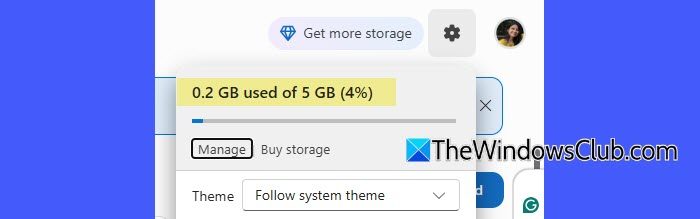
OneDrive needs sufficient cloud storage to upload and sync your files. If your Microsoft account has reached its storage limit, OneDrive may stop syncing new files and folders.
- Open OneDrive on the web.
- Sign in with your Microsoft account.
- Open Settings and check your available storage.
- If you’re running low on space, delete unnecessary files or consider upgrading your storage plan.
Once you’ve freed up sufficient cloud storage, restart OneDrive and check whether it can sync the selected folders.
6] Reset OneDrive
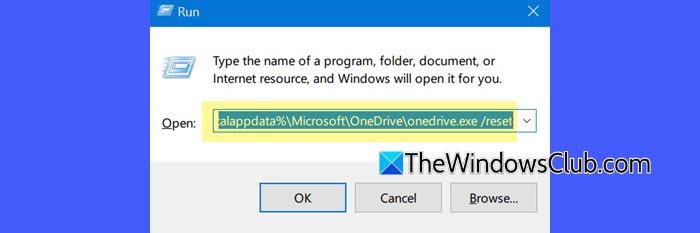
If none of the above solutions work, try resetting OneDrive.
Press Win + R to open the Run dialog. Copy and paste the following command and press Enter:
%localappdata%\Microsoft\OneDrive\onedrive.exe /reset
Wait for OneDrive to reset. Its icon may disappear from the system tray temporarily.
If Windows displays an error saying it cannot find the file, try the following alternative commands, one at a time:
%programfiles%\Microsoft OneDrive\onedrive.exe /reset

C:\Program Files (x86)\Microsoft OneDrive\onedrive.exe /reset
Once the reset finishes, open OneDrive and sign in to your Microsoft account. Allow OneDrive to synchronize your files again.
I hope this helps.
Read: OneDrive error 0x8004e4be, There was a problem signing you in.
How can I fix OneDrive error code 0x8004de40?
OneDrive error 0x8004de40 usually appears when the app cannot connect to Microsoft’s cloud services. It can be caused by an unstable internet connection, incorrect proxy settings, VPN or firewall interference, or problems with the TLS security protocols. To fix the error, check your internet connection and ensure TLS 1.2 is enabled in Windows Internet Options. If the problem persists, try resetting OneDrive to refresh its configuration.
Read Next: OneDrive won’t start in Windows.
