
When a host cannot ping a virtual machine, the problem is almost always caused by the VM’s network mode isolating it from the host, mismatched IP subnets, or a firewall blocking ICMP. In this post, we are going to see what you can do if you are unable to ping the virtual machine from the host, be it VMware or VirtualBox.
As mentioned earlier, this issue is usually related to misconfigured network or firewall settings. Let us talk about each hypervisor and see what we can do if we are unable to ping the virtual machine from the host.
Unable to ping Virtual Machine from Host VMware Workstation VM
In VMware Workstation, the default NAT and host‑only modes create isolated networks that prevent the host from pinging the guest using the host’s regular IP address. Bridged mode connects the guest directly to the same physical network as the host, while Host‑only needs careful IP configuration on both sides. Even with the correct mode, the guest operating system’s firewall or a missing IP assignment can silently drop ping requests.
1] Switch to Bridged Network
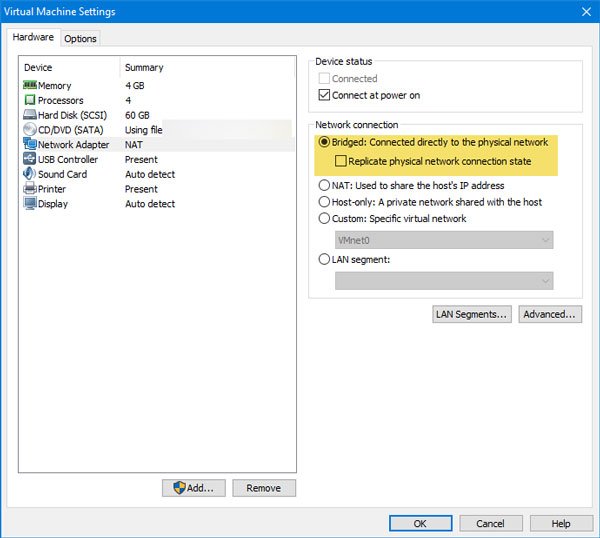
Bridged mode attaches the virtual machine directly to your physical network as if it were a separate device, so the host and guest share the same IP subnet and can reach each other at Layer 2. Because they are on the same broadcast domain with no NAT or isolation, ICMP packets travel directly between them just like between two physical machines. Follow the steps mentioned below to do the same.
- Power off the VM.
- Right-click on the machine and select Network Adapter.
- Select Bridged: Connected directly to the physical network and Replicate physical network connection state.
Start the VM. If your LAN uses DHCP, the guest will automatically obtain an IP in the same subnet as the host; if you use static IPs, assign one from the same range manually inside the guest OS.
2] Configure Host‑Only Networking Properly
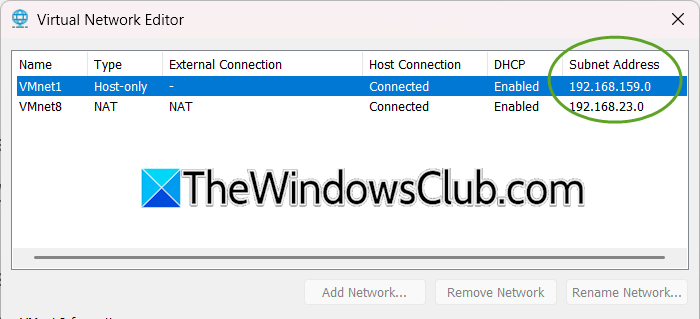
Host‑only networking creates a dedicated virtual network shared exclusively between the host’s VMnet1 adapter and the guest, placing both on the same isolated subnet. Assigning the guest an IP from that subnet ensures they can reach each other directly without interference from NAT or external routing. You need to go through the steps mentioned below.
- In VMware Workstation, go to Edit > Virtual Network Editor.
- Select the Host‑only network (usually VMnet1) and note its Subnet address (e.g., 192.168.10.0).
- In the VM’s settings, set the network adapter to Host‑only.
- Inside the guest, assign a static IP within that subnet but different from the host’s VMnet1 IP (e.g., host: 192.168.10.1, guest: 192.168.10.100), using the same subnet mask (usually 255.255.255.0). Leave the default gateway empty or set it to the host’s VMnet1 IP.
Now, see if that helps.
3] Allow ICMP in the Guest Firewall
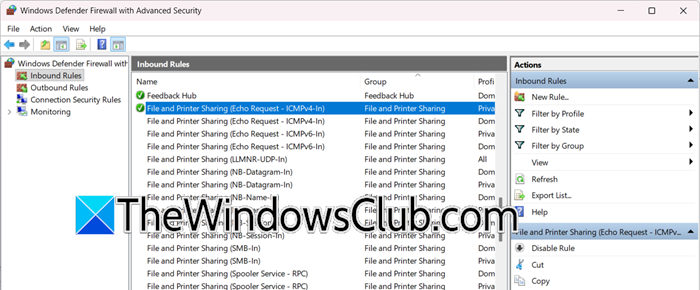
Firewalls block incoming ICMP echo requests by default for security, so the host’s pings never reach the guest’s network stack. Enabling the echo request rule allows those packets through, causing the guest to respond and the ping to succeed. You need to allow ICMP in the Guest Firewall by following the steps below.
- On a Windows guest, open Windows Defender Firewall with Advanced Security.
- Enable an Inbound rule named File and Printer Sharing (Echo Request – ICMPv4-In) for the appropriate network profile (private/public).
- On a Linux guest, run
sudo ufw allow proto icmp (UFW)orsudo iptables -I INPUT -p icmp --icmp-type echo-request -j ACCEPT
Test the ping again. If it fails, temporarily disable the firewall entirely to confirm the cause, then re‑enable it with a persistent rule.
Read: Hyper-V VM Network slow
Unable to ping Virtual Machine from Host VirtualBox VM
VirtualBox’s default NAT mode routes all guest traffic through the host’s IP address, preventing the host from reaching the guest directly. Bridged mode makes the VM a peer on the physical LAN, while Host‑only creates a private network between host and guest that must share a common subnet. Additionally, a restrictive promiscuous mode policy or the guest’s built‑in firewall can block ICMP even when the network path is correct. To fix the issue, let us go through the solutions mentioned below.
1] Switch to Bridged Network
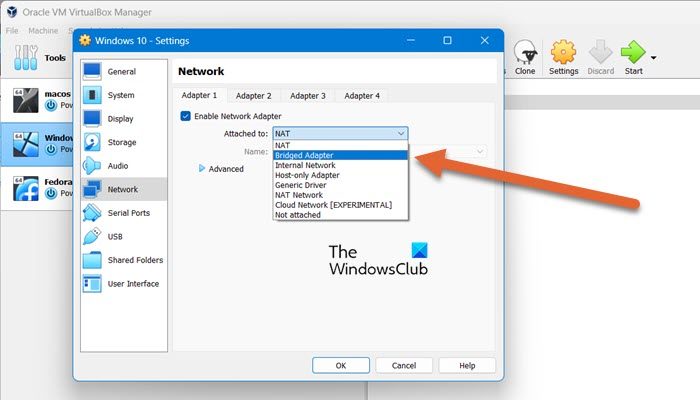
Bridged mode connects the VM directly to the same physical network as the host, making them peers on the same LAN segment. They then share a common subnet and can exchange ICMP packets directly without any NAT or isolation layer blocking the traffic.
Follow the steps mentioned below to do the same.
- Power off the VM.
- In the VM’s Settings > Network, set Attached to to Bridged Adapter.
- From the Name dropdown, choose the host’s active physical network interface (e.g., your Ethernet or Wi‑Fi adapter).
- Start the VM. If your router provides DHCP, the guest will get an IP in the same range as the host. For static setups, configure an IP from the same subnet inside the guest.
Ping the guest from the host.
Read: VirtualBox can’t connect to the Internet
2] Set Up Host‑Only Adapter Correctly
The VirtualBox Host‑only network creates a private virtual switch shared exclusively by the host and guest, bypassing any NAT or external routing. Manually setting both devices to the same subnet ensures they can exchange ICMP packets directly at Layer 2 without interference. Follow the steps mentioned below to do the same.
- In the main VirtualBox window, go to File > Host Network Manager (or Preferences > Network on macOS).
- Verify that a Host‑only network exists (e.g., vboxnet0) and note its IPv4 address and subnet mask. If it doesn’t exist, create one with the default settings.
- In the VM’s network settings, change Attached to to Host‑only Adapter and select the corresponding network name.
- Inside the guest, manually set an IP address in the same subnet as the Host‑only network (e.g., host 192.168.56.1, guest 192.168.56.101, mask 255.255.255.0). No default gateway is needed.
Try pinging the guest’s IP from the host.
3] Allow ICMP Traffic in the Guest Firewall
Firewalls silently drop incoming ICMP echo requests by default, so the host’s ping never gets a reply. Creating an allow rule opens that path, letting the guest receive and respond to the ping successfully.
For Windows guests, open Windows Defender Firewall and enable the inbound rule File and Printer Sharing (Echo Request – ICMPv4-In) for your current network profile.
For Linux guests, use sudo ufw allow proto icmp (UFW) or sudo iptables -I INPUT -p icmp -j ACCEPT.
Temporarily disable the guest firewall to rule out other blockers, then re‑enable it with the rule in place.
Read: Network adapter not working after importing virtual machine
Can’t ping Virtual Machine from Host Hyper-V VM
In Hyper‑V, a virtual machine is attached to a virtual switch. If the switch type is Private, the host cannot communicate with the VM at all; an Internal switch allows host‑to‑guest but isolates the VM from the physical network; only an External switch binds to a physical NIC and lets the host and VM see each other directly. The host’s firewall profile or the guest’s firewall can still block ping, and the IP addresses on the host’s virtual adapter and the guest must belong to the same subnet when using an Internal or External switch without a DHCP server. We recommend you refer to our guide on what to do if you can’t ping a Hyper-V VM from the host, or vice versa.
Also Read: Hyper-V VM cannot connect to the Host M/C.
