
Hyper-V allows you to run any operating system in a virtual environment, but the prospect of doing so becomes less exciting when your Hyper-V VM network is slow. Slow network performance in Hyper-V VMs typically occurs due to specific feature incompatibilities, configuration issues, or software bugs. In this post, we will discuss this issue and explore potential solutions to resolve it.
Why does Hyper-V keep losing network connection?
Hyper-V may keep losing network connection due to incompatible or buggy network adapter drivers, misconfigured features like VMQ or RSC, packet coalescing settings, or issues with external virtual switches, especially when using WiFi or unsupported adapters. These problems can cause random VM network drops, instability, or complete loss of connectivity. Let’s see what you can do if the Hyper-V VM network is slow.
Hyper-V VM Network is slow
Slow network performance in Hyper-V virtual machines often stems from a combination of feature incompatibilities, driver flaws, misconfigurations, and latent software bugs. One major culprit is Large Send Offload (LSO), where Hyper-V’s virtual switch mishandles TCP segmentation, resulting in packet retransmissions and latency, particularly after virtual switch creation or Hyper-V enablement. Another common issue involves Virtual Machine Queue (VMQ), especially with Broadcom NICs, where driver defects misdirect traffic, depriving VMs of bandwidth.
If the Hyper-V VM network is slow, you need to follow the solutions mentioned below to resolve the issue.
- Disable Receive Segment Coalescing (RSC)
- Disable Virtual Machine Queue (VMQ)
- Disable Large Send Offload (LSO) in VM’s Network Adapter
- Disable Packet Coalescing
- Update drivers
Let us talk about them in detail.
1] Disable Receive Segment Coalescing (RSC)
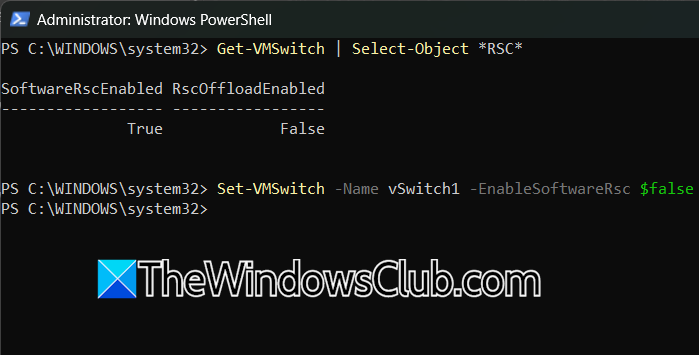
Receive Segment Coalescing (RSC) is a networking optimization feature in Windows and Hyper-V. It works by combining multiple smaller incoming network packets into larger segments, which reduces processing overhead for the CPU when handling network traffic in virtual machines. On some systems, especially with certain versions of Windows Server (like 2019 and 2022) or specific network adapter drivers, leaving RSC enabled can actually degrade VM network performance. This happens because RSC’s packet merging can interfere with the way traffic is processed and passed to VMs, causing delays, increased latency, or poor throughput.
To resolve it, you can run the following command on a Hyper-V host, the physical machine running Hyper-V, not inside any VM.
Check RCS status.
Get-VMSwitch | Select-Object *RSC*
Disable software RSC for a specific virtual switch.
Set-VMSwitch -Name <vSwitchName> -EnableSoftwareRsc $false
Finally, check if the issue is resolved.
2] Disable Virtual Machine Queue (VMQ)
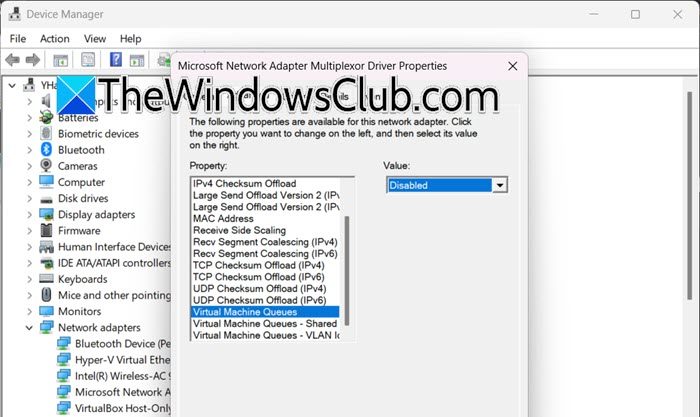
Virtual Machine Queue (VMQ) is a hardware feature designed to optimize network performance in Hyper-V environments. While VMQ can improve performance on well-supported hardware, in practice, it often causes issues, especially on certain Broadcom and Intel NICs. If the hardware or drivers do not fully support VMQ, enabling it can lead to extremely slow network speeds, dropped packets, or connection instability for VMs.
You can follow the steps mentioned below to disable VMQ.
- Open the Device Manager.
- Expand Network adapters, right-click the physical NIC, and select Properties.
- Now, go to the Advanced tab, select Virtual Machine Queue, and set it to Disabled.
Alternatively, run the following command in PowerShell (as admin).
Set-NetAdapterVmq -Name "<NICName>" -Enabled $False
Finally, check if the issue is resolved.
After disabling VMQ, network throughput and stability for VMs should improve, especially on systems where VMQ was previously causing problems.
3] Disable Large Send Offload (LSO) in VM’s Network Adapter

Large Send Offload (LSO) is a network adapter feature that allows a computer’s TCP/IP stack to send large data blocks directly to the network card. The card then divides this data into smaller packets for transmission, reducing the CPU workload. While LSO aims to boost performance, it can cause issues on certain systems, especially in Hyper-V virtual machines or with specific network drivers. To disable LSO, you need to connect to your VM and, inside it, follow the steps mentioned below (the steps are for Windows guests).
- Open Control Panel.
- Go to Network and Sharing Center > Change adapter settings.
- Right-click on the network adapter in use and select Properties.
- Click on Configure.
- Find Large Send Offload v2 (IPv4) and Large Send Offload v2 (IPv6) in the list.
- You need to set it to Disabled.
Finally, close the Control Panel, reboot the guest OS, and check if the issue is resolved.
4] Disable Packet Coalescing

Packet coalescing is a feature in many modern network adapters, especially from Intel and Qualcomm, that merges multiple small incoming packets into larger ones. This reduces CPU interrupts and improves power efficiency, particularly for wireless adapters. However, it can cause issues in virtualized environments like Hyper-V, especially with external virtual switches. Therefore, we need to disable Packet Coalescing, using the following steps on the host, not inside the virtual machine.
- Open Device Manager on the Hyper-V host.
- Expand Network adapters, right-click on your physical network adapter, and select Properties.
- Go to the Advanced tab.
- Search for all properties containing the word “coalescing” (such as Packet Coalescing, Coalesce, Receive Side Coalescing, etc.).
- Set each found coalescing option to Disabled.
- Finally, click on OK.
Hopefully, this way, your issue will be resolved.
Read: Hyper-V No internet access in Windows
5] Update drivers
Outdated network drivers can lead to various compatibility issues. To resolve this, you should update your drivers using one of the methods outlined below.
- Go to the manufacturer’s website to update your driver.
- Update your drivers from the Device Manager.
- Download a free driver update tool to keep your drivers updated.
After updating the driver, check if the issue is resolved.
That’s it!
Read: Fix Hyper-V Network Dropouts on Broadcom Adapter
What is the speed limit of Hyper-V network?
The speed limit for Hyper-V network connections mainly depends on your physical network adapter and configuration. With modern hardware, Hyper-V VMs using standard (not “Legacy”) adapters typically support up to 1Gbps, 10Gbps, or more if the underlying NIC allows it, matching the host’s maximum speed. However, some features or misconfiguration, like using legacy network adapters, cable issues, or port speed mismatches, can throttle speeds down to 100Mbps or lower.
Also Read: Can’t Connect to Hyper-V Virtual Machine on Windows.
