
At times, you might not be able to paste text in Text Box in Word and PowerPoint. If so, you can follow this article to fix the problem. This article lists the common reasons, so you can try everything and fix the issue.
Why are you unable to paste text in Text Box in Word and PowerPoint?
If you are unable to paste text in Text Box in Word and PowerPoint, these could be the reasons:
- You have selected the text box, but you haven’t clicked inside the box.
- The text box or file is protected.
- Word or PowerPoint is corrupted due to malware or adware.
- You may have some add-ins that are causing this issue.
Unable to paste text in Text Box in Word and PowerPoint
If you are unable to paste text in Text Box in Word and PowerPoint, follow these instructions:
- Ensure that the file is not protected
- Double-click on the text box
- Ungroup text box
- Unlock text box
- Use on-screen option
- Disable all add-ins
- Delete Office File Cache
- Repair Office installation
To learn more about these solutions, continue reading.
1] Ensure that the file is not protected
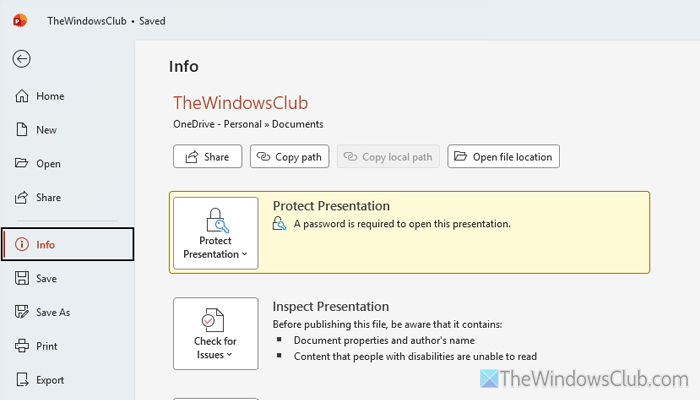
It is the very first thing you must check. If the file is password-protected, there is no way you can edit it. That is why, double-click on the file and enter the password to unlock it. Once done, you will be able to paste anything into the Text Box.
For your information, this solution works when you use a shared PPT or document and the file’s owner has locked it.
2] Double-click on the text box

There are two ways to work with the text box in Word and PowerPoint – you can click on it to move it somewhere and double-click on it to start editing. Having said that, you must double-click on the text box to start editing – in this case, pasting.
3] Ungroup text box
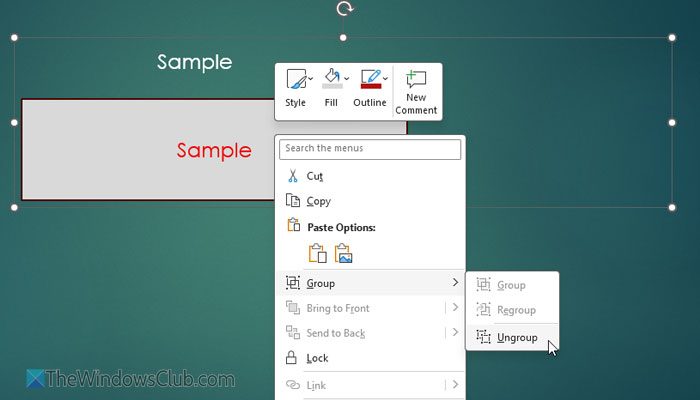
At times, you might not be able to edit a text box when it is in a group. If so, you must ungroup it from other objects. For that, right-click on the group or text box that is in a group > select Group > Ungroup.
Then, double-click on the text box to paste your copied text.
Read: How to group or ungroup objects in PowerPoint Online and Google Slides
4] Unlock text box
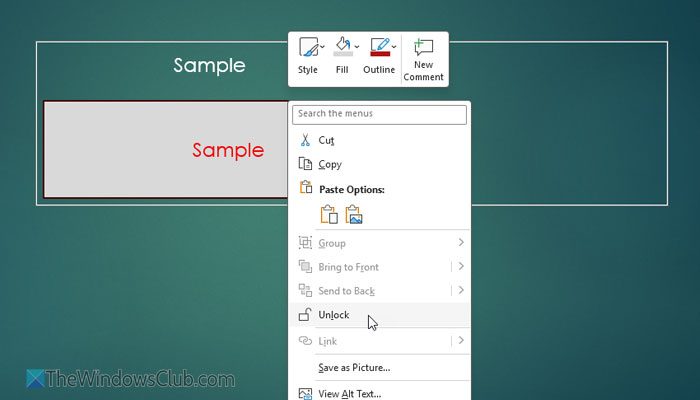
PowerPoint offers an option called “Lock,” and you can apply it to any object. In simple words, this option lets you lock an object to a specific position. At times, if there are bugs, this feature may malfunction, preventing you from editing the Text Box. If so, you must unlock it first. To do that, right-click the locked Text box and select Unlock.
Read: How to lock Shape, Image or Objects in PowerPoint
5] Use on-screen option
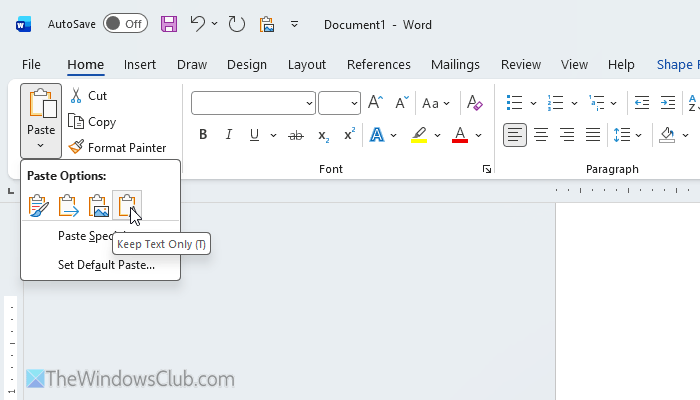
At times, your keyboard shortcut might not work properly due to various reasons. If so, you can use the on-screen option. There is a dedicated Paste panel in Word and PowerPoint that you can use to paste with various formatting.
That said, copy the text first. Then, click on the Paste menu and choose an option as per your requirements.
Read: How to hide Paste Options button after pasting in Excel
6] Disable all add-ins
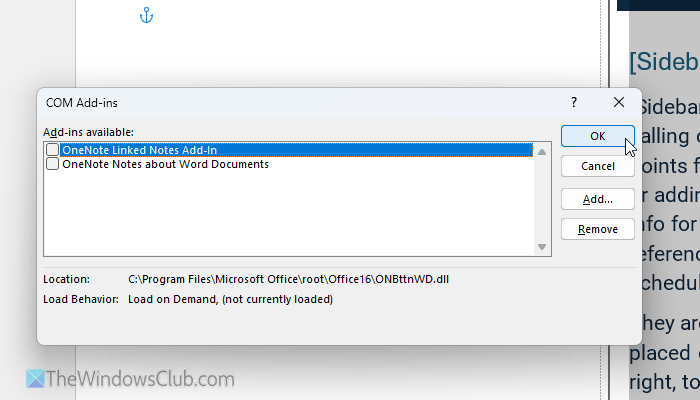
Word and PowerPoint allow you to install add-ins to enhance the user experience. However, some add-ins may cause conflicts if they are set up incorrectly. That is why it is suggested that you disable all add-ins and check whether it resolves the issue.
To disable all add-ins, follow these steps:
Open Word or PowerPoint on your computer first. Then, go to File > Options > Add-ins. Choose COM Add-ins and click the Go button.
Remove the tick from all the checkboxes and click the OK button.
Then check whether the same problem remains. If not, enable one add-in at a time to find the culprit.
Read: View, manage, install and remove Add-ins from Office programs
7] Delete Office File Cache
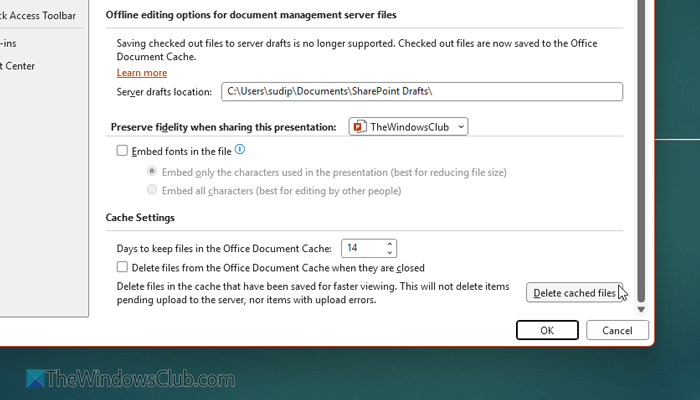
There are two ways to delete the Office cache in Windows 11. You can use either the Options wizard or File Explorer.
Using Options Wizard:
Open Word/PowerPoint and click on File > Options. Then, go to the Save tab and head to the Cache Settings section.
Click on the Delete cached files button.
Click the OK button to save it.
Using File Explorer:
Open File Explorer and navigate to this path:
C:\Users\username\AppData\Local\Microsoft\Office\16.0
Alternatively, you can press Win+R to open the Run prompt, and enter this command:
%localappdata%\Microsoft\Office\16.0
Click the OK button.
Double-click on the OfficeFileCache folder. At times, this folder may also contain some other sub-folders. If so, open them and delete all the contents.
Finally, re-open Word or PowerPoint.
8] Repair Office installation
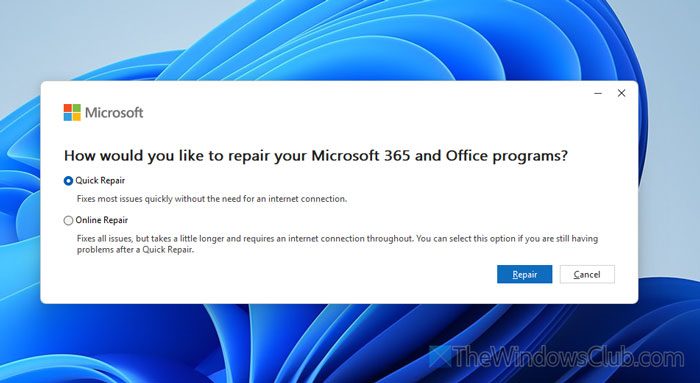
To repair the Office installation, follow these instructions:
Press Win+I to open the Windows Settings. Then, go to Apps > Installed apps. Find Microsoft 365, click on the three-dotted icon, and select Modify.
Then, choose the Quick Repair option and click the Repair button.
If it fixes the issue, there is nothing to do. However, if it doesn’t do anything, choose the Online Repair option and click the Repair button. In this case, it may take more time than the former option.
Apart from this, you can try updating the Microsoft 365 installation. You can follow this guide to update Microsoft 365 in Windows 11.
Read: Remove Text box and convert it to Dotted Frame in PowerPoint
Why can’t I copy and paste from Word to PPT?
If the versions of Word and PowerPoint do not match, you may not be able to copy and paste from Word to PowerPoint and vice versa. Also, if the files are protected or encrypted, you won’t be able to copy and paste from one program to another.
How do I copy and paste a text box in PowerPoint?
To copy and paste a text box in PowerPoint, select the text box and press Ctrl+C to copy. Then, create another slide and press Ctrl+V.
Read: How to add or remove Border from Text Box in PowerPoint.
