
Customizing a slide in Microsoft PowerPoint is very easy, but sometimes a user accidentally moves an item on a slide from its correct position. Returning it to the correct spot doesn’t take a lot, but it’s time better spent elsewhere. In order to stop items from moving accidentally, we suggest locking said items in place, so you can work knowing no matter what you do, the items will always be in their correct positions.
How to lock Shape, Image or Objects in PowerPoint
To accidentally prevent the moving of an item in a slide you can lock a Shape, Image, or Object in Microsoft PowerPoint using one of these two methods.
How to lock an item from the shortcut menu in PowerPoint
First, we’ll look at how to lock items from the shortcut menu, since it is the easiest method, especially if you’re only interested in locking a single item.
To begin, open Microsoft PowerPoint right away. To do this, click on the PowerPoint icon located on the Desktop, Taskbar, or within the Start Menu.
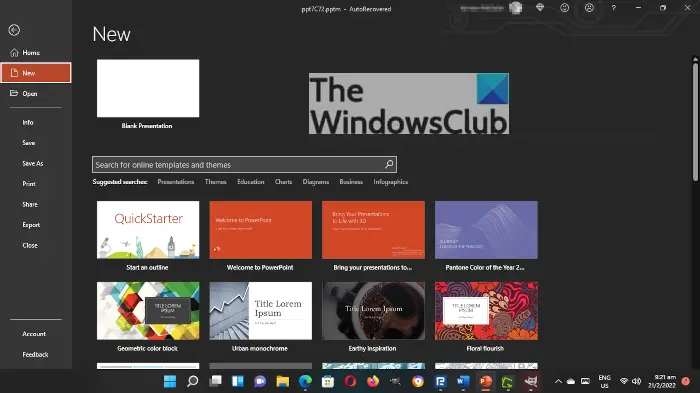
The next step, then, is to open a presentation. If you want to start from scratch, then, by all means, click on New > Black Presentation. However, if you want to select an already created document, then from the Home section, look at the list of preferred presentations and select it.
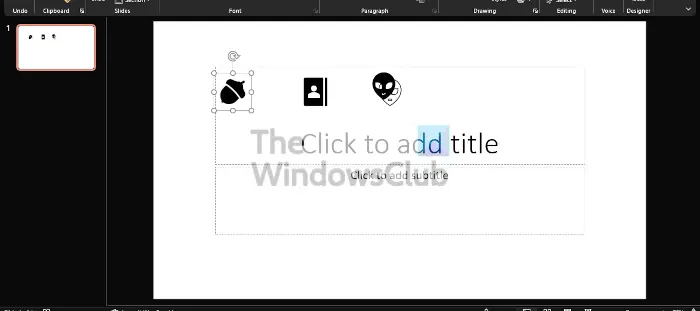
OK, so when it comes down to locking just one item, all you have to do here, is right-click on the object, then select Lock, and that’s it, you’re done.
How to lock multiple objects in PowerPoint
Yes, it is possible to lock more than one object, and there is no need to right-click each of them. There is an easier way to get the job done, and we’re going to explain.
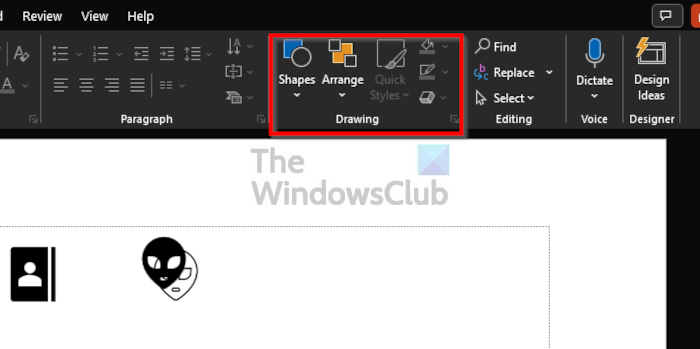
There is a section on the Ribbon that is called Drawing. You can find it by clicking on the Home tab, and from there, look to the right of the Ribbon and you’ll see the Drawing section.
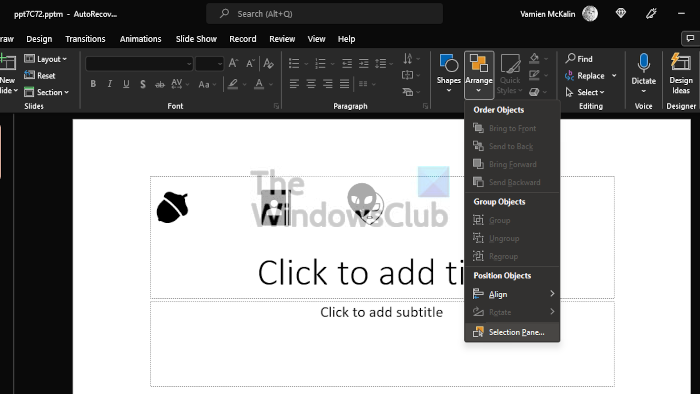
After you’ve come across the Drawing area, please click on Arrange, then from the dropdown menu, you will now want to choose Selection Pane.
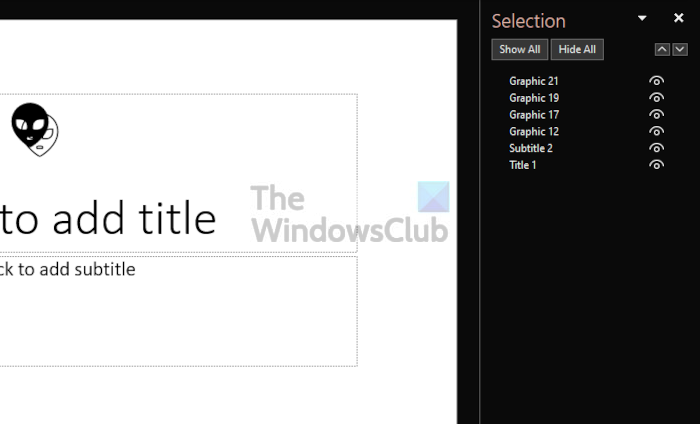
From the Selection Pane, you will see the name of every object on the Slide, but before you can lock them, you must first group them together. Do this by pressing the CTRL key on the keyboard while clicking on each object one after the other.
Finally, right-click on a single object on the slide, then select Lock from the context menu.
Read: How to rotate or change Text Direction in PowerPoint.
What is PowerPoint used for?
Microsoft PowerPoint is a powerful presentation program. It is the most used program for anyone who wants to showcase a presentation. If you are a student or a business person, you won’t find another tool that can rival Microsoft PowerPoint anywhere.
Is PowerPoint online free?
The folks at Microsoft have provided what they call Office Web Apps for free, and PowerPoint is included. However, while it is usable for basic presentation needs, it won’t provide much voice, and as such, you will need the full desktop version.
