
All Microsoft-related mail accounts were shifted to Outlook.com much earlier, as a part of their upgrade process. As part of the migration, users must reconnect their Outlook desktop clients to Outlook.com. Not doing so, would mean that the syncing of the emails would stop.
If you face problems after upgrading and reconnecting Microsoft Outlook desktop client to Outlook.com web app, on your Windows PC, then this post will help you troubleshoot the issue.
Troubleshoot issues with Outlook.com migration
Despite the advantages of the upgrade, nothing is perfect at the beginning. The migration hasn’t been flawless and users have reported a few problems. Let us take a look at them.
Email account name shows up as outlook_[long series of characters]@outlook.com
A serious issue reported with those who migrated to Outlook.com is that the name of the email account shows up as outlook_[long series of characters]@outlook.com in the Folder Pane. It causes a problem because the recipients receive a mail with outlook_[long series of long series of characters]@outlook.com as the sender’s email ID. Now when the sender responds to that email ID, which obviously is not your, the mail bounces back.
This problem is particular to users using the Outlook client on Windows and it works fine with Outlook.com.
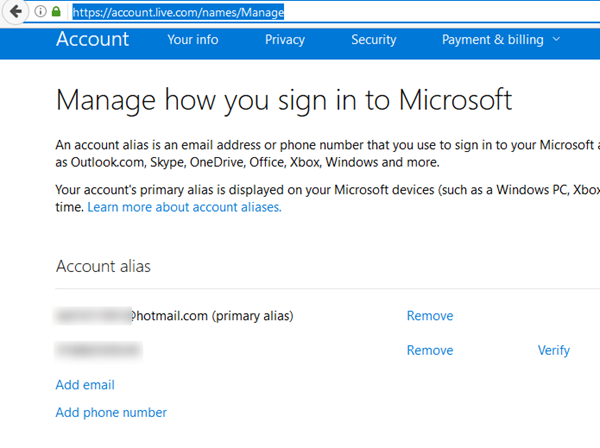
To resolve it, go to account.live.com/names/Manage and set your Outlook.com email ID as your primary alias. Remove all other email ID’s.
Repeated credential prompts on Outlook for Outlook.com connected accounts
While repeated credential prompts is a known issue with Outlook clients (for all later versions), if it occurs after the migration to Outlook.com, it might be a problem with the 2-step verification. Before trying the usual steps like using the SARA Tool to fix Outlook & Office 365 problems, deleting Windows credentials, rebuilding the profile, etc., check if you have created an App Password to add the account in Outlook.
Outlook crashes after migration to Outlook.com
While no sure shot resolution has been found for this issue, Microsoft has advised users to create a new Outlook profile. To create a new Outlook profile. If this doesn’t resolve the issue, use the SARA tool to continue troubleshooting.
Unable to send emails from 3rd party email ID’s when connected to Outlook.com primary account
When the user’s Outlook for Windows is set to Outlook.com as the primary account, the user won’t be able to send emails from third-party email addresses such as Gmail or Yahoo. This is a design feature. The best workaround would be to change the primary account. However, the user can send emails from @Outlook, @Live, and @Hotmail email addresses. The purpose behind this setup is clearly to promote the use of Microsoft’s own products.
Recipients receive a winmail.dat file attachment along with the mail
This issue is under investigation. The recipient receives a file named winmail.dat along with the email. While Microsoft has not yet provided a resolution, it is known that this doesn’t occur when the email is sent from Outlook.com. This could be used as a workaround in the meantime.
Company’s name missing in contacts upon syncing to server
While no resolution has been mentioned for the same, one best thing that could be done is to add the details of the crucial contacts on Outlook.com (the site) itself. Or we could try syncing Outlook with the server again to see if that works.
The sender’s email gets added to the ‘To’ field automatically while sending the mail
When adding multiple recipients to an email, the sender’s own email ID gets added to the ‘to’ field automatically. It’s a known bug, and its solution has yet to be found. The best workaround for now is to manually delete the surplus email ID.
Unable to send email to a Contact Group in Outlook
When attempting to send an email to a contact group, Outlook gives the error “An unexpected error has occurred.”
Microsoft has not been able to find a fix for this as of the present, but the contact list could be expanded and the email could be sent to the list of IDs.
From field always shows Outlook.com account’s email ID
For those with multiple Outlook for Windows accounts, the From field defaults to their Outlook.com email address when sending emails from other accounts.
Since the issue is with the build and there doesn’t seem to be a fix, a couple of workarounds could be tried.
If the issue isn’t a concern and the user rarely uses their personal accounts, the ‘from’ field could be changed each time before sending the email.
If you need a long-term workaround for this issue, create an empty Outlook Data File and restart the Outlook client.
A few things to be noted when migrating to Outlook.com
- Multiple devices: If a user has multiple devices, all devices using Outlook for Windows desktop client would have to be re-connected to Outlook.com.
- Mobile phones: Mobile phones do not use the same client as desktops. Thus they do not need to be re-connected to Outlook.com.
- Mac systems: Mac systems do not use the Outlook for Windows client. Thus they do not need to be re-connected to Outlook.com. This procedure is only for Outlook for Windows desktop clients.
- Data transfer: All data stored on the server would be migrated to Outlook.com. However, drafts and outboxes would probably get deleted since they are stored on the system locally. You could back them up if needed.
- Auto-complete addresses: Anything that happens to these lists would be similar to the action upon re-building a new Outlook profile. In most cases, Outlook.com would retrieve email addresses from the list of IDs you have emailed.
While no product is perfect, Microsoft is working to make this transition as smooth as possible for its users.
How do I troubleshoot Outlook connectivity issues?
If you experience connectivity issues with Outlook, the first thing that you should do is check your internet connection. Restart your Wi-Fi router and see if it resolves the issue. Also, make sure that you are using the latest version of Outlook. Repairing Microsoft Office can also help to fix issues.
What is the solution for Outlook not responding?
If Outlook is not responding, keeps crashing, or has stopped working, check if any add-ins are causing the conflict or not. To check for conflicting add-ins, launch Outlook in Safe Mode. You can also try fixes such as cleaning your Outlook profile and disabling Hardware Acceleration. You can also run the Inbox Repair Tool and see if it helps.
See this post if you receive a The operation failed, An object cannot be found message.
