
If you want to transfer Outlook from one account to another, here is how you can do that. This is a complete guide to transferring Outlook email, Microsoft To Do tasks, Calendar events, Rules, RSS feeds, Contacts, etc., from one account to another.

How to transfer Outlook email from one account to another
To transfer Outlook email from one account to another, follow these steps:
- Open Outlook on your computer and go to File > Open & Export.
- Click on Import/Export and select the Export to a file option.
- Choose the Outlook Data File option and click Next.
- Select a folder you want to back up.
- Click the Finish button.
- Open Outlook on another computer and open the same Import/Export wizard.
- Select the Import from another program or file option.
- Select the Outlook Data File option.
- Choose the Replace duplicates with items exported option and click the Finish button.
To learn more about these steps, continue reading.
To get started, open Outlook on your computer and go to File > Open & Export. Then, click on the Import/Export option and select the Export to a file option.
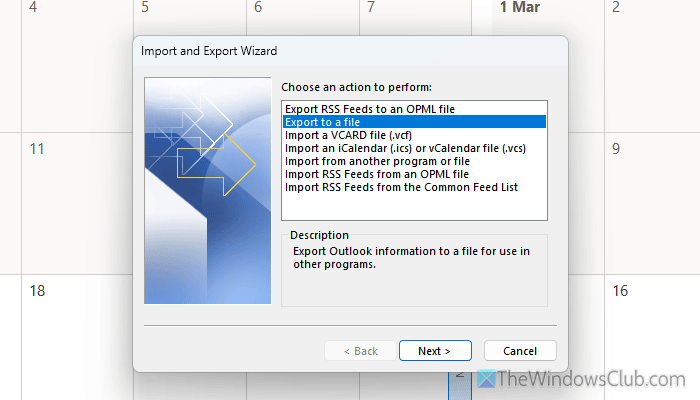
Upon clicking the Next button, you will have to select the Outlook Data File option and click on the Next button again.
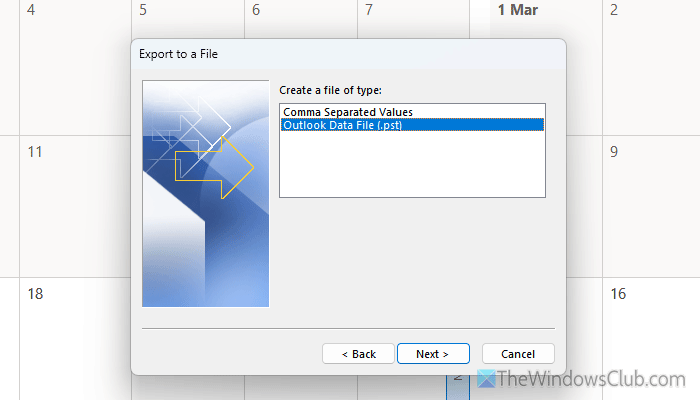
After that, choose the folder you want to export or transfer. In case you want to transfer all emails from all folders, select your email address and click the Next button.
Choose the Replace duplicates with items exported option and click the Finish button.
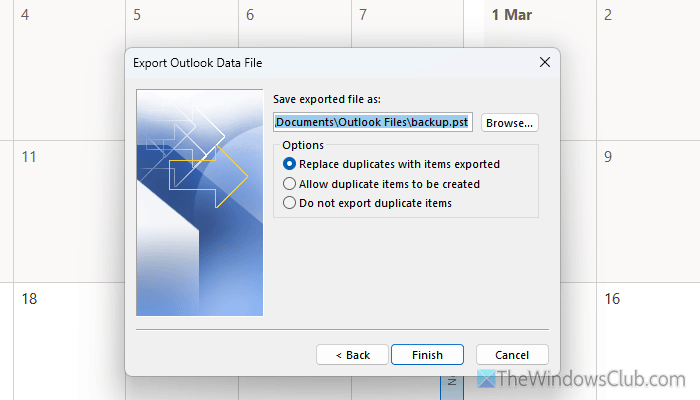
Once done, you can find your backup file here: C:\Users\username\Documents\Outlook Files\backup.pst
However, if you want to select a custom path, click the Browse button, select a path, and enter a name as per your requirements.
Now, it is time to import the data to another account. For that, open Outlook and open the same Import/Export wizard that you have opened while exporting data. Then, choose the Import from another program or file option and select Outlook Data File.
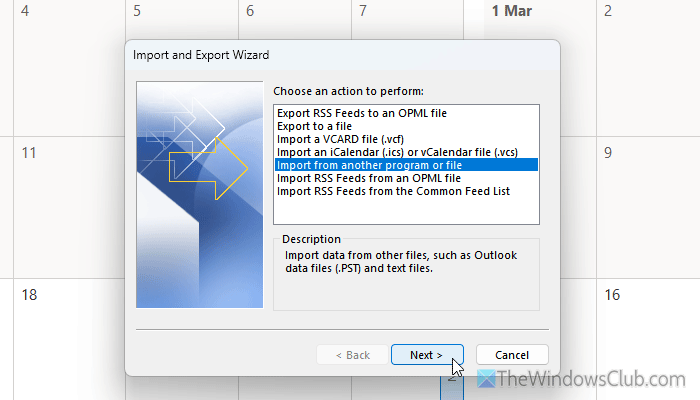
Next, click the Browse button and choose the exported PST file. Select the Replace duplicates with items exported option and click the Finish button.
Read: How to back up Outlook email folders to Windows desktop
How to transfer Microsoft To Do tasks from one account to another
To transfer Microsoft To Do tasks from one account to another, follow these steps:
- Open the Import/Export wizard of Outlook.
- Select the Export to a file option.
- Choose the Comma Separated Values option and click Next.
- Select Tasks and click Next.
- Choose a location where you want to save it and click on Next.
- Click the Finish button.
- To import, choose the Import from another program or file option.
- Select Comma Separated Values option.
- Click the Browse button and select the file.
- Choose the Replace duplicates with items imported option and click the Next button.
- Click the Finish button.
To know more about these steps, continue reading.
First, open the Import/Export wizard and select the Export to a file option. Then, choose the Comma Separated Values option and click Next.
Here you can find the Tasks option. Select it, click the Next button, and choose a location where you want to save the file.
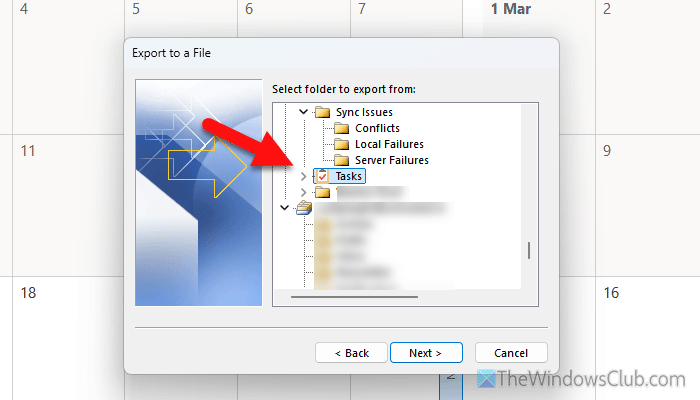
Give it a name and click the Finish button.
To import these tasks, open the same Import/Export wizard and choose the Import from another program or file option. Then, select the Comma Separated Values option, click the Browse button, and select the file you exported earlier.
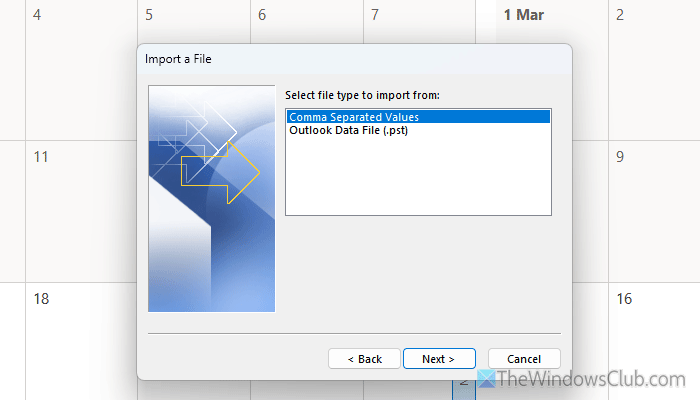
Next, select the Replace duplicates with items imported option and click the Next button.
Finally, click the Finish button to get the job done.
How to transfer Rules from one account to another
To transfer Rules from one account to another account, follow these steps:
- Open Outlook on your computer.
- Click on Rules > Manage Rules & Alerts.
- Click on Options.
- Click the Export Rules option.
- Select a location, choose a name, and click the Save button.
- To import, open the same wizard and click the Import Rules option.
- Choose the file and click the Open button.
Let’s delve into these steps in detail.
To get started, open Outlook and click on Rules > Manage Rules & Alerts.
Click on the Options menu and choose the Export Rules option.
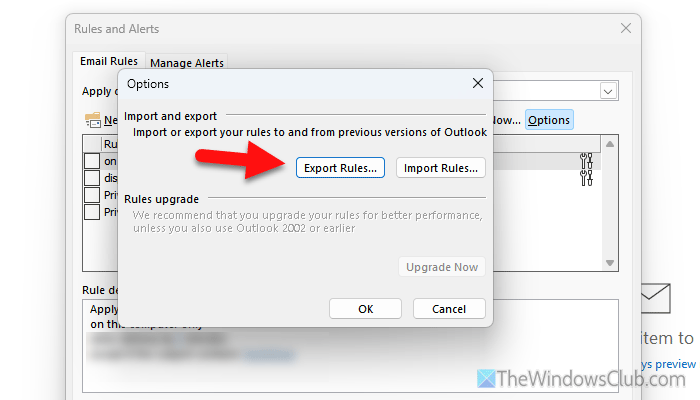
Then, choose a location, give it a name, and click the Save button.
To import these rules, open the same wizard and click the Import Rules option.
Next, choose the file you want to import, and click the Open button.
How to transfer Outlook Calendar from one account to another
To transfer Outlook Calendar from one account to another, follow these steps:
- Open the Import/Export wizard and choose Comma Separated Values option.
- Choose the Calendar option and click the Next button.
- Select a location and click the Next button.
- Click the Finish button.
- To import, choose the Import an iCalendar or vCalendar file option.
- Choose the file and click on Open.
- Click the Finish button.
Let’s check out these steps in detail.
First of all, open the Import/Export wizard and choose the Comma Separated Values option. Then, choose the Calendar option and click the Next button.
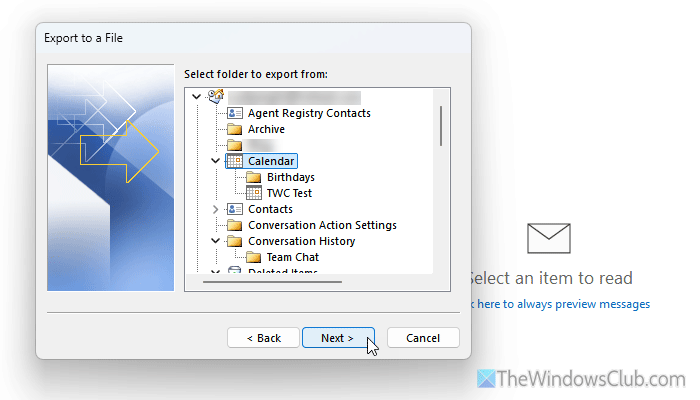
Choose a location where you want to save the file and click the Next button.
Finally, click the Finish button.
In order to import, choose the Import an iCalendar or vCalendar file option and select the file.
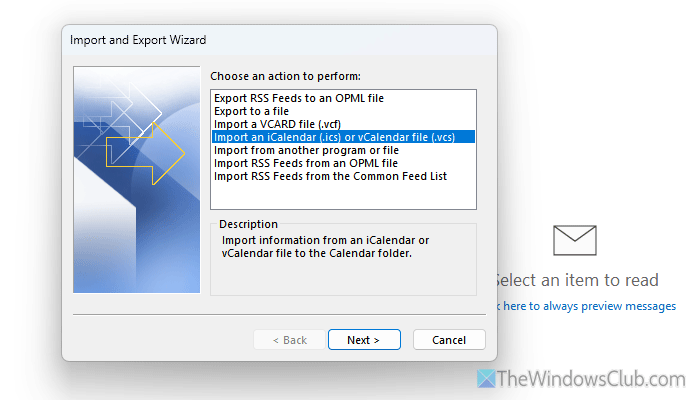
Click the Open button to choose the file and click the Finish button to start the import process.
Note: If you want to transfer Contacts, you can go through the same steps as above. However, select the Contacts option instead of Calendar.
Read: How to set up Outlook for Private Hosted Email
How to switch email accounts without losing emails?
To switch email accounts without losing emails, you must export emails, contacts, calendar events, tasks, signatures, rules, etc., first. Then, import them into your new account.
Can you merge two Outlook accounts?
It is not possible to merge two Outlook accounts directly. However, you can auto-forward emails so that your emails will be visible on both accounts almost at the same time. Apart from that, you can create a shared calendar and go through all the aforementioned steps to transfer data from one account to another.
Read: How to Import or Export Outlook Signatures
