
Moving task lists between Microsoft accounts can be challenging, but several effective methods exist. In this post, we are going to see a few easy steps to transfer the Microsoft To-Do list from one account to another.
How to transfer Microsoft To-Do list from one account to another
Before starting the transfer process, you need to make sure to have access to both accounts, the source and the destination. It is recommended that you have MS Outlook installed on your desktop. For lists with 70+ tasks (as mentioned in one query), automated solutions save significant time versus manual copying.
If you want to transfer the Microsoft To-Do list from one account to another, use the steps mentioned below.
Microsoft To-Do automatically syncs with the Tasks section in Outlook. This means you can easily copy tasks from one account to another using the Outlook desktop application. All task details, such as due dates, completion status, and categories, will transfer with them.
To do the same, follow the steps mentioned below.
- First, log in to your new Microsoft account on the To-Do website or app. Create empty lists with the exact names you want for your tasks (for example, “Work,” “Personal,” “Shopping”). This gives Outlook a place to put the copied tasks.
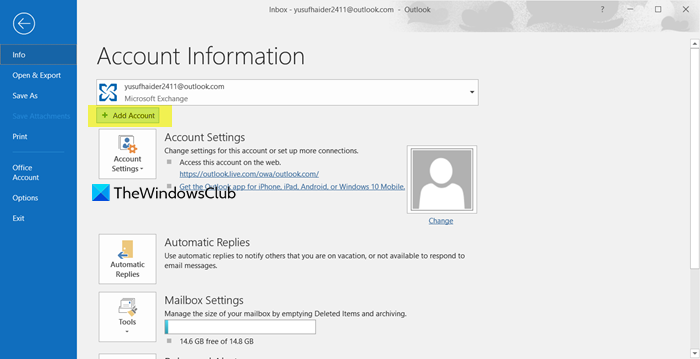
- Now, we need to set up both accounts in Outlook. For that, open the Outlook desktop app on your computer. Go to File > Account Settings > Add Account.
- Log in with your old account (where your tasks are now) and then add your new account (where you want to move them). Outlook will need to restart to finish setting this up.
- After Outlook restarts, find the Tasks section in the bottom-left corner. You will see your task lists from both accounts. If you don’t see them right away, wait a few minutes for them to sync.
- Click on a list from your old account.
- Select all the tasks inside (you can press Ctrl+A on Windows or Cmd+A on Mac).
- Copy them (Ctrl+C / Cmd+C), then click into the corresponding list in your new account and paste (Ctrl+V / Cmd+V).
The transfer happens in the background. Depending on how many tasks you have, it might take a little while for all of them to appear in your new Microsoft To-Do account. When it’s done, you’ll find all your tasks there, with their completed status, repeats, and categories intact.
Read: Microsoft To-Do Tips and Tricks
How to transfer To Do list from one account to another?
To transfer your Microsoft To-Do list between accounts, use the Outlook desktop app. First, add your old and new Microsoft accounts to Outlook on your computer. Once Outlook restarts, go to the Tasks section to see your To-Do lists sync. Select all tasks in a list from your old account, copy them (Ctrl+C), and then paste them (Ctrl+V) into the same list in your new account. After syncing, all task details, including completion status and due dates, should transfer over successfully.
Read: Microsoft To Do app Features, FAQ and all you need to know
How do I export Microsoft To Do list to another account?
To export your Microsoft To-Do list for transfer to another account, you can use Outlook’s built-in export feature to create a file. In the Outlook desktop app, go to File > Open & Export > Import/Export and choose Export to a file to save your tasks as a CSV (Comma Separated Values) file. To get your tasks into the new account, remove the old account from Outlook, add the new one, and then use the same Import/Export menu, this time selecting Import from another program or file to bring in your saved CSV file. This method transfers the main task details, though some specific properties may not be preserved.
Also Read: Use Microsoft To-Do app effectively.
