
Some users encountered The recovery attempt has failed error while using the recovery media created by the HP Cloud Recovery Tool. The HP Cloud Recovery Tool is an HP-developed application that downloads recovery media for HP computer systems. Some users also encountered this error while using the recovery media they purchased from HP. Users can use this tool to recover or install Windows. The Windows factory image created using this tool may contain HP-specific drivers and software. This article explains what to do if you encounter this error while using the HP Cloud Recovery tool or the recovery media you purchased from HP.
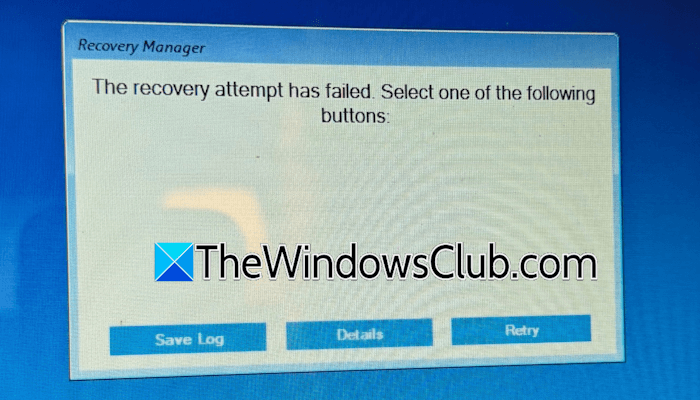
Reports suggest this error may occur in different scenarios. Some of these are mentioned below:
- Some users encountered boot issues after installing a Windows Update. After that, they prepared a USB flash drive using the HP Cloud Recovery tool on another working computer. When they used that USB flash drive on the affected computer to recover Windows, they encountered this error.
- Some users used the HP Cloud Recovery tool to install Windows on their HP laptop after installing a new SSD and encountered this error.
- Some users reported that the error occurred because they connected their laptop to the direct power supply after removing the internal battery.
The recovery attempt has failed error in HP Cloud Recovery
If you cannot recover or install Windows due to the “The recovery attempt has failed” error in HP Cloud Recovery, use the following solutions:
- Perform a hard reset
- Disconnect unnecessary peripherals
- Connect the battery (if you have a laptop)
- Uninstall a Windows Update (if applicable)
- Use the Quick Machine Recovery
- Reset or restore your system
- Use a third-party or Windows Media Creation Tool
All these fixes are provided in detail below.
1] Perform a hard reset
First, perform a hard reset to see if it helps. The steps to do this are as follows:
- Turn off your system.
- Disconnect all peripherals connected to your system.
- Remove the battery. If your laptop has a non-removable battery, skip this step.
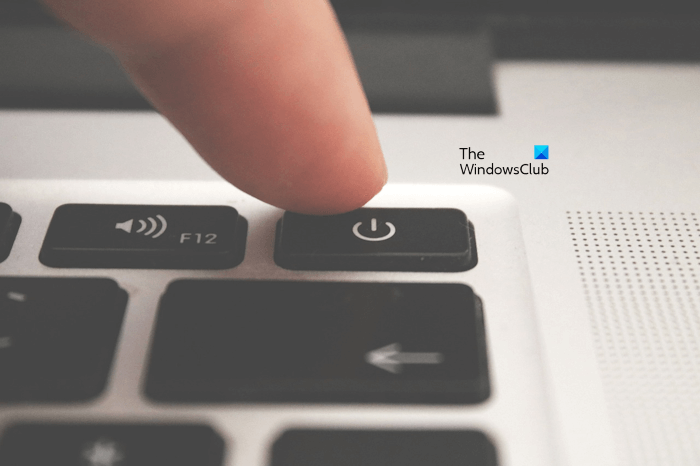
- Now press and hold the power button for up to 30 seconds.
- Connect the battery and turn on your laptop.
After completing the steps above, check whether the issue persists.
2] Disconnect unnecessary peripherals
HP recommends disconnecting all unnecessary peripherals while using the HP cloud recovery tool. Disconnect all the peripherals connected to your HP PC except the mouse and keyboard. If you have an HP laptop, you can disconnect the mouse and keyboard too and use the laptop’s keyboard and touchpad.
3] Connect the battery (if you have a laptop)

Some users connected their laptops directly to an external power supply after removing the internal battery. When they ran the HP Cloud Recovery Tool to recover or install Windows, it displayed the “The recovery attempt has failed” error. You should not run the Cloud Recovery tool after removing your laptop’s battery. Turn off your laptop and install the battery. Now, plug in charger and power on. After that, run the tool and see if the error occurs.
4] Uninstall a Windows Update (if applicable)
Some users encountered boot issues after installing a recent Windows Update. Sometimes, Windows Updates cause issues. That’s why Microsoft provides a feature to uninstall a problematic Windows Update and return your system to a working state. According to the reports, when they used the HP Cloud Recovery tool to recover Windows, they encountered this error.
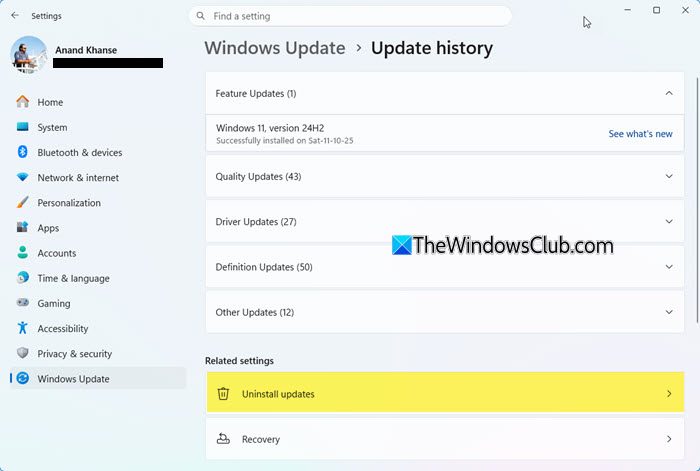
If you can boot into Windows, you can use Windows 11 Settings to uninstall a problematic update. But if you cannot boot into Windows, you can use the Windows Recovery Environment to uninstall the problematic update. To enter the Windows Recovery Environment, you need to interrupt the normal boot process.
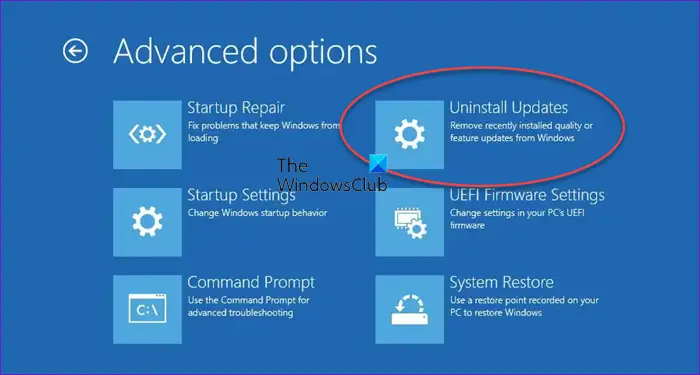
Follow these steps:
- Shut down your system.
- Turn it on. When you see the Windows or manufacturer’s logo, press and hold the power button to force shut it down.
- Repeat the above steps until you see the Preparing for Recovery message on your screen.
When you are in WInRE, navigate to Troubleshoot > Advanced Options > Uninstall Updates. Follow the on-screen prompts to uninstall the problematic Windows Update. After uninstalling the Windows Update, your laptop will start working properly, and you will not need to use the HP Cloud Recovery tool.
5] Use the Quick Machine Recovery
In Windows 11, you will now see a Quick Machine Recovery feature. When you run Quick Machine Recovery, your system searches for solutions and repairs itself. You should have an active internet connection to use this feature. If it fixes your laptop, you don’t need to use the HP Cloud Recovery tool.
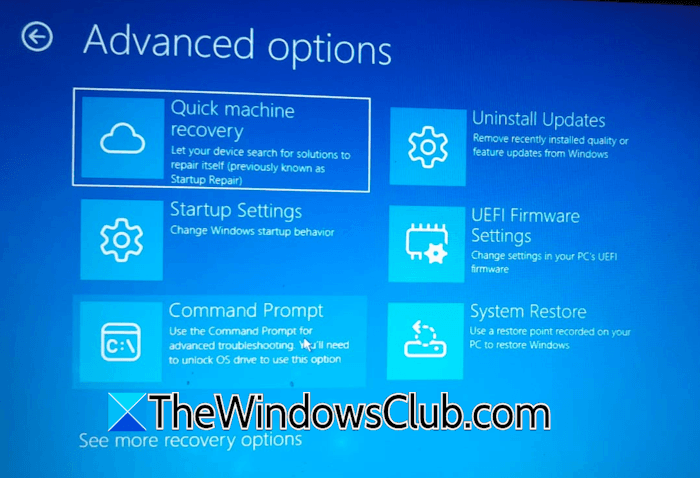
Enter the Windows Recovery Environment and navigate to Troubleshoot > Advanced Options > Quick Machine Recovery. Follow the on-screen prompts.
For your information, Startup Repair and Quick Machine Recovery (QMR) are different features. Quick Machine Recovery builds on Startup Repair. Quick Machine Recovery uses WinRE plus an Internet connection to check Windows Update for Microsoft-provided fixes for boot failures. If the cloud remediation QMR feature is disabled or unavailable, Windows falls back to Startup Repair as the local recovery option.
6] Reset or restore your system
You can use the built-in System Restore tool. This tool helps restore your system to a previous working state. In Windows Recovery Environment, go to Troubleshoot > Advanced Options > System Restore. The System Restore tool will appear. Select the restore point created before your system was working properly.
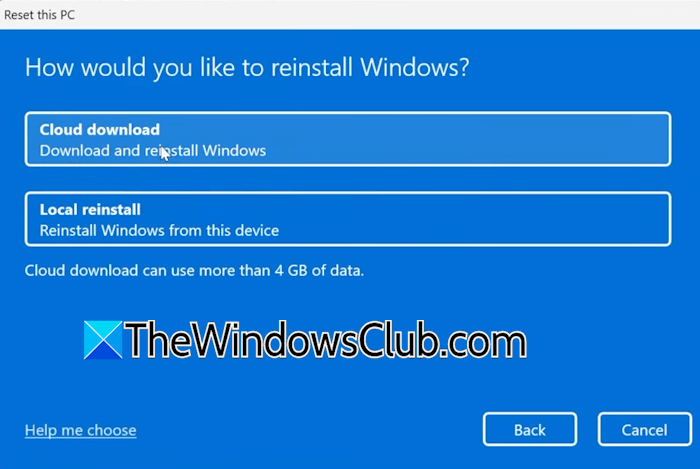
If no restore point exists on your system, you can reset it to the factory default settings. In WinRE, click Troubleshoot > Reset this PC. This tool also has an option to download Windows from Microsoft Server and install it. Select the Cloud Download option while resetting your PC. If you want to prevent Windows from erasing your personal files, proceed with the Keep my files option.
7] Use a third-party or Windows Media Creation Tool
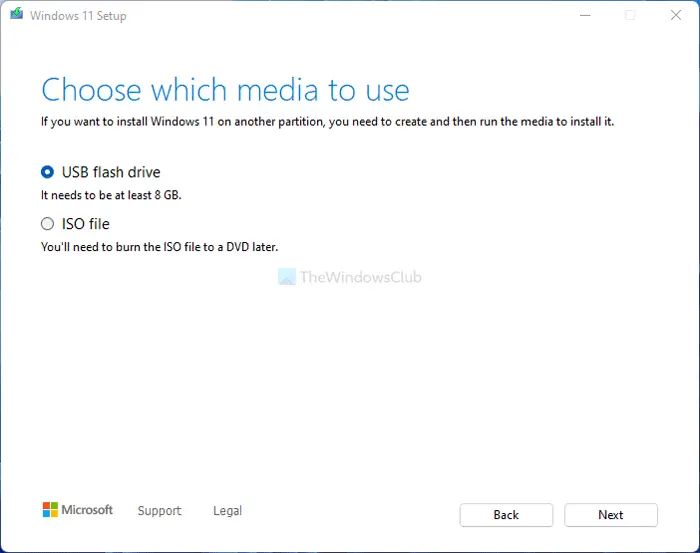
If the HP Cloud Recovery tool is not working, you can use Microsoft’s official Windows Media Creation tool or a third-party tool, such as Rufus. Installing Windows using these tools will not install HP-specific drivers. Therefore, you’ll need to download and install them manually from the official HP website after installing Windows 11. To create a bootable USB flash drive with the Windows 11 ISO, you will need a working computer. To download the Windows 11 ISO, visit the official Microsoft website.
That’s it. I hope this helps.
How to do HP cloud recovery?
To use HP Cloud Recovery, install it from the Microsoft Store and launch it. Now, connect a USB flash drive to create bootable installation media with a Windows 11 ISO. Follow the on-screen prompts. Your system should have at least 20 GB of free space on the C drive to recover Windows using the HP Cloud Recovery tool.
My laptop won’t go into recovery mode. What can I do?
If your laptop won’t enter Recovery Mode, you may have disabled the Windows Recovery Environment. Check the status of the Windows Recovery Environment. If it is disabled, enable it. Another reason is the missing recovery partition. In such a case, you have to create the Recovery Partition.
Read next: HP Support Assistant Important action needed.
