
Reset this PC is a feature in Windows 11/10 that allows you to reinstall Windows by keeping your files or removing everything. The Keep my files option does not remove your files and accounts created on your system. Hence, you can sign back in to your existing accounts after resetting your PC. However, some users cannot login after a factory reset in Windows 11. If you encounter the same issue, use the fixes provided in this article.

Can’t login after Factory Reset in Windows 11
If you reset your PC by selecting the “Remove everything” option, all your data, along with the user accounts, is deleted. In this case, you have to set up your PC from scratch. On the other hand, if you choose the Keep my files option, your personal files remain intact, and you can log back into your existing account. However, this is not working as expected for some users. If you can’t log in after a factory reset in Windows 11, use the following suggestions.
- Perform a hard reset
- Try other ways to log in
- Use another keyboard
- Enable the hidden administrator account
- Boot in Safe Mode
- Reset your Microsoft account password on another computer
- Reset your PC again
- Perform a clean installation of Windows
Before discussing all these fixes in detail, it is important to back up all your data. Skip this step if you have removed everything while resetting your PC.
To back up your data, you have to enter the Windows Recovery Environment. For this, press and hold the Shift key and click Restart from the Power options on your login screen. This will take you to Windows Recovery Environment. Once you are in Windows Recovery Environment, select Troubleshoot>> Advanced Options > Command Prompt. Now, type the following command and hit Enter.
notepad.exe
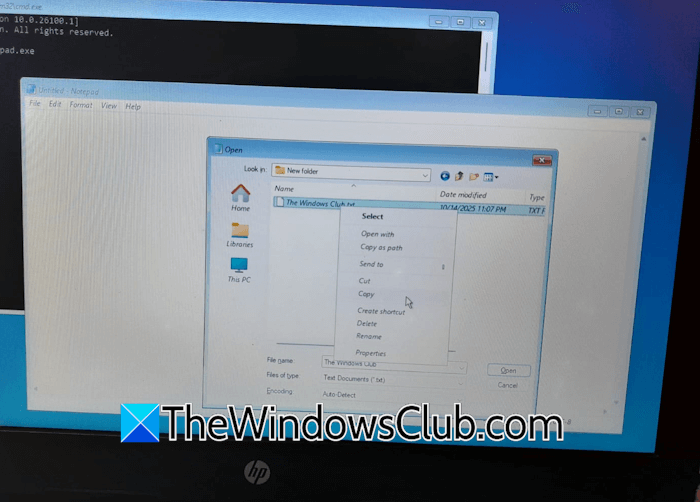
This will launch Notepad in Windows Recovery Environment. In Notepad, go to File > Open, or press Ctrl + O. Select This PC and browse all the drives for your data. Windows displays different drive letters in WinRE. Therefore, you have to open each drive to view your data.
Once you open the correct drive, copy all your data. Now, connect an external USB storage device and paste the copied data there. You will not see the progress bar window, but your data is being copied. The speed may also be slow. So you may have to wait a long time, depending on your data size. Once you’ve copied all your data, follow the instructions below.
Let’s start.
1] Perform a hard reset
The first step is to perform a hard reset. Follow the steps provided below:

- Turn off your computer.
- Remove the battery (if it is a laptop). Remove the power cord (if it is a PC).
- Press and hold the power button for up to 45 seconds.
- Turn on your system.
Check if you can sign in.
2] Try other ways to log in
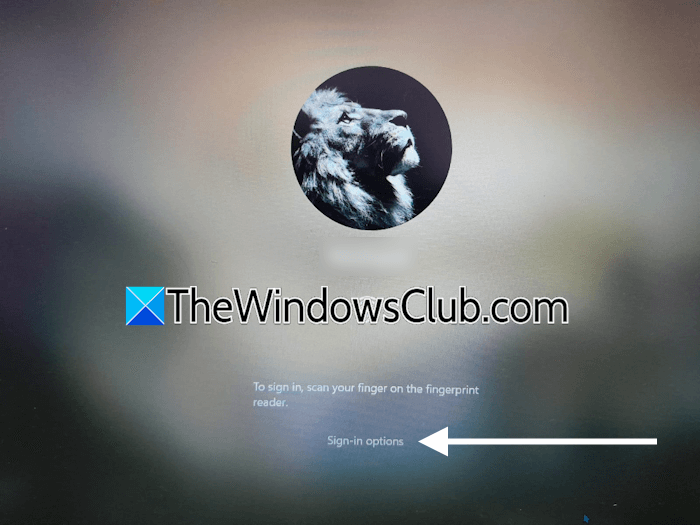
Windows 11 always shows other sign-in options if they exist on your system. Click on the Sign in options link on your lock screen and select the Sign-in options. See if that helps.
3] Use another keyboard
If you enter your password but Windows shows it as incorrect, the issue may be your keyboard. Connect another keyboard and try entering the password again.
4] Enable the hidden administrator account
The hidden Administrator account on a Windows PC is a built-in, master user profile that is used for emergency recovery and troubleshooting. It remains disabled by default, but you can enable it by running a command in the Command Prompt. Once you enable it, you can log in to Windows easily because the hidden administrator account does not have a password by default. Since you are locked out of your system, you have to use the Windows Recovery Environment. Once you are in WinRE, navigate to Troubleshoot > Advanced Options > Command Prompt. Now, execute the following command to enable the hidden administrator account:
net user administrator /active:yes
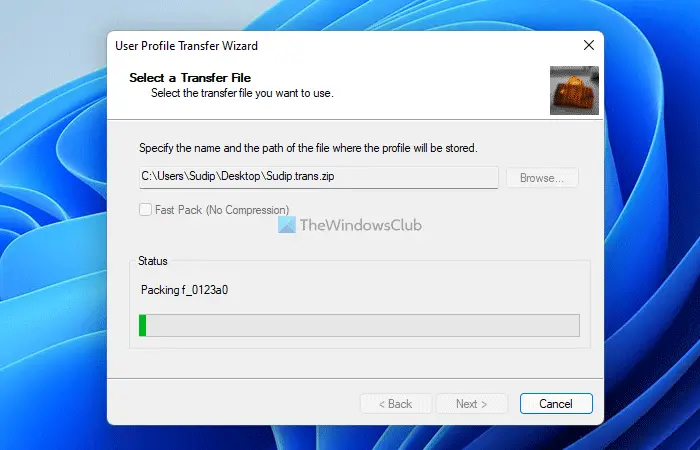
After signing into Windows, you can back up your important files and create a new user profile. After creating a new user profile, you can transfer your profile data to the new user profile using a third-party tool, such as Transwiz. Now, you can keep using the new profile and delete the previous one.
5] Boot in Safe Mode
If the other sign-in options do not work or are unavailable, boot in Safe Mode and create a new user account. To enter Safe Mode, you need to use MSConfig, but you cannot do so because you are stuck on the lock screen. Therefore, you must use the Windows Recovery Environment to boot into Safe Mode. Select Safe Mode with Networking.
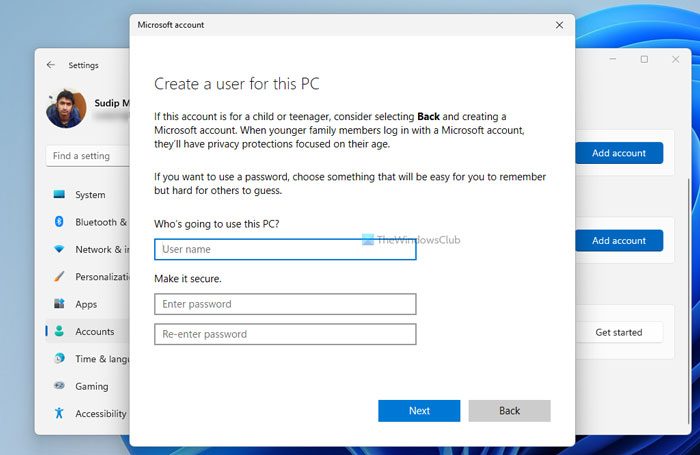
Once you are in Safe Mode, open Windows 11 Settings and create a new user account. If you cannot create a new user profile, you can enable the Hidden Administrator account and log in to that account. After signing into the Hidden Administrator account, you can create a new Administrator account.
Now, sign in to the newly created user profile. If this works, you can copy all your account data from the previous profile to the new profile using a third-party tool, like Transwiz.
6] Reset your Microsoft account password on another computer
If other sign-in options do not work, you can try resetting your Microsoft account password. For this, you will need another computer.
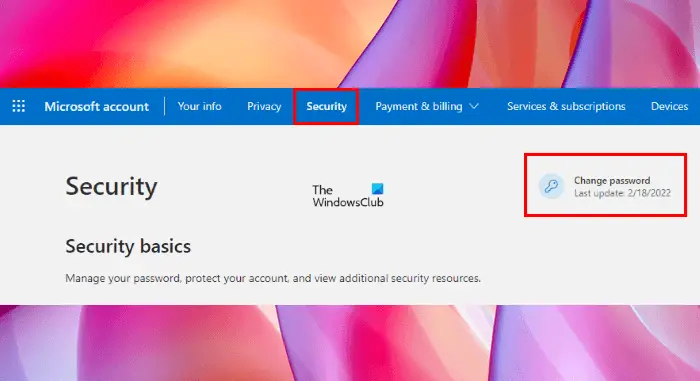
On another computer, launch a web browser and sign in to your Microsoft account. Now, open its settings and change your account password.
After changing your account password, log out of your account on that computer and go back to your laptop or computer. Make sure that it is connected to the internet. Sign in by entering the new account password.
7] Reset your PC again
Your PC might not have reset properly. Try to reset it again. This time, try to reset it through an installation media. Create a bootable USB flash drive with Windows 11 installation media and plug it into one of the USB ports of your PC.
Now, enter Windows Recovery Environment and reset your PC from there. You will see the following options:
- Cloud download
- Local reinstall
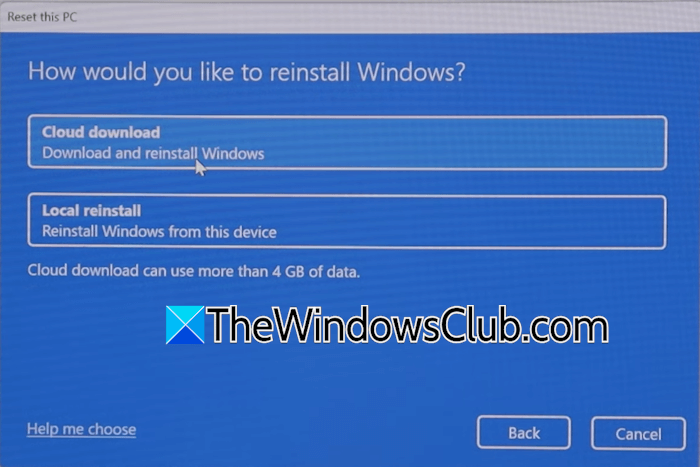
The Cloud download option is the best option to reset a PC. However, for this option, your system should be connected to the internet. If you do not have an active internet connection, you can proceed with the Local install. For this, you need to create an installation media of Windows 11 OS with a bootable USB device.
8] Perform a clean installation of Windows
If none of the fixes help you, the last resort is to perform a clean installation of Windows. Since you already have backed up your data, you can proceed with the clean installation. If you have not backed up all your data, back up in WinRE before proceeding.
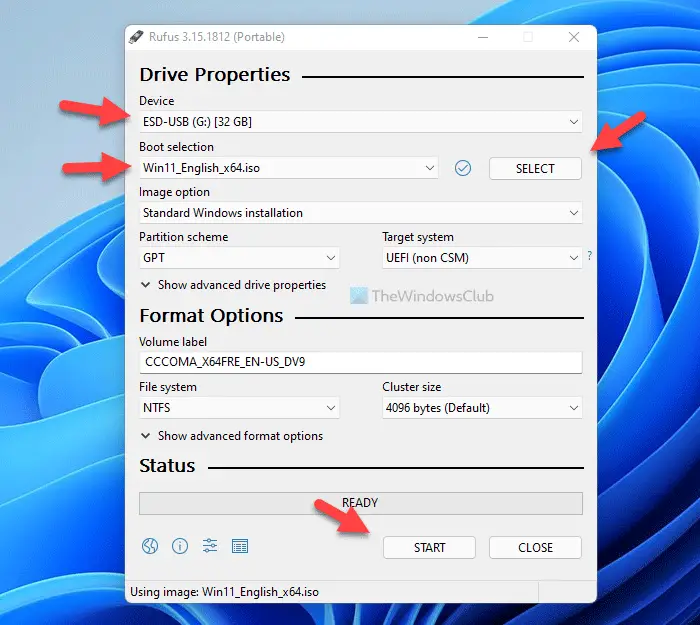
On a working computer, create a bootable USB flash drive with Windows installation media and use it to install Windows. You may have to change the boot order in your BIOS.
This step will erase all your data, including all user accounts.
That’s it. I hope this helps.
After factory reset still prompted for sign in but sign in is impossible
If your laptop asks for a password after a factory reset but login is impossible, boot into recovery mode, check whether the reset removed all accounts, then perform a clean reinstall of Windows using installation media; during setup, skip sign-in by choosing “offline account” or “limited setup”. Once Windows loads, create a new local account and then reconnect your Microsoft account.
How do I reset Windows if I can’t log on?
If you cannot log in to Windows, you can reset it in Windows Recovery Environment. Press and hold the Shift key and restart your system from the Power options on the login screen. Once you are in WinRE, select Troubleshoot > Reset this PC.
How do I fix Windows 11 not logging in?
If you cannot sign in to Windows 11, check if you are using the right password. Also, check that the Caps Lock is turned on. You can try signing in using an alternative method. If you have forgotten your account password, you can change it on another working computer.
Read next: Windows Login screen not appearing or Password box not showing up.
