
If you see error The installer failed to uncompress archive in Google Chrome, Microsoft Edge, or Brave browser, here are some suggestions to help you resolve the issue. There could be many reasons why you are getting this error, such as administrative privileges, a false positive flag from antivirus, etc.
The installer failed to uncompress archive error in Chrome, Edge, or Brave
If you get this error while installing Chrome, Edge, or Brave, first restart your computer and try again. You can often fix these issues by restarting your Windows device. Also, make sure that you have enough space on your computer. If you still get the same error after restarting your computer, try the suggestions below to resolve the issue.
- Run the installer file as an administrator
- Disable or uninstall your antivirus
- Run the Program Compatibility Troubleshooter
- Install the program in Compatibility Mode
- Delete the files inside the TEMP folder
- Delete junk files
- Delete the Google key from the Registry
Let’s see all these solutions in detail.
1] Run the installer file as an administrator
As described above, administrative privileges may cause this problem. If so, running the installer as an administrator will fix the problem. The steps to do so are written below:
- Right-click on the installer file.
- Select Run as administrator.
- Click Yes in the UAC prompt.
2] Disable your antivirus
Antivirus software protects our systems from various threats. But sometimes, antivirus software generates false-positive flags, which can block genuine programs from working properly or installing. To check whether your antivirus is causing the issue, temporarily disable it, then install the browser. If the antivirus was blocking the installer file, you can install the browser after disabling it.
Some users reported that the problem occurred with Sophos and McAfee antivirus software. Disabling them did not fix the problem. But when they uninstalled them, the issue was fixed. If disabling the antivirus does not work, uninstall it and see if it helps. If this fixes your problem, you can reinstall the antivirus after installing the web browser. Before you uninstall your antivirus, note its key in Notepad and save it on your computer so you can reactivate it later.
3] Run the Program Compatibility Troubleshooter
One effective solution is to run the Program Compatibility Troubleshooter. Troubleshooters are automated tools Microsoft developed. These tools help users fix problems on their Windows devices. Installation errors can occur because of compatibility issues. Follow the steps below:
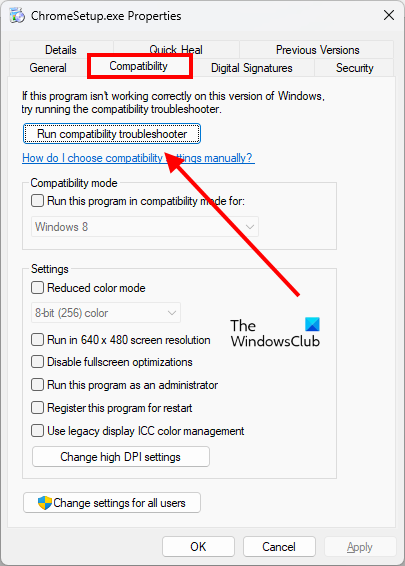
- Right-click on the installer file.
- Select Properties.
- When the properties window appears, select the Compatibility tab.
- Click on the Run compatibility troubleshooter button.
The Program Compatibility Troubleshooter will detect problems and fix them.
4] Install the program in Compatibility Mode
If the Program Compatibility Troubleshooter doesn’t fix the issue, install the program in compatibility mode and see whether you get the same error message. The steps for this are written below:
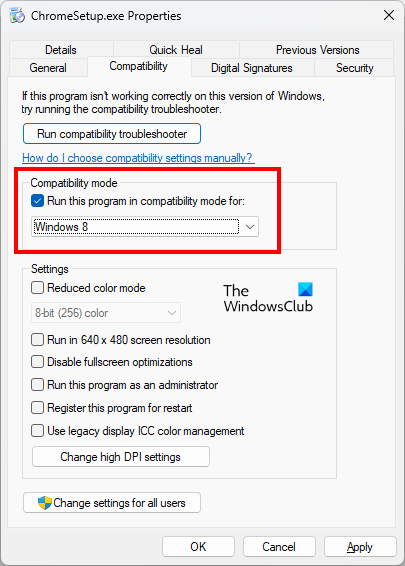
- Right-click on the installer file.
- Select Properties.
- Select the Compatibility tab.
- Under the Compatibility mode section, enable the “Run this program in compatibility mode for” checkbox.
- Select Windows 8 in the drop-down.
- Click Apply and then click OK.
Now, run the installer file. It should install without showing any errors.
5] Delete the files inside the TEMP folder
The TEMP folder contains temporary files. Different applications and software create temporary files on our computers. Over time, these files grow and take up space on the C drive, which can cause performance issues. Deleting these files does not harm your computer.
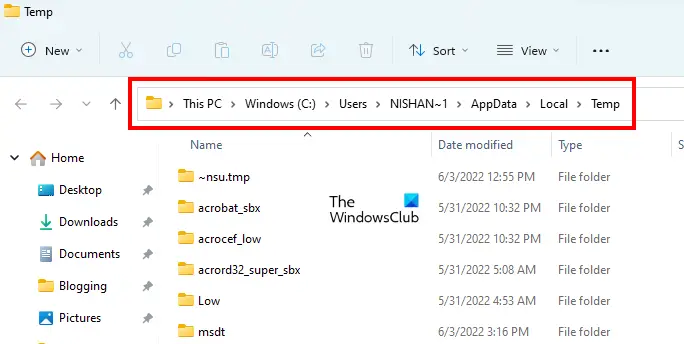
Delete the files inside the TEMP folder and see if it helps. The following steps will help you with that:
- Open the Run command box by pressing the Win + R keys.
- Type %temp% and click OK. This will open the TEMP folder.
- Delete all the files and folders inside the TEMP folder.
Now, install the web browser and see if the issue persists.
6] Delete junk files
Some users have found this method useful. It may work for you too. Delete all the junk files from your computer with the help of a third-party tool or software like Wise. After deleting the junk files, you should be able to install Chrome, Edge, or Brave.
7] Delete the Google key from the Registry
If you are getting the “The installer failed to uncompress archive” error while updating Google Chrome, deleting the Google key from the Registry can fix the problem. This method has helped many users. If you get this error while updating Chrome, you can try this method.
Windows Registry is the database of the Windows operating system. Any mistake while modifying the Registry can damage your system. Therefore, creating a System Restore Point is recommended. Also, create a backup of the Registry.
Deleting the Google key from Windows Registry will also delete your settings and bookmarks. Therefore, we recommend you export all your bookmarks so that you could restore all your bookmarks after reinstalling Chrome.
The steps to delete the Google key from the Windows Registry are as follows:
Launch the Run command box and type regedit. Click OK. Click Yes in the UAC prompt. This command will open the Registry Editor.
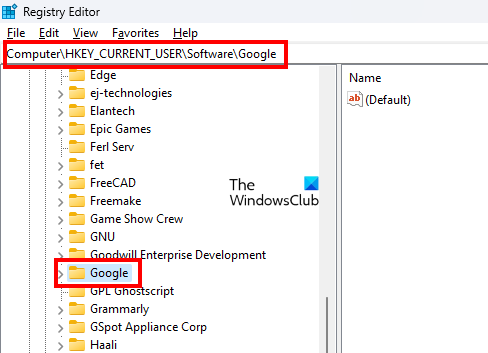
Expand the HKEY_CURRENT_USER hive and then expand the Software key. Now scroll down and locate the Google subkey. Once you find it, right-click on it and select Delete.
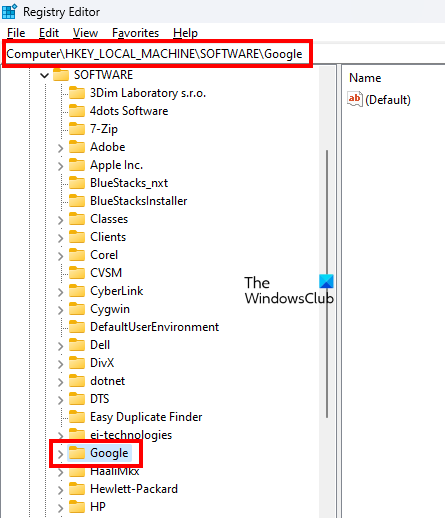
Now, expand the HKEY_LOCAL_MACHINE hive and then expand the Software key. Look for the Google subkey and delete it.
After deleting the Google key from Registry, the next step is to delete the Google folder. Open the Run command box and type appdata. Click OK. This will open the AppData folder. Now, open the Local folder and locate the Google folder. Once you find it, delete it. Restart your computer and install Google Chrome.
Hope this helps.
Read: Brave browser not opening or working on Windows.
How do I fix Chrome installation error?
If you can’t install Chrome or get errors during installation, make sure your internet connection is working. Also, check if your system fulfills the hardware requirements to install Chrome. You can fix some common problems by restarting your Windows device. Restart your computer, then run the installer. If you still can’t install Chrome, download the offline installer from the official website.
How do I fix Installer uncompress archive?
The error “Installer failed to uncompress archive” can occur for several reasons, such as administrative permission issues, compatibility issues or an antivirus blocking the installer file. When you see this error, first, restart your computer and then try again. If the error still persists, disable your antivirus and try again. If that doesn’t help, try other fixes, like running the Program Compatibility Troubleshooter or installing the program in compatibility mode.
Read next: How to fix Microsoft Edge installation problems.
