
Windows 11 sets aside some storage space to function normally. That space is called “System & reserved.” It includes Windows system files, reserved storage, virtual memory, hibernation files, system restore, and shadow copies. They help Windows run properly. Generally, it takes up 20-40 GB of space. If it takes more than that, there may be an issue. It can eat up storage space and make it hard for programs to run because of low space. In this guide, we show you ways to fix it when System & reserved is taking up too much space on your Windows 11/10 PC.
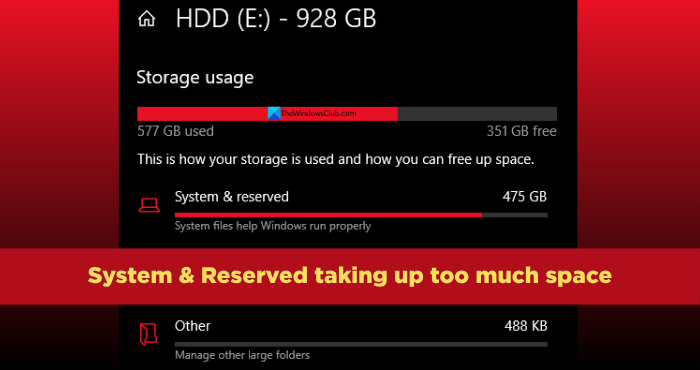
Why is System & reserved storage so high in Windows 11?
When “System & reserved” storage shows too much space used, it may be due to the Windows Search index, hibernation file, temporary files, paging file and other files that help your PC run smoothly. Leftover Windows.old folder, Windows Update cleanup files, or Restore points can also cause spikes. They may have accumulated too much and are taking up a lot of space, often more than 40 GB.
NOTE: System & reserved is an allocated storage space on your C drive and is different from the System Reserved Partition in Windows 11.
System and reserved storage too large in Windows 11
If you find “System & reserved” storage is taking up a lot of space on your Windows 11 PC, follow the methods below to free up space:
- Clear Temporary files
- Run Microsoft PC Manager
- Rebuild the Windows.edb file
- Manage the Hibernation file
- Manage Page File
- Reduce space for System Restore points
- Disable Reserved Storage and re-enable it
System & reserved taking up too much space in Windows 11
1] Clear Temporary files
Storage & reserved taking up more space on Windows 11 is not a common issue. Clear temporary files on your PC as a first way to reclaim the space on the C drive. Open Command Prompt as an administrator on your PC, and use the following command to clear temporary files.
cleanmgr /d C
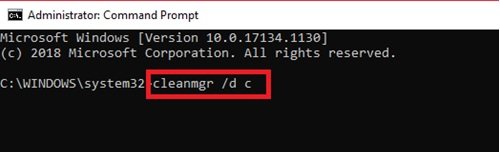
Since the C drive is where Storage & reserved space resides, clearing the temporary files, which have accumulated over time, will free up some disk space.
2] Run Microsoft PC Manager
Microsoft has made it easier to manage a Windows 11 PC using the Microsoft PC Manager. Open Microsoft PC Manager on your PC. Click Boost to begin with. Then, click the Deep cleanup tab.
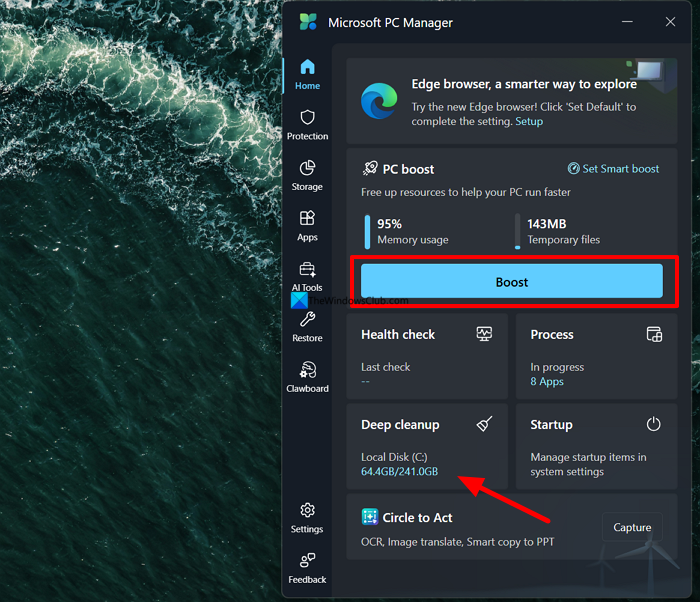
It will scan your PC, mainly the C drive, and shows you items that you can remove safely from your PC. Check the buttons beside optional items too and click Proceed to remove them from your PC.
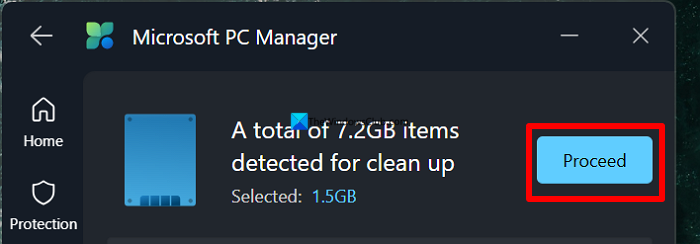
This will free up a lot of space on your C drive.
3] Rebuild the Windows.edb file
The most common folder that occupies more space on the C drive and result in Storage & reserved taking more storage space is Windows.edb file. Windows.edb file stores the search index data on Windows 11 to show you faster results when you search for something on your PC. Over time, it can grow into a huge file and take up 100s of gigabytes of storage space. Rebuilding the search index deletes the existing Windows.edb file and creates a new one. If you have a lot of files, the index data space won’t decrease. You have to modify indexing options to limit the size.
Open the Control Panel on your Windows PC and select Small icons. Then, click Indexing Options.
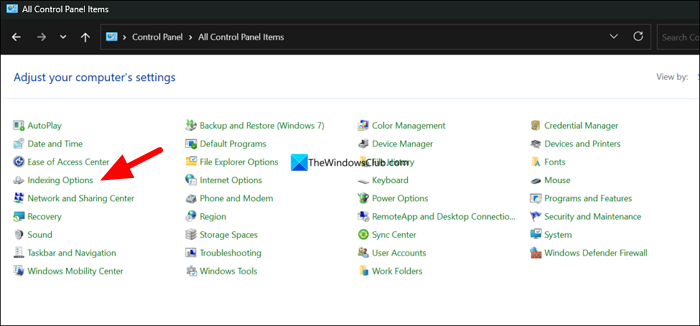
Click Advanced in the Indexing Options window that opens. If you have a lot of files, you can just skip it out from indexing to save storage space by limiting the Windows .edb file size, click Modify.
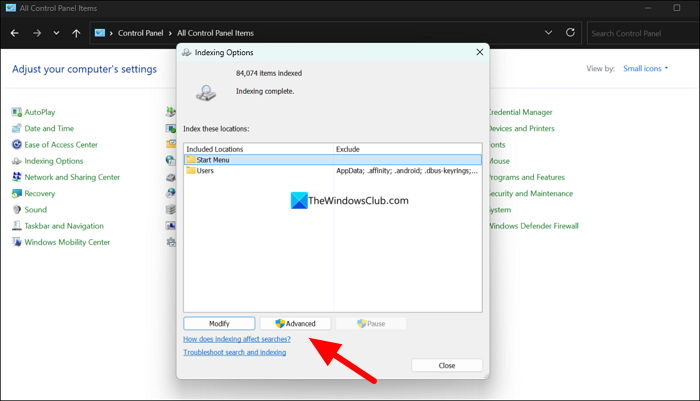
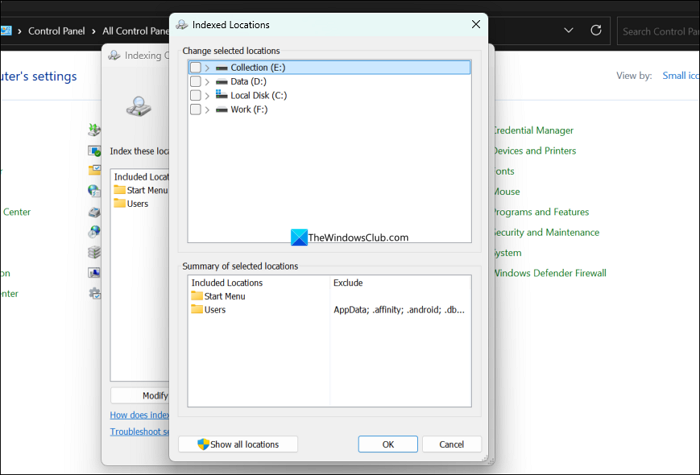
If you have clicked Modify, it will open Indexed Locations window. Select the locations which you want to index and skip drives which have lot of files that may increase Windows.edb file size. After selecting the locations, click OK to save the changes.
To rebuild the search index after clicking the Advanced button, click Rebuild under the Troubleshooting section. Wait for the process to complete and click OK to save the changes.
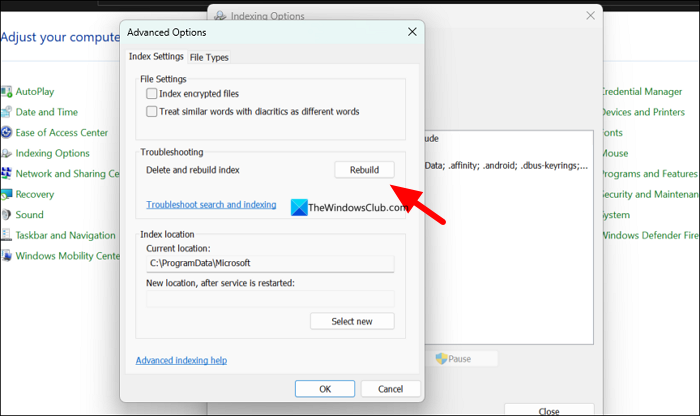
This will free up a lot of space used by “System & reserved” on your PC.
4] Manage the Hibernation file
The other folder that builds up and occupies more space thereby resulting in “System & reserved” taking up more space on your PC is the hibernation file (hiberfil.sys). You need to change or reduce the size of hiberfil.sys on your Windows 11 PC to free up the space occupied by System files.
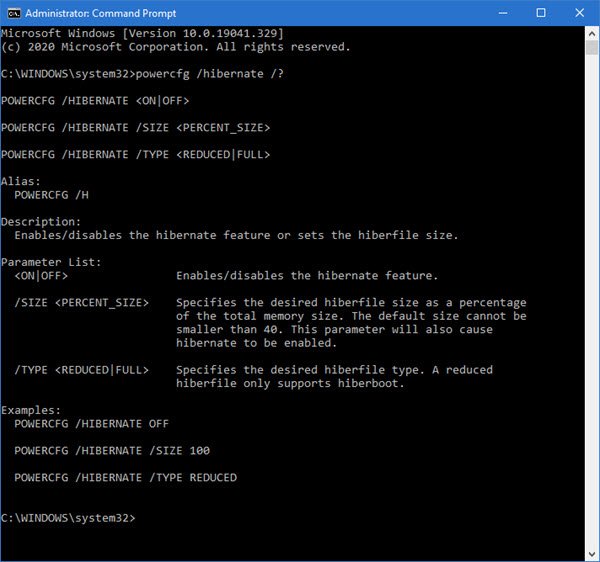
Open Command Prompt on your PC as an administrator, and use the following command to reduce the file size of hibernation file. Make sure you set the file size to atleast 40% of your PC’s RAM size.
powercfg.exe /hibernate /size 50
If it does not help, you need to modify the virtual memory to change the size of hibernation file. Open the Settings app and click System. Then, go to About tab, and click Advanced system settings. In the System Properties window, click Advanced tab. Click Settings under Performance section. It opens Performance Options. Click the Advanced tab. Then, click Change under Virtual memory. Check the button beside Automatically manage paging file size for all drives and set a value that suits your storage and RAM size.
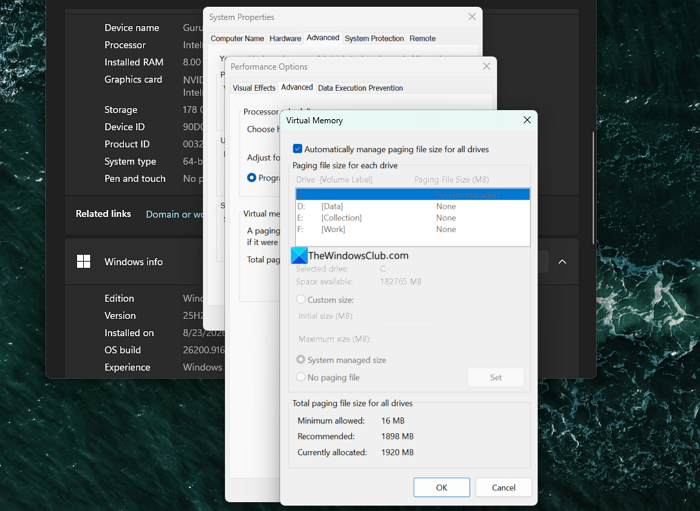
Then, restart your PC, and see if the “System & reserved” space is reduced or not.
5] Manage Page File
You can change the Page file size – but don’t set it too low or else your apps may crash or freeze.
Press Win+R, type sysdm.cpl and hit Enter. Go to Advanced > Performance > Settings > Advanced > Virtual memory > Change and uncheck Automatically manage. Now set a custom size (e.g., 3–4 GB if you have 16 GB+ RAM).
Click Apply and restart your computer.
6] Reduce space for System Restore points
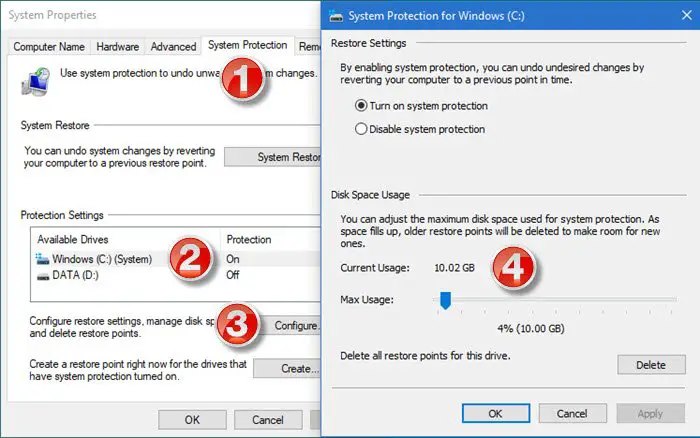
You can reduce the space allotted for System Restore points.
7] Disable Reserved Storage and re-enable it
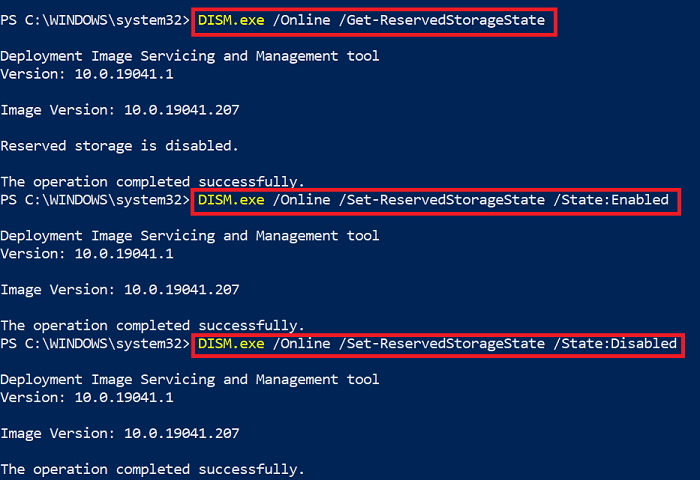
If the issue is not fixed yet, the last option we have is to disable Reserved Storage on your Windows PC and re-enable it. Open PowerShell as an administrator on your PC and use the following command to disable Reserved Storage.
DISM.exe /Online /Set-ReservedStorageState /State:Disabled
Restart your PC after the command runs successfully, then reopen PowerShell as an administrator and use the following command to enable Reserved Storage.
DISM.exe /Online /Set-ReservedStorageState /State:Enabled
This would fix the issue with “System & reserved” taking up a lot of space on your PC.
Read: This operation is not supported when reserved storage is in use
Is it okay to disable Reserved Storage?
You can disable Reserved Storage on your Windows PC, but it is not recommended to leave it disabled. Disabling Reserved Storage on a Windows PC makes it harder for Windows updates to install; you may see recurring errors, unstable performance, and other issues. If you have any issues with Reserved Storage, you can just disable it and re-enable it.
Read: System Reserved Partition or EFI System Partition on wrong drive.
