
A new SSD or a larger hard drive makes a PC faster. They come in handy when we want to improve a PC’s performance and storage. Cloning a hard drive or SSD lets us carry over the data and contents to the new one without losing any paths or hierarchy. Generally, it must make a PC faster. The speed of a hard drive or SSD depends on its technical capabilities. If you have cloned a hard drive or SSD and are experiencing it performing very slowly on your Windows 11, this guide is for you. We have some methods for fixing the issue.
Cloned hard drive or SSD is very slow on Windows 11
If you clone your hard drive or SSD to a new one for better performance but don’t get the intended performance on Windows 11, these methods will help you fix it.
- Update the Manufacturer’s Drive Utility
- Enable Writing Cache
- Enable AHCI mode
- Enable TRIM for SSD
- Clone the disk again properly
Let’s get into the details of each method and fix the slow-performing HDD or SSD on your Windows PC.
1] Update the Manufacturer’s Drive Utility
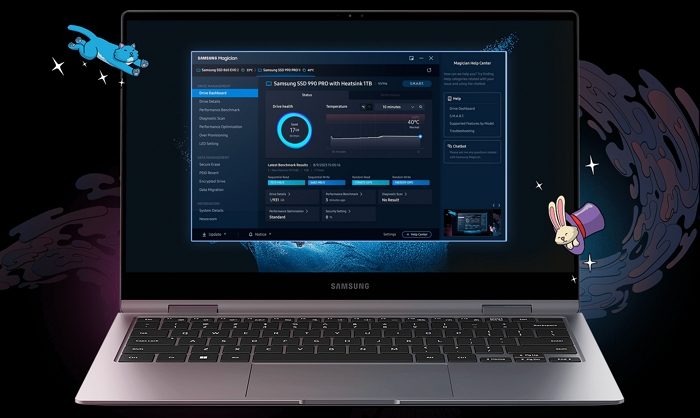
Every major manufacturer of storage devices provides software to update, manage, and optimize the performance of the drives they sell.
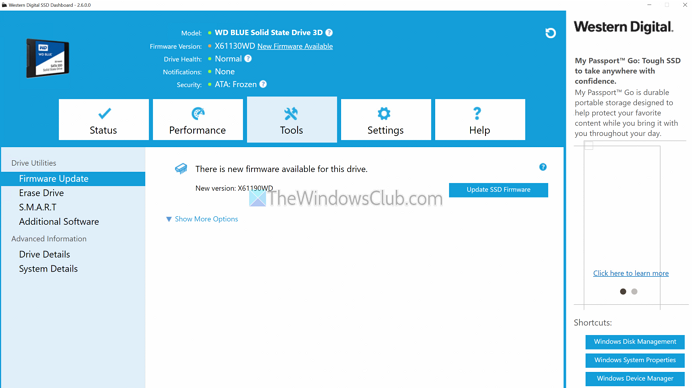
They help us update SSD firmware and ensure they never fall behind in performance. Download and install the latest software from your drive manufacturer’s official website and connect your drive. The software will automatically detect it and suggest fixes if any issues are found. Similarly, it will suggest updating the SSD’s firmware. These updates make a big difference in performance.
2] Enable Write Caching
Write caching on your newly cloned disk or SSD might not be enabled by default. Writing Cache features improve the drive’s performance by using the RAM to write the data. To enable write caching on your drive in Windows 11, open the Device Manager from the Start menu. Expand Disk drives. Right-click on the drive you are having issues with and select Properties.
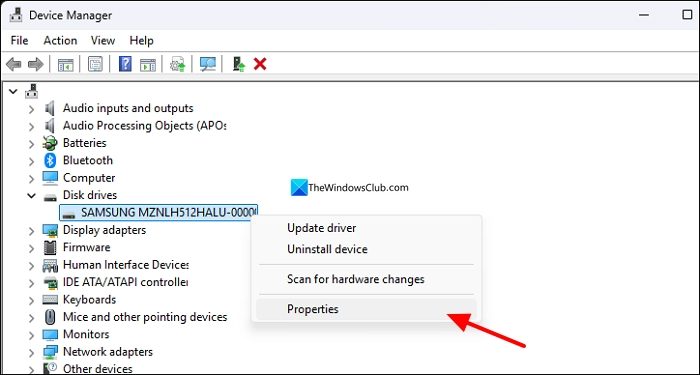
On the Properties window that opens, click the Policies tab. Check the button beside Enable write caching on the device and click OK to save the changes.
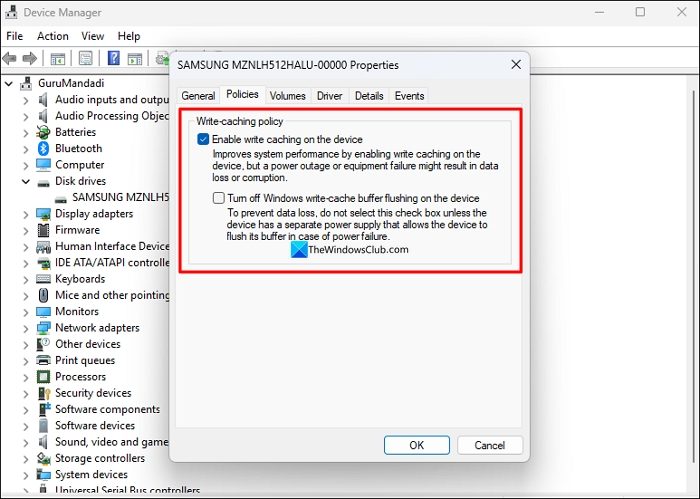
Your hard drive or SSD will perform a lot better now.
3] Enable AHCI mode
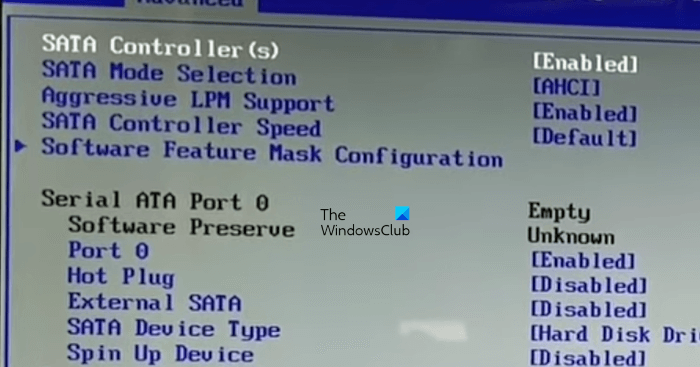
If your Windows PC is old and you are using the latest SSD, the performance will be disappointing. The performance suffers even if you haven’t cloned the disk. IDE mode is solely responsible for this. You need to enable AHCI mode to improve your SSD’s performance. You can enable AHCI after entering the Boot options via Safe mode. Boot your Windows PC into Safe mode. Restart your PC and enter Boot mode by pressing the F2/DEL button on your keyboard. The key may differ by manufacturer. Then, under the Storage configuration options, change SATA mode to AHCI and save changes. Now, boot into Windows, exit safe mode, and restart your PC. You can even enable AHCI using the Registry Editor.
4] Enable TRIM for SSD
The TRIM feature on SSDs improves their performance by making it easy to write data. Without the TRIM feature, the drive has to delete data from the blocks and rewrite them with new data. The TRIM feature clears those blocks to store. When you want to store new data, the SSD writes it directly instead of clearing the existing data and rewriting it. Check if the TRIM feature is enabled on your drive using the Command Prompt. Open Command Prompt as an administrator, enter the following command, and press Enter.
fsutil behavior query DisableDeleteNotify
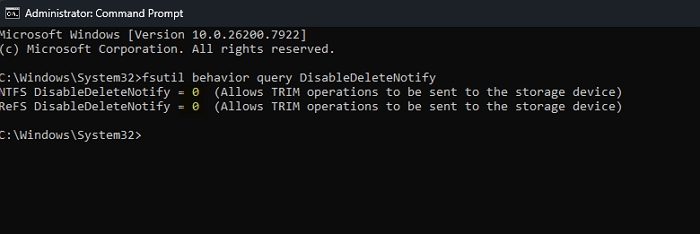
If it shows 0, TRIM is enabled on your drive. If you do not see the value as 0, enable TRIM for SSD on Windows, using the following command on the Command Prompt.
fsutil behavior set DisableDeleteNotify 0
It will enable TRIM on your drive and improve the performance.
5] Clone the disk again properly
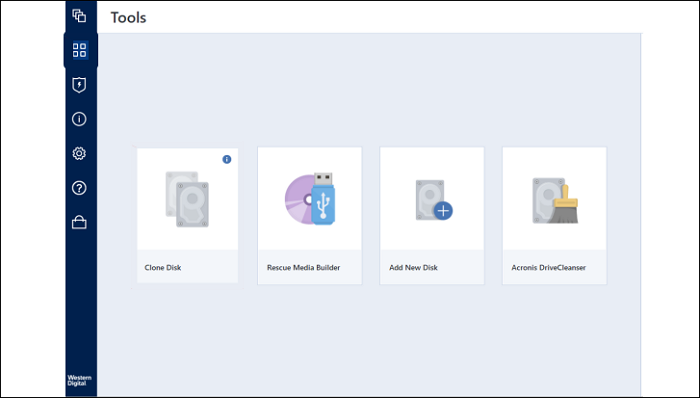
If the issue is not yet fixed, it should be due to the cloning itself. If you have not deleted the data and discarded the old drive, clone the drive again using a professional drive cloning software. Even the drive management software provided by major storage device manufacturers provides tools to clone drives without losing data. Use them and clone the drive properly.
Read: Cloned SSD or Hard Disk won’t boot Windows 11
Does cloning an SSD affect performance?
No, cloning does not affect SSD performance, provided the process is done properly with the right tools. The best way to clone is to use the official software provided by your SSD’s manufacturer. They make sure the entire data is transferred to the new SSD without losing any hierarchy and that it performs within the specified range on your PC.
What happens if I replace my SSD without cloning?
If you replace your SSD without cloning, you will not be able to access your data. If your Windows is installed on that drive, you cannot use your PC after replacing it. You need to at least install Windows 11 on the new SSD before replacing the SSD in your PC.
Read: SSD Optimization Tips for better performance on Windows PC
