
PC constantly playing USB device Connected/Disconnected sound? USB notification noises can be distracting, especially if they occur randomly. If you are facing this issue, this post shows you how to stop the random noises or sounds you hear when you connect or disconnect a USB device.
PC constantly playing USB device Connected Disconnected sound
This issue can occur if:
- A USB device or cable is loose or faulty, causing rapid reconnections.
- Outdated or conflicting USB/chipset drivers can cause Windows to misdetect devices.
- Power management settings (like USB selective suspend) repeatedly turn ports on/off.
- A failing USB hub or port hardware triggers constant connect/disconnect cycles.
- BIOS or firmware issues can cause unstable USB detection until updated.
USB Connect Disconnect sound repeating in Windows 11
Follow the suggestions to stop random USB connection or disconnection sounds:
- Reattach all the USB devices
- Manage drivers and devices
- Use USBDeview
- Turn off USB Notification Sounds
- Update BIOS.
Let us read about them in detail.
Stop random USB connection or disconnection sounds
1] Reattach all the USB devices
The first and foremost thing you should do to stop random USB connection or disconnection sounds is to remove all USB devices, then reconnect them. You should remove them one by one and check whether the sound stops as you remove each device.
You should also try swapping device ports, as this way you will know whether the port is faulty or the device. If you can find a malfunctioning port, connect the device to a different one.
However, if you conclude that a device is faulty, reattach it to see if you can fix the issue, as it will reinstall the driver as well.
If you are not able to find any significant information, then you can move on to the latter solutions.
Read: USB tethering not working.
2] Manage drivers and devices
One of the main culprits of random USB noises is an outdated or corrupted driver. Therefore, in order to stop random USB connection or disconnection sounds we need to fix the issue.
To do that, launch Device Manager by either Win + X > Device Manager or just search it out from the Start Menu.
Now, expand all sections that use your computer’s USB port, such as Bluetooth and Universal Serial Bus controllers. Now, check whether a device disappears and reappears when your computer makes a USB connection or disconnection noise.
If you find a fluctuating device, right-click on it and select “Update driver”.
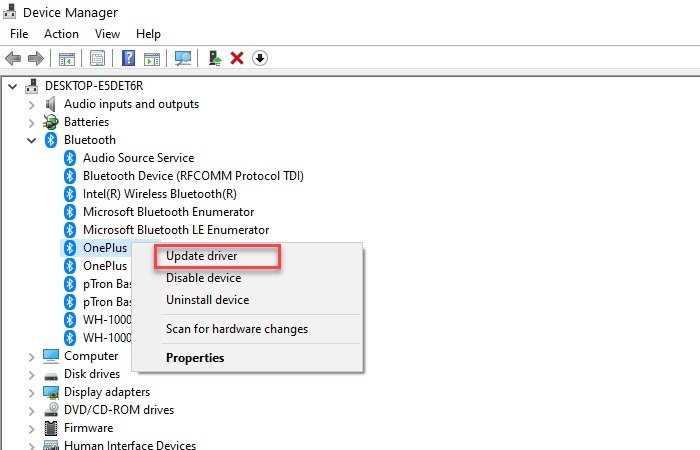
Now, either select “Search automatically for updated driver software” and let it search the web to see if an update is available or select “Browse my computer for driver software” if you have manually downloaded the update. After updating the driver, restart your computer once.
If you aren’t able to update the driver because it is constantly disappearing just click View > Show hidden devices.
If the update didn’t fix the issue then try uninstalling it. To do that just right-click on it and select “Uninstall device”. There is no need to worry here, as next time when you insert that device your computer will automatically install the driver.
Another thing you can do is to update the “Host Controller”. To do that, expand Universal Serial Bus controllers, right-click on all the devices that have “Host Controller” in their names, and select Uninstall device. Now, confirm the process by clicking Uninstall. Finally, reboot your PC.
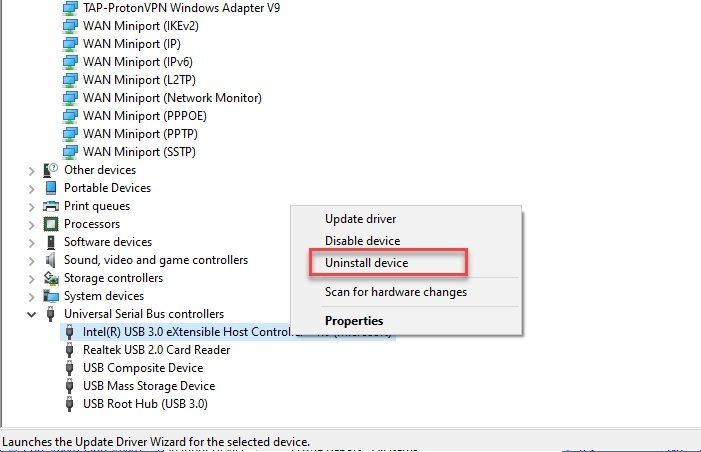
To reinstall the driver, right-click on Universal Serial Bus controllers and select Scan for hardware changes. This will search your computer to notice any missing driver and then install it via the internet.
Read: USB-C not working or charging.
3] Use USBDeview
If you think that the whole updating and uninstalling driver method from the Device Manager is not your cup of tea then we have a simpler solution for you. You can use USBDeview a third-party application to do the same thing.
Install, keep the app running in the background and wait for that USB connection or disconnection sound. When you hear that sound again, open the app, right-click on the first device from the list, and select Uninstall Selected Devices.
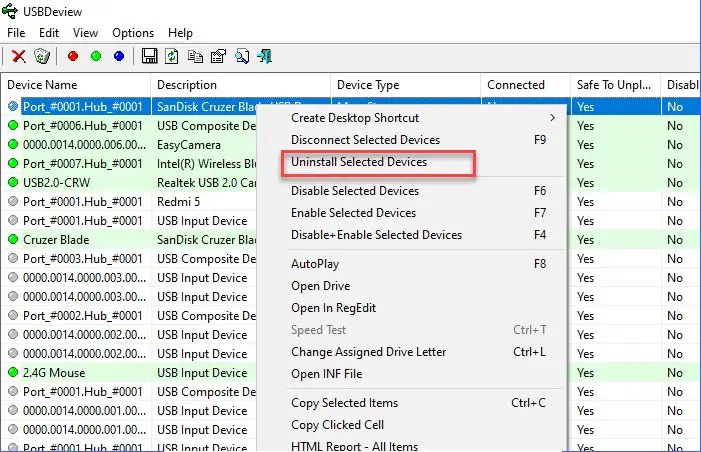
After this, detach and attach the device to reinstall the driver. Finally, restart your computer to stop random USB connection or disconnection sounds.
4] Turn off USB Notification Sounds
If the above methods didn’t stop random USB connection or disconnection sounds, then there is nothing to worry about. This means that the noise is not coming from corrupt drivers, malfunctioning ports, or devices. It is coming because of minor driver clashes.
To fix that you need to turn off USB notification sounds. To do that, right-click on the Sound icon from the taskbar > Open Sound settings > Sound Control Panel. Now, go to the Sounds tab, in the Program Events list scroll down a bit, select “Device Connect”, set “Sounds” to None.
Now, do the same for the Device Disconnect option.
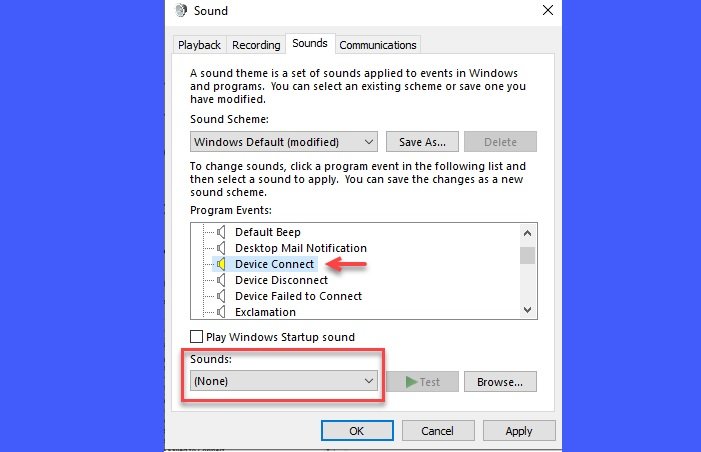
The only caveat is that you won’t be able to hear any sound while connecting a device.
5] Update BIOS
You should update the BIOS/UEFI firmware and see if that helps you.
We have mentioned all the possible fixes in this article; hopefully, these have helped you to stop random USB connection or disconnection sounds.
I hope this helps.
Read: USB keep disconnecting and reconnecting
To stop random USB connection or disconnection sounds, one needs to ensure that the devices are properly connected, the ports are not malfunctioning, and the drivers are not corrupted.
Something keeps connecting and disconnecting in Windows 11
If something keeps connecting and disconnecting in Windows 11, first unplug all USB devices and reconnect them one by one to find the culprit. Then update your USB and chipset drivers through Device Manager or your motherboard’s support page. You should also disable USB selective suspend in Power Options to stop ports from powering down automatically and see if that works. If the issue persists, test different cables or ports to rule out hardware faults. You should also check Event Viewer logs or update your BIOS/firmware to fix deeper system-level USB detection problems
How do I stop my computer from disconnecting USB?
If USB keeps disconnecting and reconnecting on your Windows 11/10 computer, the problem might be due to a USB driver issue. Updating or reinstalling the USB driver can fix this issue. You can also run the Hardware and Devices Troubleshooter to resolve this issue.
How do I stop USB malfunction in Windows 11?
Windows 11/10 displays the “USB Device Not Recognized, The last USB device you connected to this computer malfunctioned” error message in different circumstances, like your USB drivers are corrupted, your USB device is damaged, etc. To fix this issue, try uninstalling and reinstalling the USB drivers, running the appropriate troubleshooters, etc.
