
Some users cannot format their USB flash drive to the FAT32 file system due to the “The volume size is too small for the selected file system” error in Disk Management on a Windows 11 computer. If you encounter the same error while formatting a partition, use the fixes provided in this article.
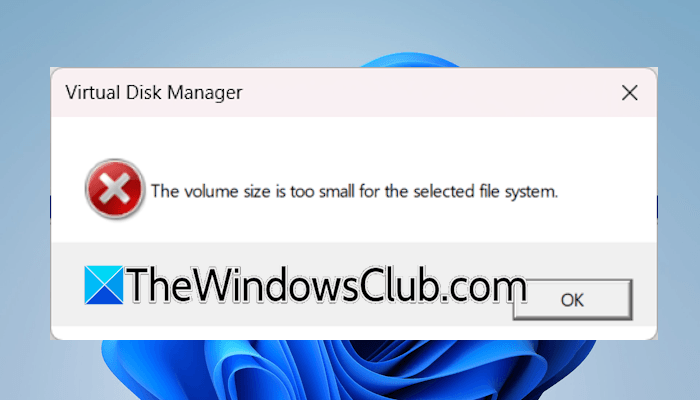
The volume size is too small for the selected file system
Use the following fixes to resolve the “The volume size is too small for the selected file system” error while formatting a USB flash drive in Windows 11:
- Delete the volume on your USB flash drive
- Use Diskpart
- Use a third-party tool
This guide explains all these fixes in detail below. Back up all data from the USB flash drive before proceeding.
1] Delete the volume on your USB flash drive
This error occurs while formatting a USB flash drive to the FAT32 file system. A FAT32 file system on a USB flash drive is usually required to recover the BIOS. Try this workaround to see if it helps. First, delete the volume on your USB flash drive. After that, create a new simple volume with the FAT32 file system.
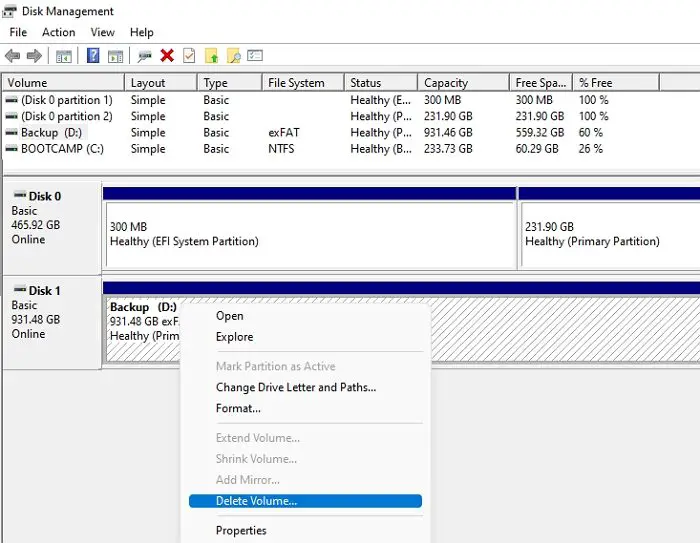
Follow these steps:
- Launch Disk Management.
- Right-click on your USB flash drive and select Delete volume.
- Click Yes in the confirmation box. After completion, you will see an Unallocated space on your USB flash drive, and it will not be displayed in File Explorer.
Now, follow these steps:
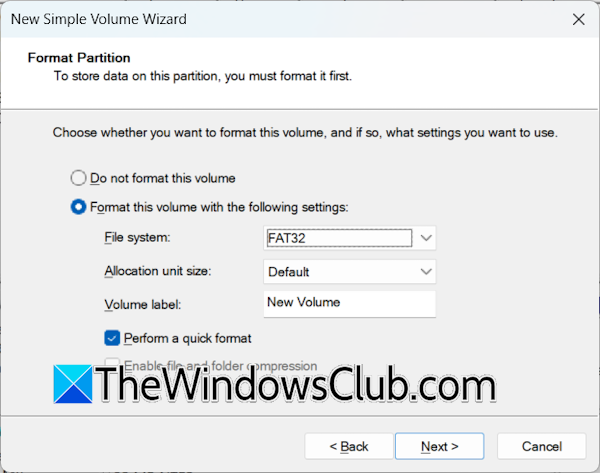
- Right-click on the Unallocated space and click New Simple Volume.
- The New Simple Volume Wizard will appear. Click Next.
- On the next screen, you will see the maximum disk space in MB. If you want to create a partition on your USB flash drive, fill the required value in the Simple volume size field. Otherwise, leave it as it is. Click Next.
- Select a drive letter and click Next.
- Now, select the Format this volume option and select FAT32 as the File System.
- Click Next and then click Finish. Disk Management will create a healthy RAW partition on your USB flash drive.
- Now, open File Explorer and double-click on the USB flash drive to open it. Windows will ask you to format that USB flash drive.
- Click Format disk.
- Select FAT32 as File System and click Start. Click OK in the confirmation box.
2] Use Diskpart
If the error persists, you can use the Diskpart command-line utility to clean the USB flash drive. The Clean command in Diskpart deletes all the partitions from the selected disk. Use this command and see if it works. Click on Windows Search and type diskpart. Select Diskpart from the search results
In the Diskpart command-line utility, run the following commands one by one. Press Enter after typing each command.
list disk

select disk #
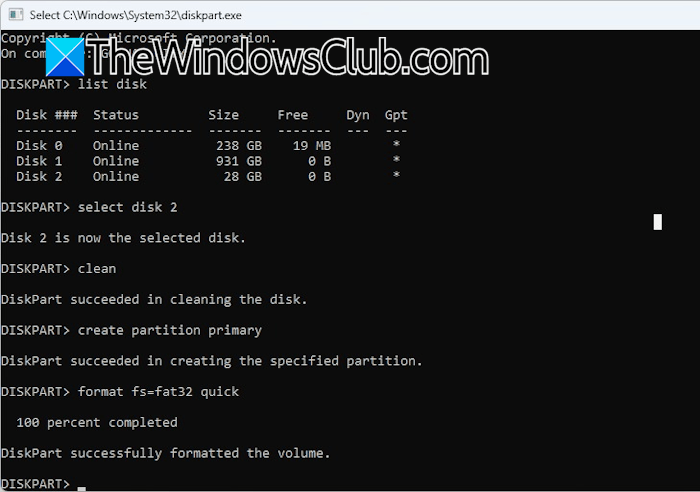
In the above command, replace # with the correct disk number. In your case, it is your USB flash drive. Selecting the wrong disk number will permanently delete important data. Therefore, be careful while selecting the disk. Now, type the following command and hit Enter.
clean
Next, create a partition on the USB flash drive. Use the following commands:
create partition primary

format fs=fat32 quick
Diskpart will automatically assign the drive letter to your USB flash drive after formatting it. If this does not happen, run the following command to assign a drive letter.
assign letter=E
Replace E with the drive letter you want to assign.
3] Use a third-party tool
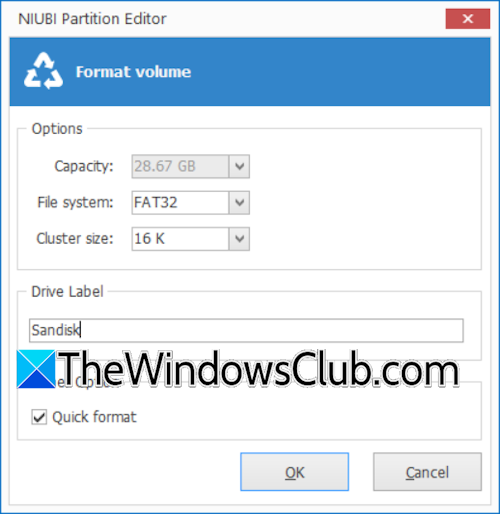
If the error persists, you can use a third-party tool, such as NIUBI Partition Editor. Download and install the tool. Launch it and connect the USB flash drive to your system. If it does not show the connected USB drive, click Refresh. Now, right-click on the USB flash drive and select Format Volume. A new wizard will appear. Select FAT32 in the File system drop-down and select the Quick format checkbox. If you want to assign a name to your USB flash drive, type it in the Drive label field. When you are done, click OK. When the action is completed, click Apply and click OK to confirm.
That’s it. I hope this helps.
How to put files over 4 GB on FAT32?
The maximum limit to store a single file on a storage device with the FAT32 file system is 4 GB. This means you can’t store any file larger than 4 GB on a storage device formatted with FAT32. So, you cannot put files over 4 GB on FAT32. If you do, you need to change the file system to NTFS or exFAT. Backup all your data, then format the storage device to NTFS or exFAT.
How do I format a disk to FAT32 using Diskpart?
To format a disk to FAT32 using Diskpart, first run the list disk command to view all the disks on your system. Then select the required disk using the command select disk #. Here, # represents the disk number. Now, type format fs=fat32 quick. Diskpart will then format the selected disk to the FAT32 file system.
Read next: Shrink volume is greyed out in Windows.
