
A lot of AMD users have complained that Ryzen Master won’t work on their system. The app typically displays the following error message whenever the utility is invoked.
Ryzen Master Driver not installed properly.
Driver Not installed!
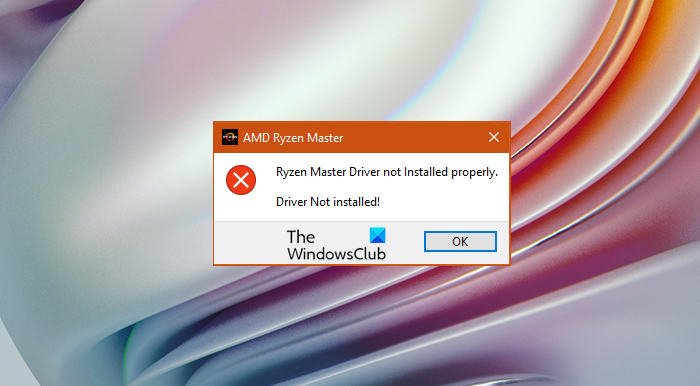
Doesn’t matter how annoying the error is; it can be fixed, just like any other error. In this article, we will show you how to resolve the issue and get the app working. So, if Ryzen Master Driver is not installed properly check out the solutions mentioned hereinafter.
Ryzen Master Driver not installed properly on Windows PC
If you are seeing the “Ryzen Master Driver not installed properly” error message then these are the things you can do.
- Change Registry value
- Reinstall AMD Ryzen Master
- Troubleshoot in Clean Boot
Let us talk about them in detail.
1] Change Registry value
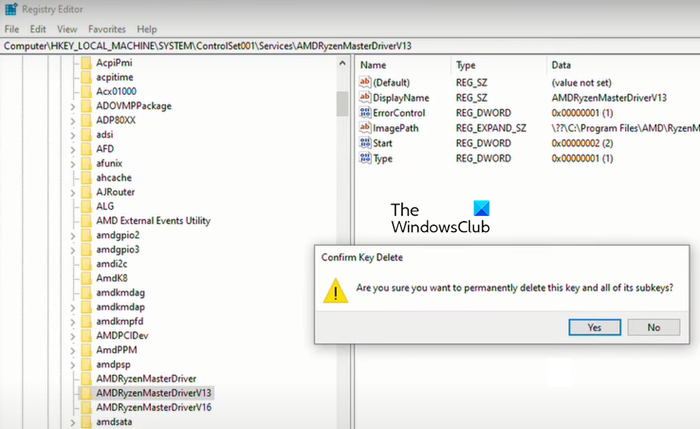
First, we need to open the Registry Editor. This has worked for many users and should do the trick for you as well. Open Registry Editor by searching for it in the Start Menu. Navigate to the following location.
Computer\HKEY_LOCAL_MACHINE\SYSTEM\ControlSet001\Services\
Look for the AMDRyzenMasterDriverV13 folder, right-click on it and select Delete. You will be asked to confirm your actions, click Yes when prompted.
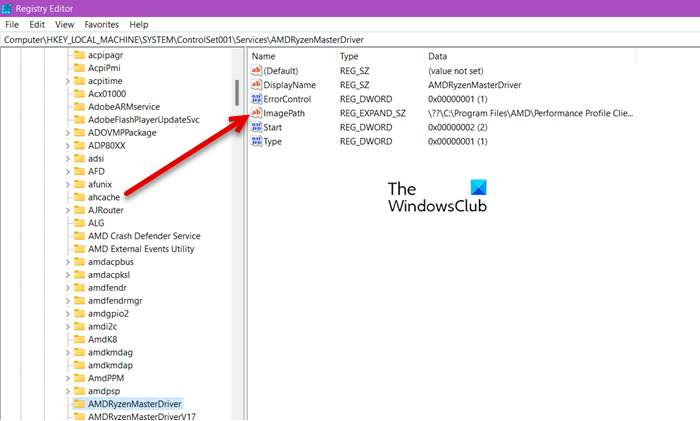
If you can’t find the AMDRyzenMasterDriverV13 folder, then go to the following location.
Computer\HKEY_LOCAL_MACHINE\SYSTEM\ControlSet001\Services\AMDRyzenMasterDriver
Double-click on ImagePath, remove “\??\” that is written before C:\Program Files, and click Ok.
Finally, restart your computer and check if the issue persists.
2] Reinstall AMD Ryzen Master
If changing the registry doesn’t work, then try reinstalling AMD Ryzen Master software. This is especially useful when the installation file was corrupted, as we are going to uninstall the program, you may lose some alterations that you have made in the utility. If you are all set to replace the corrupted file with a new one, follow the prescribed steps to uninstall the program.
- Open Settings.
- Go to Apps.
- Look for AMD Ryzen Master.
- For Windows 11: Click on the three vertical dots and click Uninstall.
- For Windows 10: Select the app and click Uninstall.
After uninstalling the utility, you should restart the system. Then go to amd.com, download the latest version of the program and install it on your system. Hopefully, this will resolve the issue for you.
3] Troubleshoot in Clean Boot
There are a ton of apps that can interfere with your program. Software like MSI Afterburner and Fan Control tools is notorious for causing some apps and games to crash. However, we can not straightway delete an app based on speculation, you need to perform Clean Boot, find out the culprit and then remove it. This will fix the issue for you.
Hopefully, this guide has helped you in fixing your problem.
Do I need Ryzen Master installed?
Ryzen Master is more of a “want” than a “need”. It can help you adjust the system to suit your needs, but it is not mandatory. If your concern is how to update the drivers, you should know there are various methods to do so. Install Optional Updates , use AMD Driver Autodetect or just go to the manufacturer’s website and download the latest version of the driver for your system.
Can I delete AMD Ryzen Master?
Yes, AMD Ryzen Master can be deleted; there are going to be no consequences as such. If you are comfortable with the alternatives, and if Ryzen Master is giving you trouble, you can uninstall the program. You can do so via the Settings app or the Control Panel.
