
With applications becoming increasingly hardware-intensive these days, computer crashes and slowdowns occur frequently. To deal with all these issues and monitor hardware resources Windows comes with a great built-in tool called ‘Resource Monitor’.
If you have been using Resource Monitor then you might know the features it offers and how it can help you efficiently monitor hardware resources of your computer. However, some users have reported issues with Resource Monitor. If Resmon or Resource Monitor is not working on your Windows 11/10 computer, this post will help you resolve the issue. You may find that the Resource Monitor is not responding or that its window is empty, blank or transparent.
Resource Monitor not working in Windows 11/10
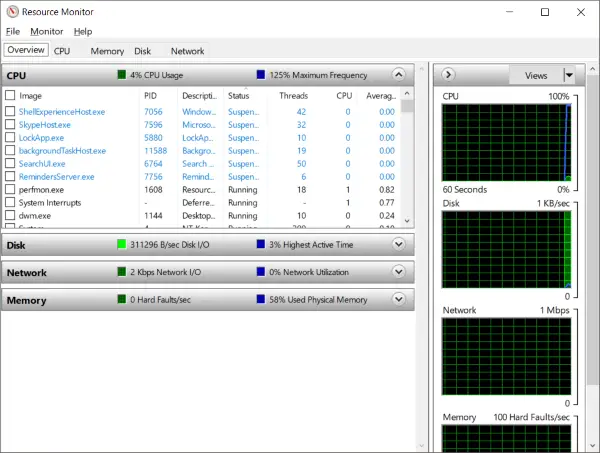
1] Run resmon.exe
If you have discovered that you are unable to access Resource Monitor on your computer, the first step towards fixing it will be to run Resource Monitor manually. Hit ‘Win + R’ and type in ‘resmon.exe’ to start Resource Monitor. Alternatively, you can navigate to ‘C:\Windows\System32’ and find an executable called ‘resmon.exe’. Click on it.
2] Switch back to default Windows theme
If that did not work out for you, if you are on another theme, switch back to the default Windows theme and see. If this resolves your issue, you may need to switch back to your original theme every time you want to use Resource Monitor.
3] Change DPI settings
The next step in the list is changing your DPI settings. Right-click on the desktop and select ‘Display Settings’.
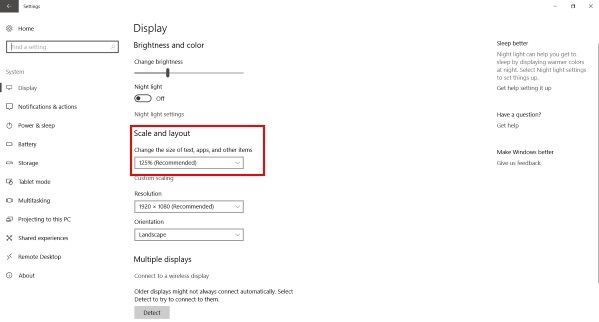
Under ‘Scale and Layout’ settings try to adjust the percentage and check if the problem with Resource Monitor has resolved or not.
4] Check in Clean Boot State
If you are still stuck with this problem. You might need to troubleshoot the problem in Clean Boot State. Clean Boot is a system state when Windows is loaded with a minimal set of drivers and services. If you can run Resource Monitor in this state, it means that a service or driver is interfering with the Resource Monitor.
5] Create a new User Account
If nothing helps, try creating a new local administrator account on your Windows and check if Resource Monitor is working on the new user account. If it is, then there is a chance that the problem was with your user account profile. Backup your data, delete the existing account and log in to this new user account using your Microsoft credentials.
6] Remove a recent Windows Update
If you have recently discovered this problem with your computer and if you suspect that the problem has emerged after a recent update then you might want to uninstall recent updates from your computer.
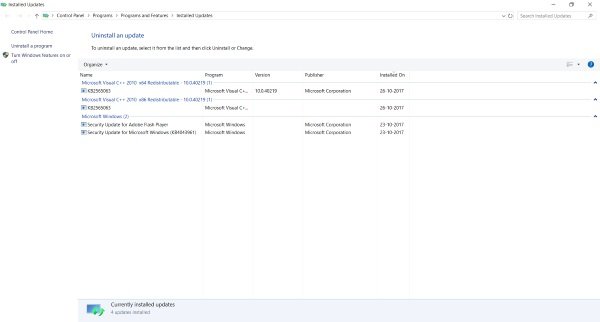
Open ‘Settings’ and then go to ‘Update and Security’. In this section click on ‘View installed update history’. Now hit ‘Uninstall Update’ and it will open a list of recent updates that can be uninstalled. Try uninstalling recent updates and check Resource Monitor.
7] Run System File Checker
Now it is finally time to check if your copy of Windows has some files corrupted or not. Windows come with a built-in tool called ‘System File Checker’ that can scan your system for any corrupt files and also repair them. Run it and see if that helps.
8] Run DISM Tool
In case SFC was not able to fix corruption on your system, you can try DISM to repair the Windows image file. Start an elevated Command Prompt window, and execute the following command:
DISM /Online /Cleanup-Image /CheckHealth
These are some of the steps that might help you repair the Resource Monitor on Windows 11/10.
How do I get to the Resource Monitor in Windows 11?
The simplest way to get to the Resource Monitor in Windows 11 is by using the Taskbar search box. That said, you can click on the search icon and type resource monitor. Then, find the search result and click on it to open the Resource Monitor utility.
How do I manually open the Resource Monitor in Windows?
To manually open the Resource Monitor on Windows PC, you can go through the steps mentioned above. That said, you can use the Taskbar search box to open Resource Monitor. No matter whether you use Windows 11, Windows 10, or any other version of Windows, the process remains the same for all of them.
