
The Recycle Bin icon in Windows automatically displays different icons when it is full and when it is empty. If you find that your Recycle Bin in Windows does not refresh but shows the same icon, irrespective of whether it is empty or full, here are some troubleshooting steps you can try. Hopefully, one of these should help you.
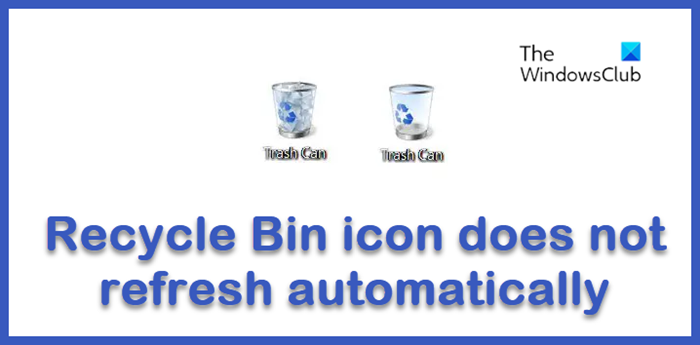
Recycle Bin icon does not refresh automatically in Windows 11
If your Recycle Bin icon does not refresh automatically in Windows 11/10, then here are a few things you could try:
- Remove Theme or an Icon Package
- Restore Recycle Bin Defaults
- Set the icons again
- Check Group Policy setting
- Rebuild the Icon Cache
- Reset Recycle Bin.
1] Remove Theme or an Icon Package
Check whether you have installed any third-party Theme or icon package, and see if uninstalling it resolves the problem. If so, then the problem is in the Theme or Package. Also, try switching the theme to Windows Classic, then back to Windows Aero default.
2] Restore Recycle Bin Defaults
Right-click Desktop > Personalize > Change desktop icons > Disable / Uncheck Recycle Bin. Then click Restore Defaults. Click OK. Reboot. Now, using the same method, Enable /Check Recycle Bin, then restore defaults. Click OK. Refresh Desktop. See if it helps.
3] Set the icons again
In the ‘Desktop Icons settings’ Dialog Box, check on Recycle Bin and click on the ‘Recycle Bin Empty’ icon. Click on ‘Change Icon’ tab.
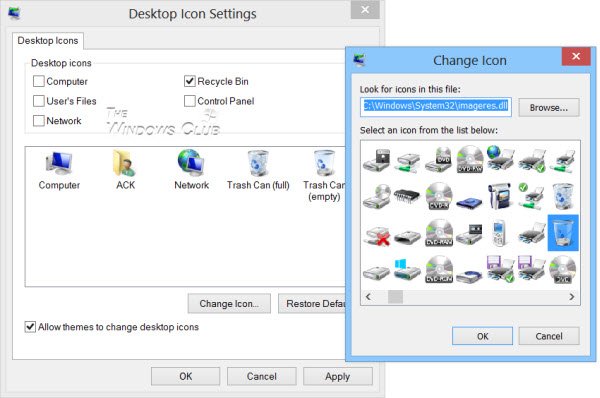
From the new box that opens, select the icon labeled ‘Recycle Bin Full’. Do the same for ‘Recycle Bin Full’ icon. Change it to ‘Recycle Bin Empty’ icon.
In short, you are interchanging the icons.
Now click Apply and check whether, when the Recycle Bin is full, the empty icon shows and vice versa.
If it does help, go back and again change back the icons, to what they should be, using the same procedure, mentioned above.
Read: Deleted files not showing in Recycle Bin.
4] Check Group Policy setting
Use the Group Policy Object Editor. Run gpedit.msc to open the Group Policy Editor. Navigate to User Configuration > Administrative Templates > Desktop > Remove Recycle Bin icon from desktop > Double-click on it > Enable > Apply Reboot.
Next, follow the same above-mentioned steps. But this time instead of ‘Enable’ select ‘Not Configured. See if it helps.
5] Rebuild the Icon Cache
Repair or Rebuild the Icon Cache. For this, the easiest way would be to download and use our Icon Cache ReBuilder.
6] Reset Recycle Bin
Check this if you think your Recycle Bin is corrupted.
This post will interest you if you find that your Windows Desktop does not refresh automatically.
Now read: Recycle Bin tricks.
