
We can restore our PC using the bootable recovery options. With just a bootable recovery USB drive, we can fix many issues by recovering the Windows PC. It comes in handy when we face issues with Windows, such as corrupted components or unstable performance, by reinstalling or repairing Windows. It all can be done using the “Recover from a drive” option. When you find the “Recover from a drive” is not showing or working in Windows 11, follow this guide to fix it.
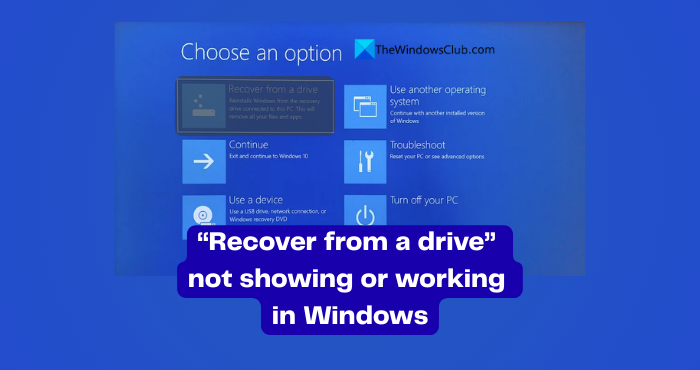
Recover from a drive not showing or working in Windows 11
If you are unable to use the “Recover from a drive” option in Advanced recovery options and fix issues on your Windows PC, the following methods will help you fix the issue and recover your PC.
- Properly create the bootable USB drive
- Boot using the USB drive directly
- Run SFC and DISM scans
- Ensure proper BIOS/UEFI boot mode
- Disable and re-enable WinRe
Let’s get into the details of each method and fix the issue.
1] Properly create the bootable USB drive
If there are any issues with the bootable USB drive, “Recover from a drive” won’t work because the USB drive is unrecognizable or unreadable. The best way to make it work is to create a bootable Windows 11 USB drive. Creating a bootable USB drive in Windows 11 is extremely convenient with the Windows Media Creation Tool. All you need is a USB drive with more than 8GB of space.
Download the Windows 11 Media Creation Tool from Microsoft. Then run the downloaded tool on your PC, connect the USB drive, and use it to download Windows 11 and create a bootable drive.
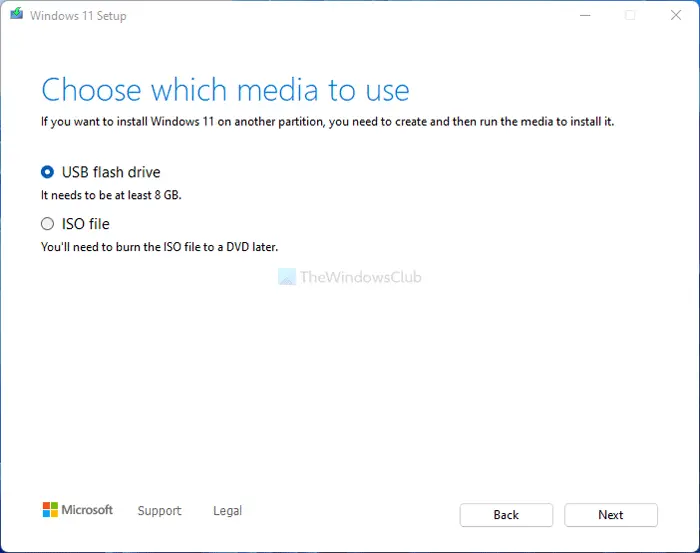
You can also create a bootable USB drive with the Rufus tool properly without any issues.
2] Boot using the USB drive directly
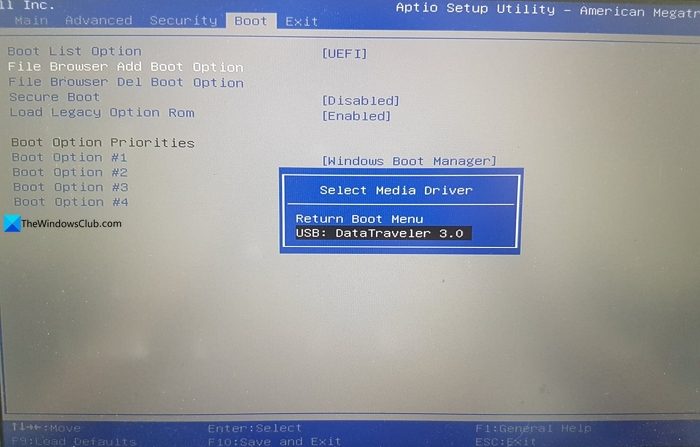
If you are looking to repair or reinstall Windows 11 using the bootable drive to fix issues, you can just boot directly from it. This way, you avoid the Windows Recovery Environment entirely and go directly to the installation part. The flip side of this approach is that all the data on your C drive might be lost. The programs you have installed previously will be lost. You will start afresh, and all the issues you were facing on your PC with Windows 11 earlier will be fixed. Restart your PC, then press the F12/DEL key on your manufacturer’s logo screen to enter Boot options. Then, select the USB drive to boot with.
3] Run SFC and DISM scans
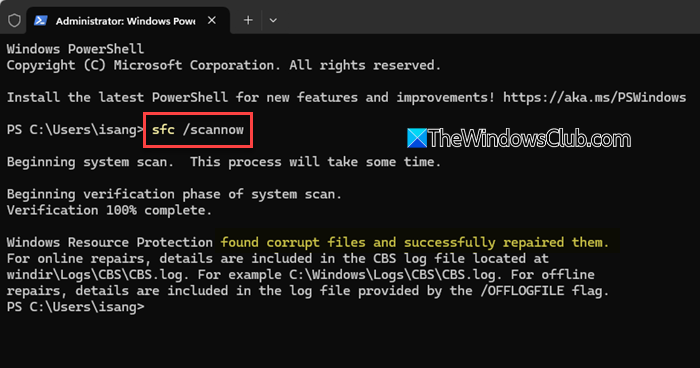
There might be corruptions in the system or with the Windows image on your PC that is messing with the Windows Recovery Environment, thereby making “Recover from a drive” unusable. You can run SFC and DISM scans and fix those issues easily. Open an elevated Command Prompt on your PC and run an SFC scan, and then DISM scans, one after another. It will take a few minutes, but they will find and fix the issues.
4] Ensure proper BIOS boot mode
If the issue is not yet fixed, ensure the Boot mode is set to UEFI. If the boot mode is set to Legacy, you may see issues with the bootable USB drive, as it fails to appear in the boot menu. Restart your PC, then press F12/DEL/Esc or a key your PC manufacturer supports to enter the boot options. Then, go to Advanced options in the Boot menu and select Launch Storage OpROM policy. Select UEFI first and save changes.
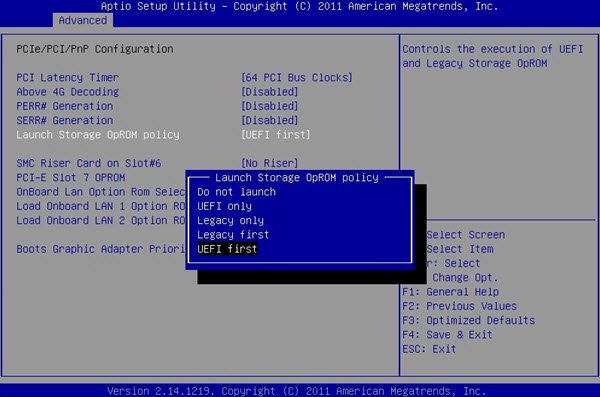
The jargon and options may vary by manufacturer. Carefully, thread the path and select UEFI.
5] Disable and re-enable WinRe
If you are still facing issues with “Recover from a drive”, you need to disable the Windows Recovery Environment (WinRe) altogether and re-enable it to fix any issues that temporarily occur with it. Open Command Prompt as an administrator on your PC and enter the following command and press Enter.
reagentc /disable
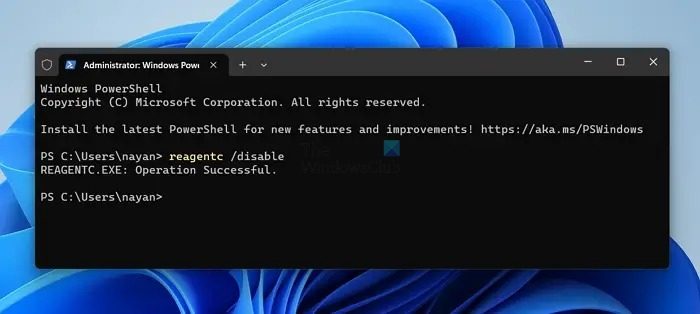
It will disable the WinRe on your PC. Restart your PC and then open Command Prompt as an administrator again. Enter the following command and press Enter to re-enable the Windows Recovery Environment.
reagentc /enable
You should now be able to use the “Recover from a drive” henceforth.
Read: Reset Windows 11 using Advanced Startup Options when PC won’t boot
How to fix Windows recovery not working?
If Windows recovery options are not working, you can boot from a bootable USB drive while restarting your PC, perform a clean install of Windows 11, and fix all issues with the previous installation. This is the simplest way to fix Windows even when the recovery options are not working.
How to start a PC from a recovery drive?
To start a PC from a recovery drive, shut down your PC and restart it. Press and hold the power button on your PC while it starts. Repeat this twice or thrice to enter the WinRE environment. Then, you can connect the bootable USB drive to recover your PC using the Advanced Startup Options.
Read: How to recover files when a Windows computer won’t boot.
