
Compared to BIOS, Unified Extensible Firmware Interface (UEFI) makes the computer extra secure. If your laptop supports UEFI, you should use it. However, the legacy BIOS is still useful at times. An example – if you’re booting from a network that only supports BIOS, you’ll need to boot to legacy BIOS mode. The same can happen for UEFI. In this guide, we will share how to choose UEFI or Legacy BIOS when booting into Windows Setup or Windows PE. For your information, Windows PE is used to install, deploy, and repair Windows 11and Windows 10 (all versions).
Choose UEFI or Legacy BIOS when booting into Windows Setup or Windows PE
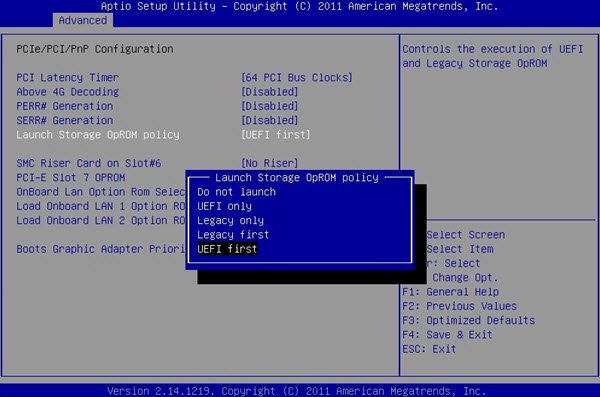
Just before we start, you should know that this post is not about switching firmware modes. If you are planning to move from legacy BIOS to UEFI, you will have to use MBR2GPT Tool.
So if you need to use BIOS mode but your PC is set to UEFI, here is what to do. It is only possible when you have hard drives connected to the system that have both a BIOS: MBR drive and a UEFI: GPT drive.
Note: Some devices only support UEFI or Boot. Others will ask you to disable UEFI security features first to boot from BIOS.
1] Open Firmware Menu:
To enter UEFI or BIOS, press Del, F12 or a similar hotkey. Every OEM have their convention. Sometimes it could be using the Volume up or down button. If this doesn’t work, you can boot into advanced recovery mode. Restart by holding the shift key. It will take you to the recovery menu. Here navigate to-
Troubleshoot > Advanced Options > UEFI Firmware settings.
2] Look for the option which says “Boot to Drive or Network.”
Along with this, you will have the opportunity to choose between UEFI or BIOS. Identify it. If you boot into a network that doesn’t support UEFI, you will have to start over. The menus could look similar to the options as below.
UEFI: USB Drive or BIOS: Network/LAN.
Both of these options use the same device and media but boot the PC in different firmware modes. If you need to disable the UEFI security feature, navigate to Security > Secure Boot and disable it.
How to find the firmware mode
When the installation starts, if the PC is booted to the wrong mode, the Windows installation will fail. To fix this, restart the PC. And choose the right firmware mode.
You can use the command-
reg query HKLM\System\CurrentControlSet\Control /v PEFirmwareType
to find out whether you are in BIOS or UEFI when using Windows PE. If the return value is 0x1, it’s BIOS; if it’s 0x2, it’s UEFI.
How to make sure to always Boot into the RIGHT mode
It is possible to configure it so that during Windows Setup or when using Windows PE, the computer boots only into either UEFI or legacy BIOS. To get this done, we will make some changes to the Setup file. This way, you will not have to choose UEFI or Legacy BIOS every time.
We know that when Windows boots, the boot manager looks for either a bootmgr or EFI folder. To make sure that you boot into right mode, we can remove the files that Windows PE or Windows Setup use to boot into the firmware.
| Phase | BIOS | UEFI |
| Windows Boot Manager | %SystemDrive%\bootmgr | \EFI\Microsoft\Boot\bootmgfw.efi |
Boot only in UEFI mode
To boot only when in UEFI mode, remove the bootmgr file from the root of the Windows PE or Windows Setup media. This will prevent the device from starting in BIOS mode.
Boot only in BIOS mode
In this case, remove the efi folder from the root of the Windows PE or Windows Setup media. This prevents the device from starting in UEFI mode.
It is only useful during machine setup, not afterward.
Related: How to change BIOS mode from Legacy to UEFI in Windows 11.
